


Clipchamp is a good, easy video editor for Windows and browser users. Since it edits audio and video, people ask: Can it extract audio from videos? How to export only audio from Clipchamp?
Have the same doubt? You're in the right place! Just follow our guide to explore how to export audio from Clipchamp with step-by-step instructions and also an alternative way to save MP3 from video.
Captivating and Engaging AI Video Templates to Try:


Also Interested in: A Comprehensive Guide to Clipchamp Templates>>
Part 1. Can I Export Audio from Clipchamp?
Yes. Clipchamp can export your edited video into an audio file.
If you’re processing a video that contains an audio segment, Clipchamp’s Detach Audio function allows you to separate audio from video and automatically download it as an M4A audio file.
To use this feature, import the target video and apply it to the timeline, then right-click the video, select More options and choose the Detach audio option. Clipchamp will instantly extract audio from video for you.
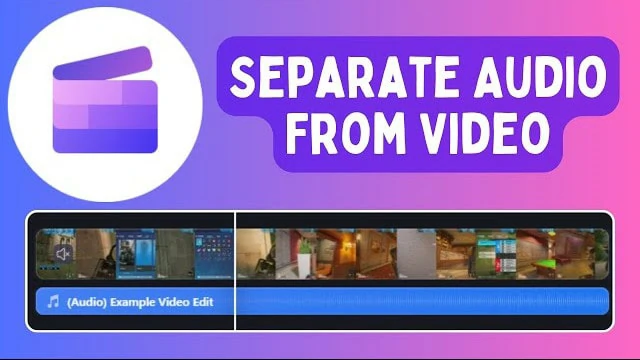
Detach Audio from Video in Clipchamp
While if you want to edit an audio track and then export it as a standalone file, Clipchamp also gets you covered. Tap Export > choose Audio-Only option, and Clipchamp will save the audio from your project as a M4A file.
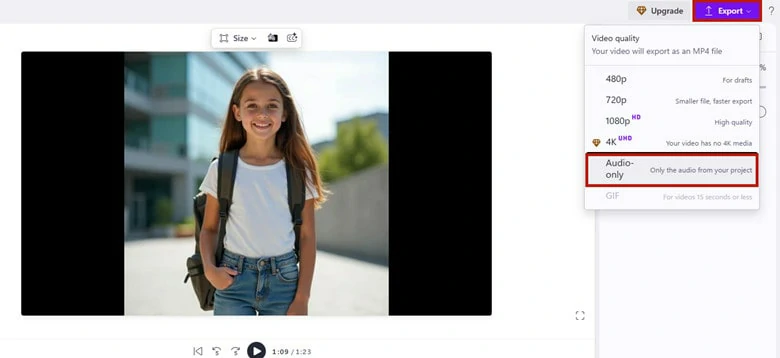
Export Audio Only from Clipchamp with One Click
Even though Clipchamp offers solutions to addressing audio export needs, some users have reported issues as below:
To avoid extra M4A-to-MP3 conversions and enjoy smoother editing, many users are switching to Clipchamp alternatives.
If you find yourself in this situation and are looking for a robust audio editing application, consider the Clipchamp alternative recommended below.
Part 2. Clipchamp Alternative to Export Audio MP3 for Free
FlexClip is an excellent Clipchamp alternative online, allowing you to directly extract audio from video and save it as an MP3 file for free.
Whether you want to detach audio from video or directly export audio as a standalone MP3 file, FlexClip provides a one-click solution.
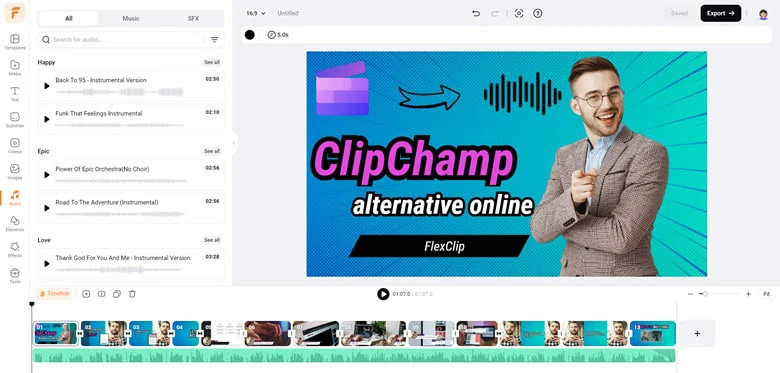
Clipchamp Alternative Online to Export Audio Only for Free

What distinguishes FlexClip is its impressive AI-powered audio editing features, including AI vocal remover, AI noise reducer, AI audio translator and AI music generator. These tools simplify your editing process and enhance your creative experience. Moreover, FlexClip surpasses Clipchamp with its wide range of assets such as templates, transitions, and media resources, as well as effective features like team collaboration, which improves project efficiency and convenience.





To sum up, with FlexClip you can perform the following audio edits:
How to Export Audio from Clipchamp Alternative Online
Now that you're familiarized with FlexClip, let's see how to export audio only using this Clipchamp alternative tool.
1) Extract Audio from Video and Save it as MP3
Want to extract audio from video and save it as MP3? Here is how to do it with FlexClip:
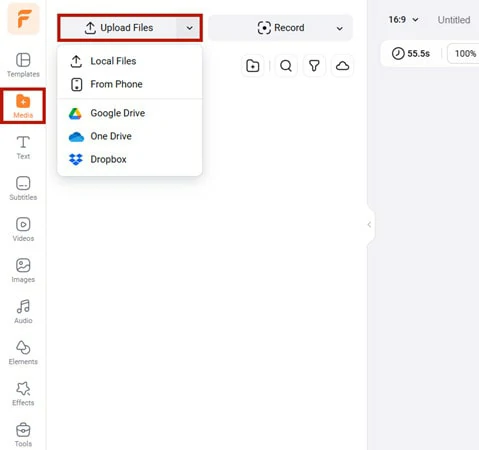
Import the Video You Want to Extract Audio from
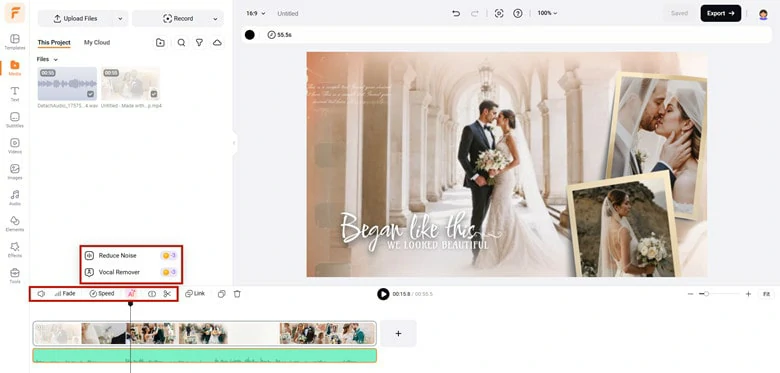
Extract Audio from Video and Make Customized Edits
If you don’t need to edit the original audio from the video, just drag the video to the timeline and export it as an MP3 audio file.
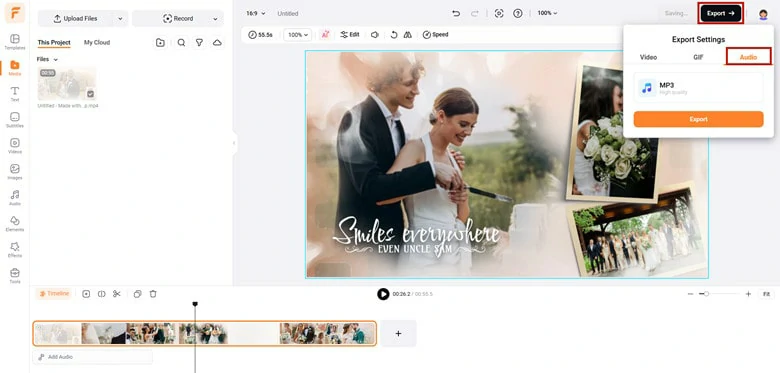
Directly Export the Video as Audio Only File in MP3
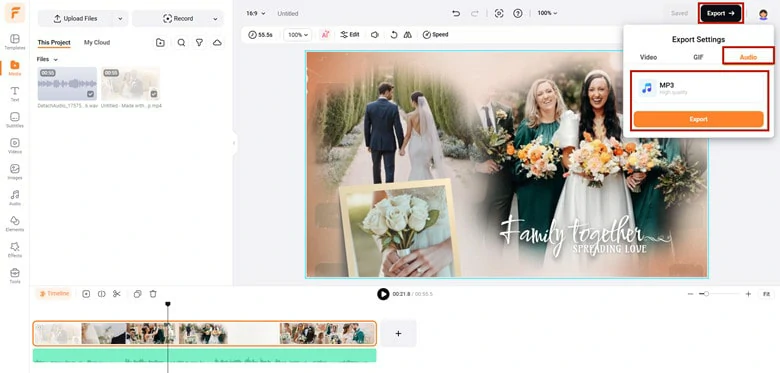
Download and Save the Audio as an MP3 File
2) Edit Audio Tracks and Export as an MP3 File
Need to edit your existing audio tracks and export as MP3 file? FlexClip gets you covered with steps below:
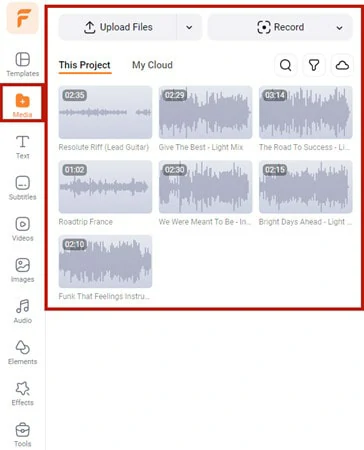
Import Audio Files You Want to Edit to FlexClip
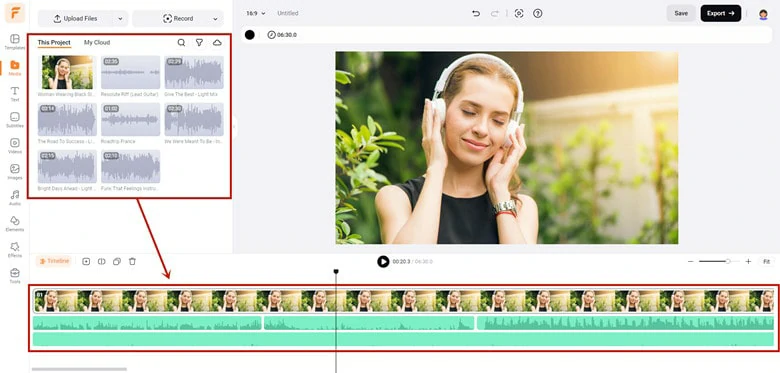
Match the Audio Length and Arrange the Sequence
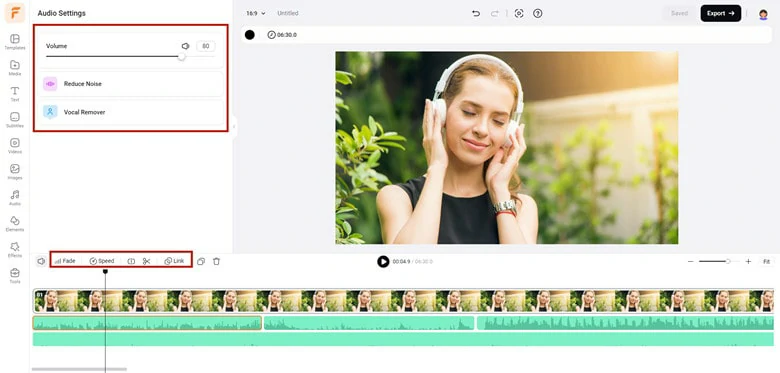
Polish the Audio Tracks with FlexClip's Built-in Tools
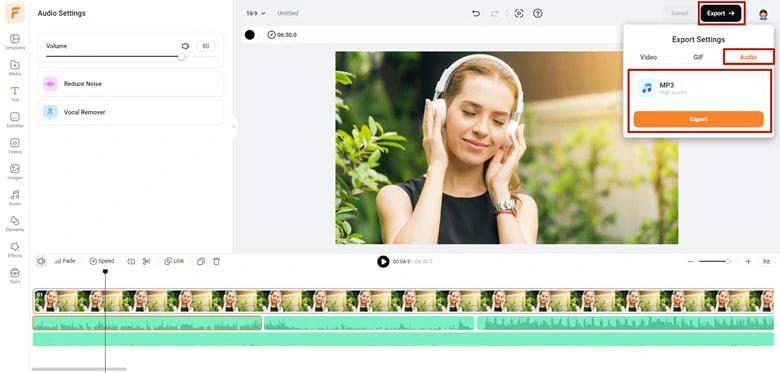
Export Audio from FlexClip as an MP3 File
FAQs About Clipchamp Export Audio Only
1.Can Clipchamp Extract Audio from Video?
Currently, Clipchamp does not support direct export of audio in MP3 format. Instead, the only available option for audio extraction is the M4A file format. This means that when you extract audio from a video or save an audio track in Clipchamp, it will be downloaded as an M4A file rather than MP3 format.
2.How to Export Clipchamp as MP3?
Currently, Clipchamp does not support direct export of audio in MP3 format. Instead, the only available option for audio extraction is the M4A file format. This means that when you extract audio from a video or save an audio track in Clipchamp, it will be downloaded as an M4A file rather than MP3 format.
3.How to Add Music to Video in Clipchamp?
Absolutely! Whether it’s extracted audio, your own music, or a track from Clipchamp’s stock library, Just drag it onto the timeline, then export to merge everything together.
4.How Many Times can I Export Audio Only from Clipchamp?
Clipchamp allows all users an unlimited amount of audio only exports. So feel free to save audio files as many times as you need.
The Bottom Line
That's all for how to export audio only from Clipchamp. If you prefer a straightforward solution for MP3 audio file, try the Clipchamp alternative called FlexClip for help. Now it's your turn to move!




FlexClip AI Video Maker
Reach professional-quality videos faster with easy editing tools, templates, and smart AI.
Start Now for Free
Hot & Trending
-

Best Ways to Find Music in YouTube Videos
-

Instagram Story Video Quality Bad After Upload? Fix It!
-

How to Repost Video on TikTok & How to Remove TikTok Repost
-

Improve Video Quality Online: 3 AI Video Quality Enhancers You Can't Miss
-

4K Convert to HD 1080p without Watermark: Best 4k Video Converters
-

Best 8 Free Video Editors - No Download Required
-

Top 13 Birthday Video Makers with Music and Effects Free
-

How to Search Filters on TikTok & Use a Filter You See - TikTok Filter Guide




