Have you ever needed to record your Chromebook screen for a tutorial video, software demo, or something else, but didn't know where to start? Luckily, Chromebooks make screen recording easy and accessible for everyone as they offer built-in screen recording tools to do so.
Follow us and learn how to screen record on Chromebook with ease. Discover 3 different easy ways to capture, edit, and share your screen recordings on Chromebook effortlessly.
Awesome Videos Templates You Might Love:



Create Video Faster with FlexClip's Pre-Made Templates →
Start from Scratch Easily with FlexClip's Online Video Maker →
How to Screen Record on Chromebook Built-in Screen Recorder
So, how to screen record on your Chromebook? One way is to use keyboard shortcut to activate the native screen recorder for your Chromebook. You can record screen activity on a Chromebook quickly and easily with a few keyboard shortcuts. Check the detailed steps below:
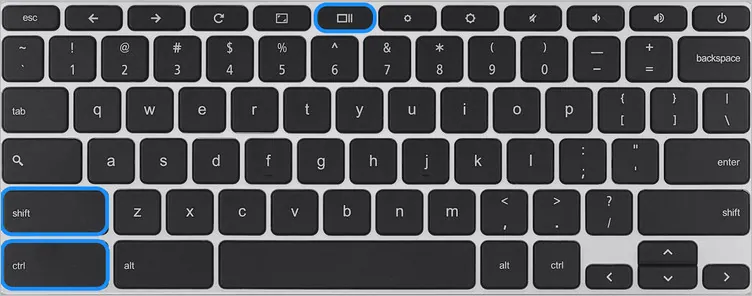
Screen Record on Chromebook Built-in Screen Recorder

Screen Record on Chromebook Built-in Screen Recorder - Screen Record Option
How to Screen Record with Chromebook's Built-in Screen Recorder
For those who has Chrome OS 89 or newer, there is another built-in Chromebook screen recorder you can use to quickly capture video of your Chromebook screen directly.
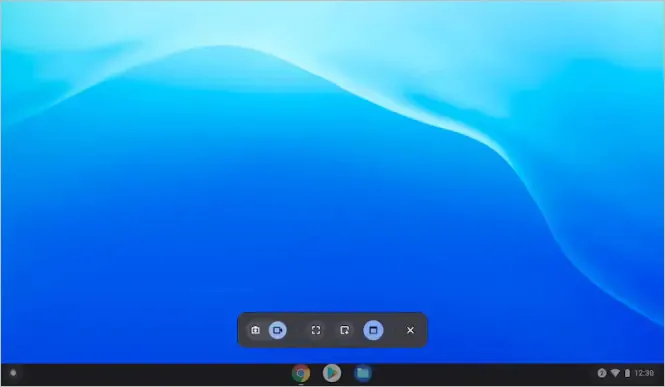
Chromebook's Built-in Screen Recorder
Here's how to screen record on a Chromebook with audio using this feature.
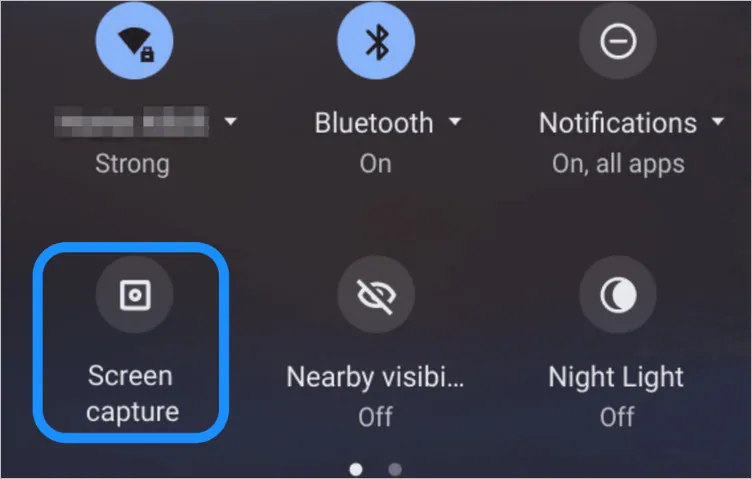
Screen Record on Chromebook Built-in Screen Recorder - Screen Record Option
How to Screen Record on Chromebook Online with FlexClip
If you need a more powerful tool to screen record on your Chromebook on the go, try FlexClip's free online screen recorder. It is a powerful web-based screen recorder that allows users to capture and record their screens. Compatible with Chrome, Edge, Firefox, and Safari, it is particularly useful for Chromebook users who want to create videos, tutorials, or presentations.
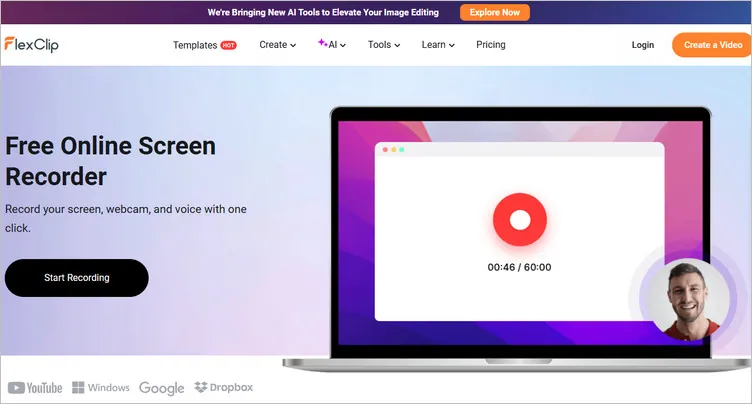
Online Screen Recorder for Chromebook - FlexClip

At its most basic, FlexClip's online screen recorder allows you to record your screen, webcam, and audio with one click on Chromebook, Windows, or Mac even offers a built-in video editor that helps you to edit and perfect your screen recording with powerful tools and stunning effects.
Create Stunning Videos with FlexClip AI Video Maker
Benefits of Using FlexClip to Screen Record on Chromebook:
Here's how to screen record on Chromebook with the help of FlexClip.
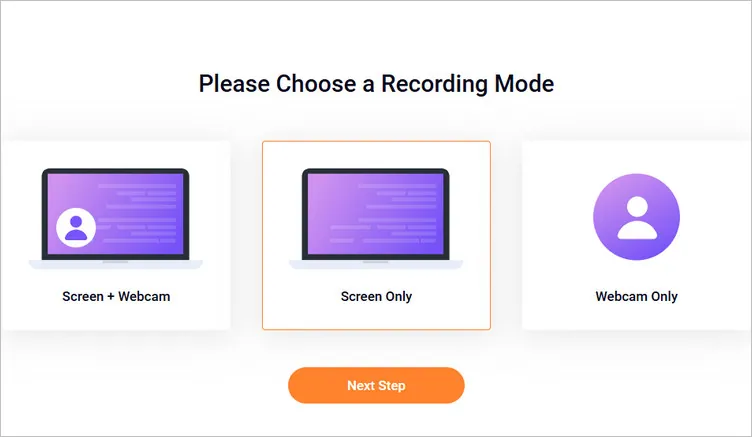
Screen Record on Chromebook with Audio Using FlexClip - Recording Mode
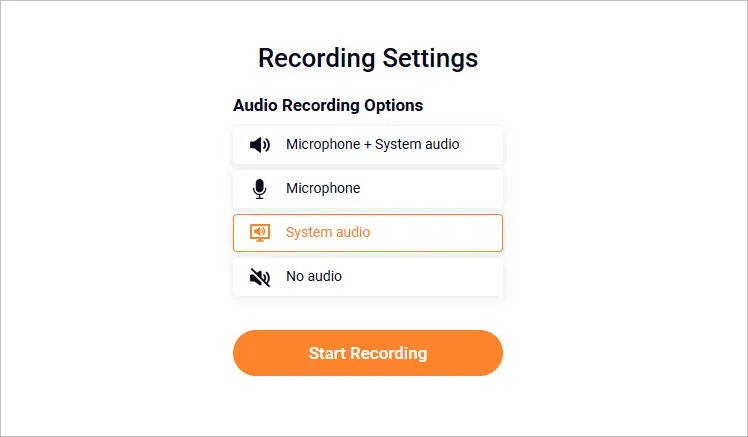
Screen Record on Chromebook with Audio Using FlexClip - Audio Setting
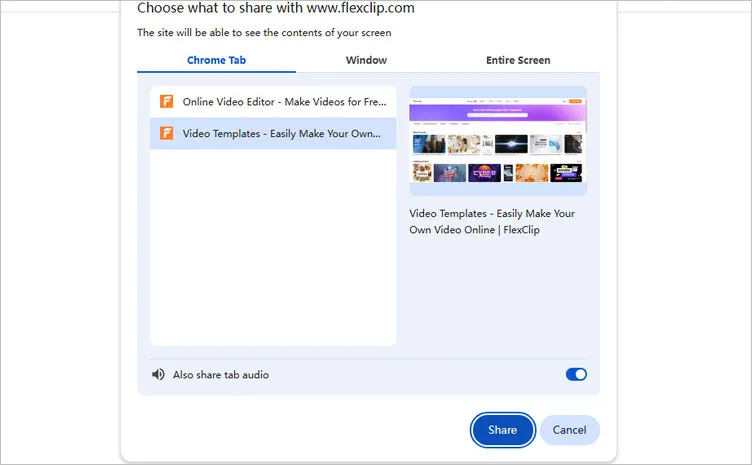
Screen Record on Chromebook with Audio Using FlexClip - Select Record Content
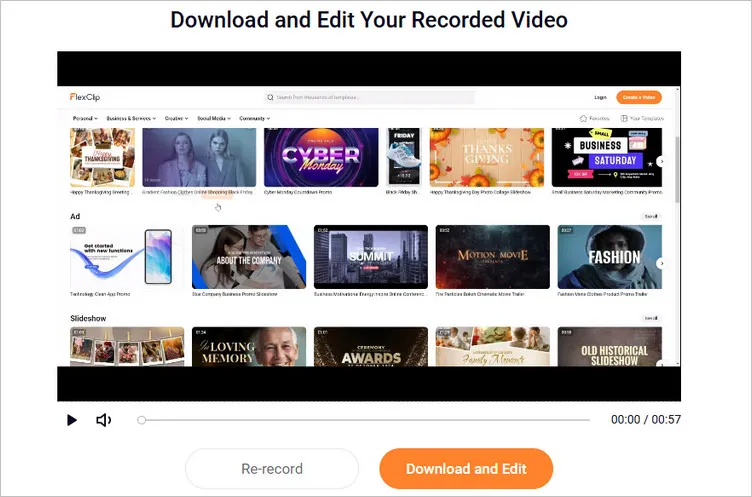
Screen Record on Chromebook with Audio Using FlexClip - Download and Edit
Final Words
While Chromebook’s built-in screen recording tool offer basic screen recording capability, some easy online screen recorders like FlexClip that can offer more flexibility and functionality. Whether you need basic audio recording or advanced features like transcription and noise reduction, FlexClip is a powerful tool to capture high-quality video with audio on your Chromebook. Ready to get started? Give it a try!




FlexClip AI Video Maker
Reach professional-quality videos faster with easy editing tools, templates, and smart AI.
Start Now for Free
Hot & Trending
-

Best Ways to Find Music in YouTube Videos
-

Instagram Story Video Quality Bad After Upload? Fix It!
-

How to Repost Video on TikTok & How to Remove TikTok Repost
-

Improve Video Quality Online: 3 AI Video Quality Enhancers You Can't Miss
-

4K Convert to HD 1080p without Watermark: Best 4k Video Converters
-

Best 8 Free Video Editors - No Download Required
-

Top 13 Birthday Video Makers with Music and Effects Free
-

How to Search Filters on TikTok & Use a Filter You See - TikTok Filter Guide