


AI Uncrop is an advanced image editing technology that allows users to expand their images to any desired aspect ratio without compromising their quality. It’s an effective way to analyze the photo’s elements and generate missing parts to seamlessly expand the image while preserving the original details. With these AI tools, you can easily uncrop a photo that someone sent you. So let’s start!
Here is an example image using FlexClip’s AI cropping technology. With it, you can effortlessly convert a 1:1 image into a 16:9 image.
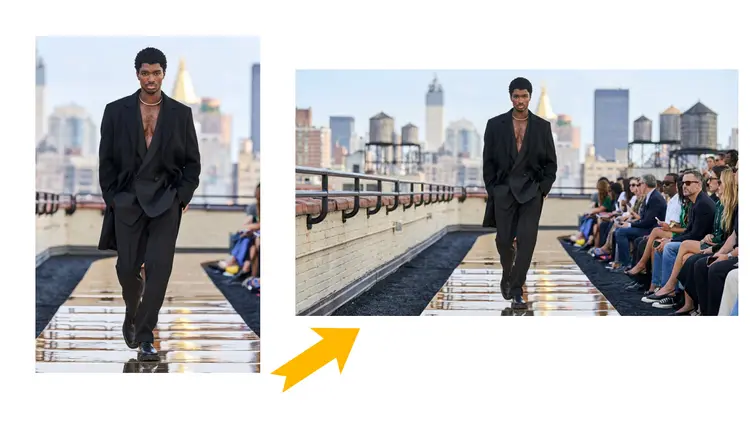
Example Image of FlexClip
Part 1 How to Uncrop Your Photos in FlexClip
FlexClip’s AI uncrop feature is a new tool for you to optimize and edit image aspect ratio. It can expand your images beyond boundaries to get a bigger background or adjust the aspect ratio while preserving the original parts. FlexClip uses cutting-edge AI technology to ensure that you can get perfect image results. And there is no download or installation requirement.
FlexClip’s AI Image Extender offers 9 aspect ratios for generating vertical, portrait, horizontal, or custom-sized images with just one click. You can even get up to 4 different AI uncropping image results at once. It’s a powerful and creative way to intelligently expand the canvas by generating new content that blends seamlessly with the existing image. What you need to do is simply visit FlexClip’s uncropping tool in your browser and upload the image you want to uncrop, then its advanced AI technology will instantly generate new visual elements that seamlessly blend with your original picture, ensuring consistency in color, tone, and style.
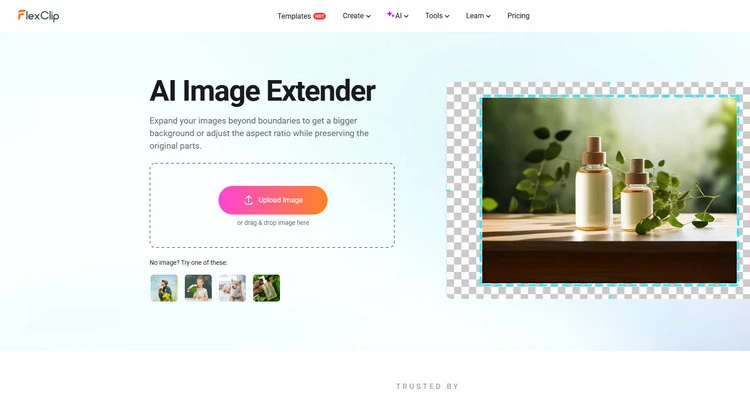
AI Image Extender - FlexClip
Moreover, FlexClip’s recently launched AI Photo Editor also provides an easier way for you to uncrop a photo that someone sent you. It allows you to edit and enhance your photos easily with text prompts, such as uncropping a photo. FlexClip currently provides some editing models like Google Nano Banana, Flux Kontext, OpenAI, Seedream, and so on. Google Nano Banana, which is known for precise character consistency, is ideal for users to uncrop their photo while keeping all the characteristics. You can easily upload a photo and type text descriptions to adjust the desired image ratio to achieve it. Whether you want a 1:1 image or a 4:5 image, just type what you want, and AI will handle the rest.
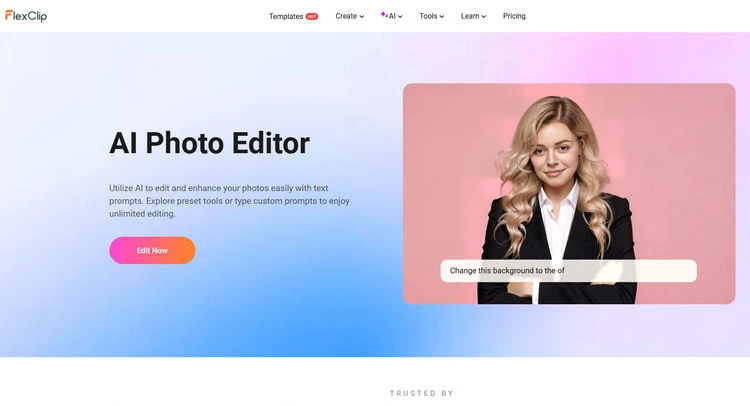
AI Photo Editor - FlexClip
Method 1 Uncropping Photo with AI Image Extender
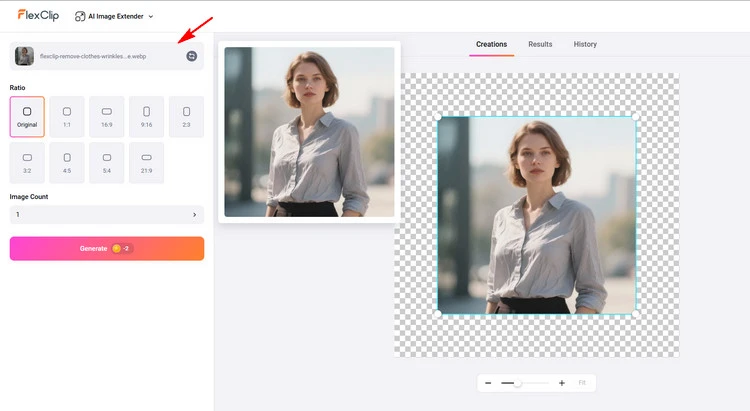
Upload Your Photos - FlexClip
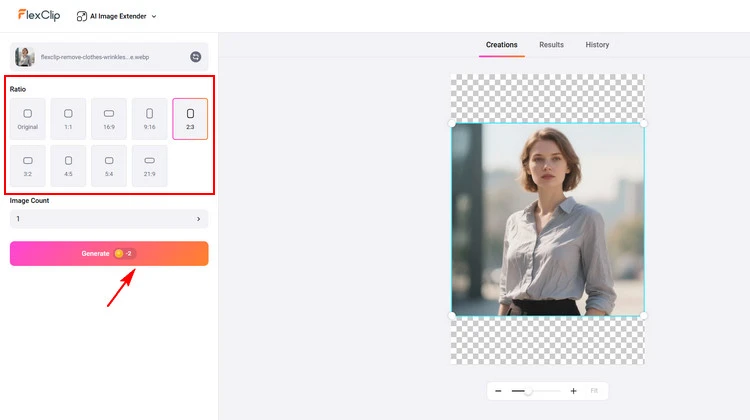
Uncrop Your Photos - FlexClip
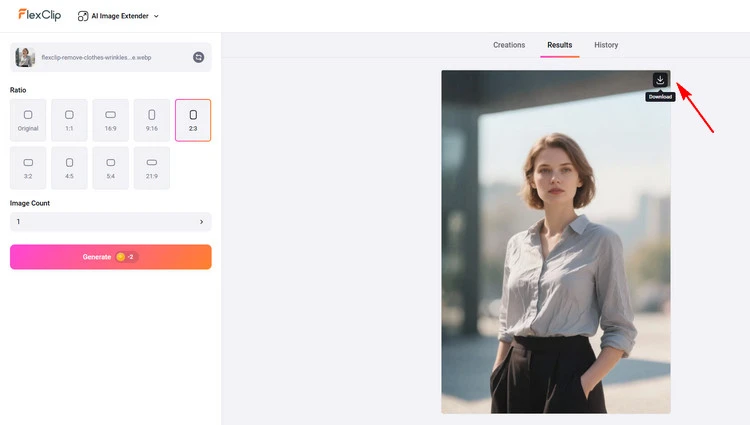
Download Your Photos - FlexClip
Method 2 Uncropping Photo with AI Photo Editor
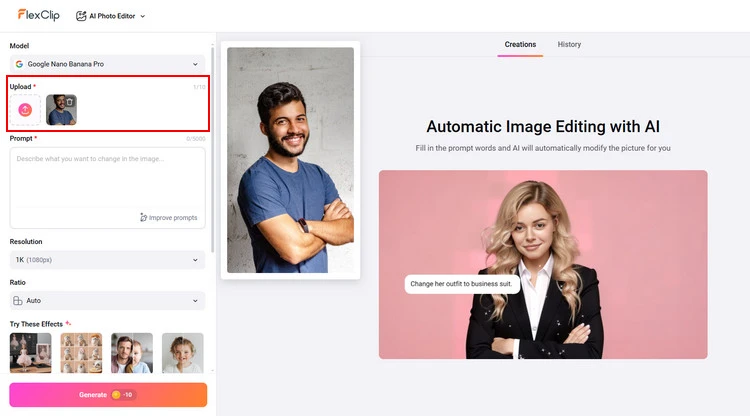
Upload Your Photos - FlexClip
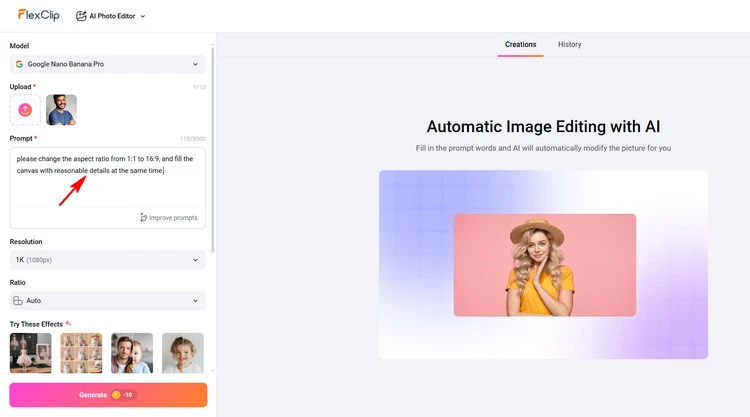
Uncrop Your Photos - FlexClip
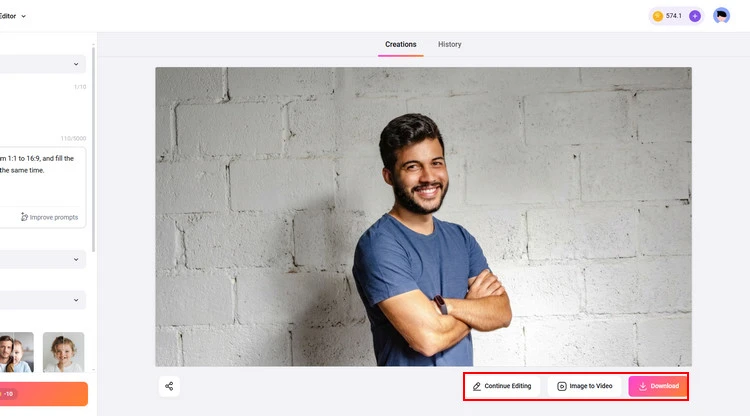
Download Your Photos - FlexClip
Part 2 Uncropping Your Images to Extend Them with Pixelcut
You can effortlessly uncrop and expand your images using Pixelcut’s AI Uncrop tool. This AI Image Expander lets you extend images in any direction within seconds. It harnesses the power of generative AI to intelligently expand your images in any direction while preserving its original quality. Through pixel analysis, this AI Image Expander will seamlessly match your image to fill in missing content and complete the image outwards.
Pixelcut’s uncrop tool uses content awareness to analyze your image’s pixels and intelligently create natural extensions, ensuring flawless results every time. Whether you’re resizing for social media, creating marketing materials, or enlarging images for your personal projects, AI outpainting makes it effortless to complete and extend your images with just a few quick clicks.
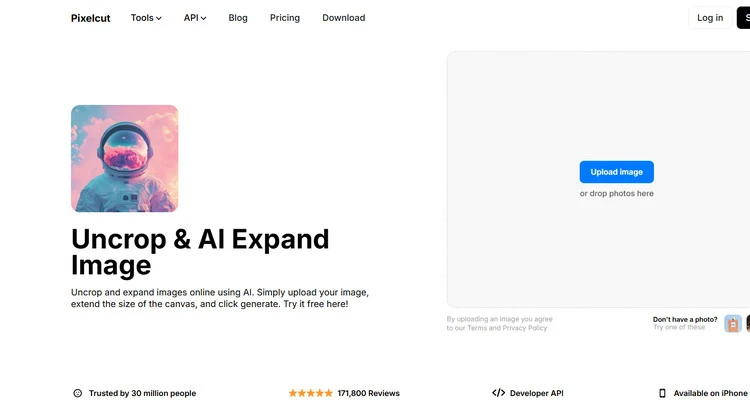
AI Uncrop Feature - Pixelcut
Part 3 Uncropping Your Images to Extend Them with insMind
With insMind’s AI tool, you can unlock the power of and uncrop your photos effortlessly, saving time and money while breathing new life into your photos. insMind's AI expander allows you to uncrop photos with just one click. This uncrop AI tool can intelligently adjust the aspect ratio while preserving the original details of the photo. It can expand photos without warping, stretching, or ruining the original value of your photos.
And its uncrop tool allows you to shrink or enlarge your images perfectly to fit any website or social media handles. All you need to do is upload your photo, and the app will zoom it in or out to fit the ideal size for cropping. insMind’s tool can make a picture more colorful, add a new element to old pictures, or develop new creative ideas. It can also share a story, sweep beyond borders, and fill in the gaps in your photographs.
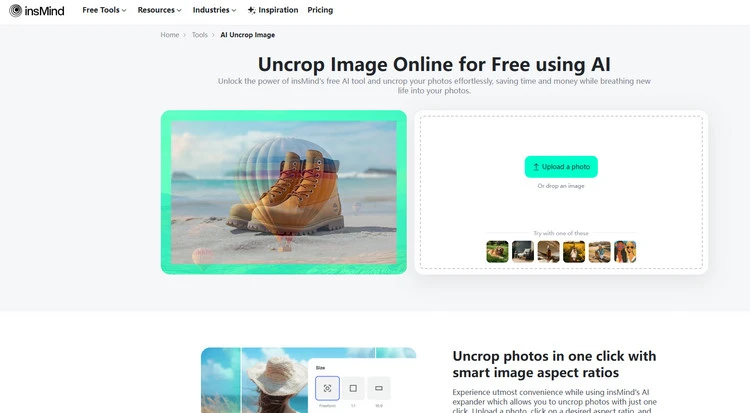
AI Uncrop Feature - insMind
Conclusion
To sum up, there are 3 great ways to uncrop your images to extend them online. So, start uncropping your images with FlexClip now! If you find this tutorial helpful, do share it on your Facebook or Twitter and leave your take to us.




FlexClip AI Video Maker
Reach professional-quality videos faster with easy editing tools, templates, and smart AI.
Start Now for Free
Hot & Trending
-

Best Ways to Find Music in YouTube Videos
-

Instagram Story Video Quality Bad After Upload? Fix It!
-

How to Repost Video on TikTok & How to Remove TikTok Repost
-

Improve Video Quality Online: 3 AI Video Quality Enhancers You Can't Miss
-

4K Convert to HD 1080p without Watermark: Best 4k Video Converters
-

Best 8 Free Video Editors - No Download Required
-

Top 13 Birthday Video Makers with Music and Effects Free
-

How to Search Filters on TikTok & Use a Filter You See - TikTok Filter Guide




