Converting MOV to text offers numerous benefits. It allows you to add subtitles, making your content accessible to viewers who prefer watching with the sound off, transcribe interviews or meetings for easy reference, or translate the transcript another language to reach a wider audience, etc. However, manually typing out the text while watching an MOV file can be time-consuming and overwhelming, especially for longer videos.
So, how can you convert MOV to text effortlessly? Don’t worry! In this tutorial, we’ll introduce three of the best online MOV-to-text converters that can quickly and accurately turn your video into text for subtitles, accessibility, content repurposing, and more. Let’s get started!
Also Interested in: 5 Best MOV Joiners to Combine MOV Files on Mac and Windows 10/11>>
Transcribe MOV to Text Using FlexClip Online
FlexClip is an ideal choice for content creators looking to automatically transcribe MOV files to text while maintaining full control over subtitle formats and the editing process. Its intuitive interface and extensive editing features make it easy to transcribe videos and customize them with ease.
Best Features of FlexClip:
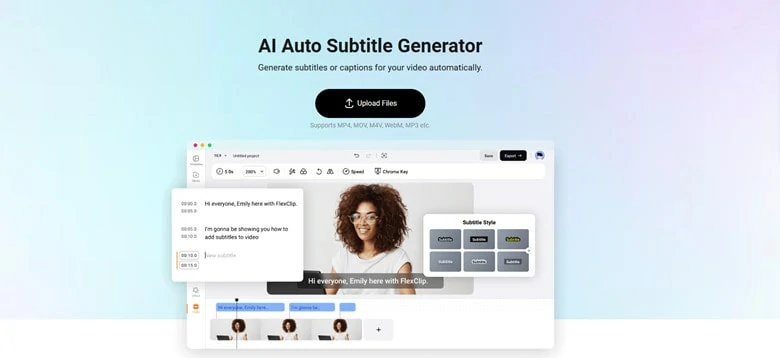
AI Subtitle Generator in FlexClip
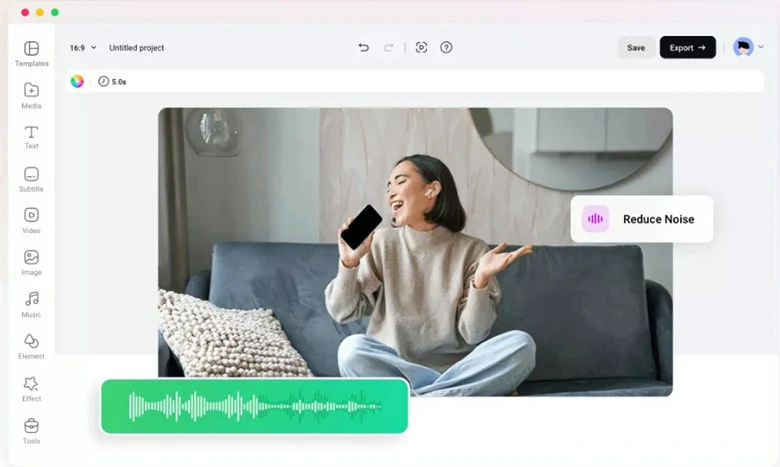
AI Noise Reducer to Remove Background Noise from MOV Video
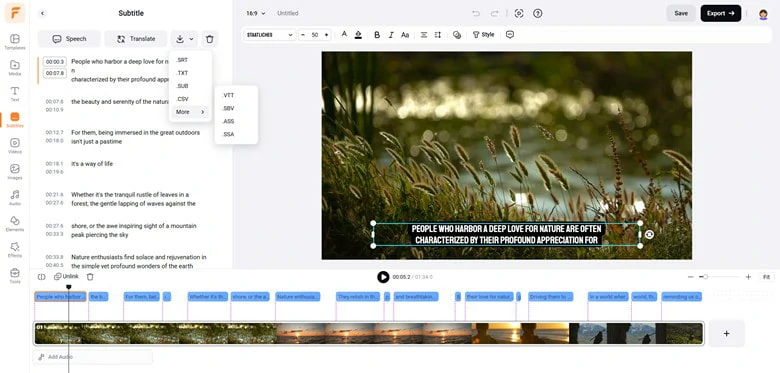
Download the Transcript in Multiple Subtitle Formats
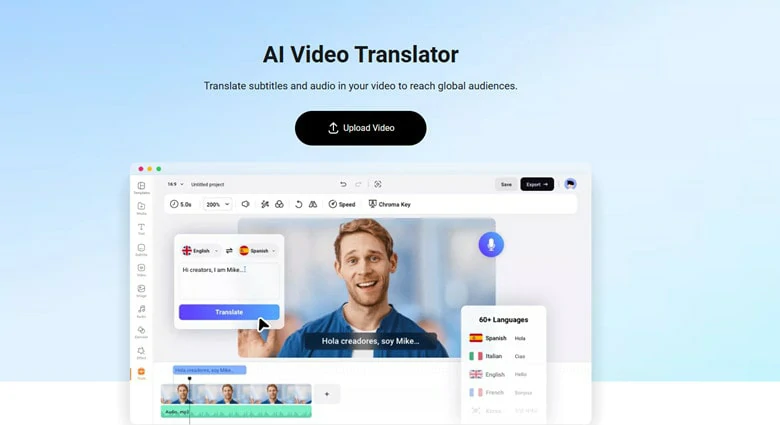
Translate the Transcript with AI Translator
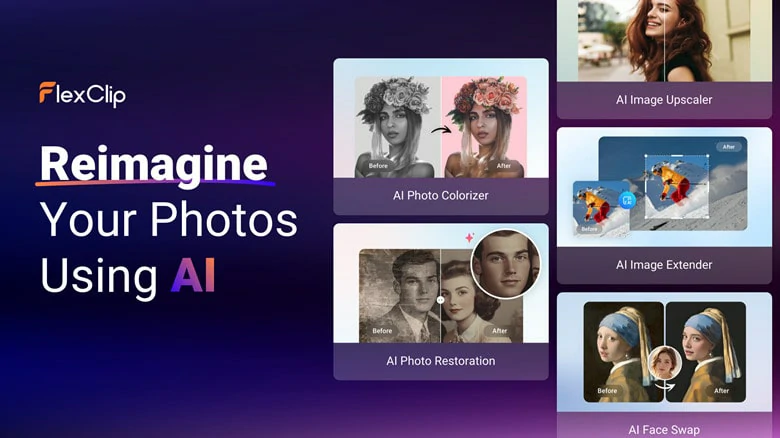
Multiple AI-driven Tools in FlexClip to Streamline Your Process
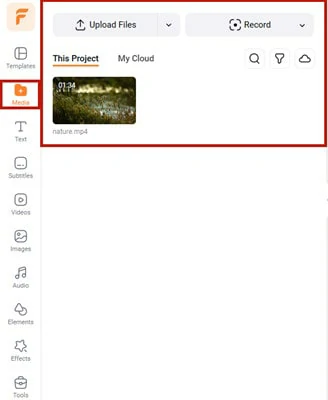
Upload Your MOV File to FlexClip
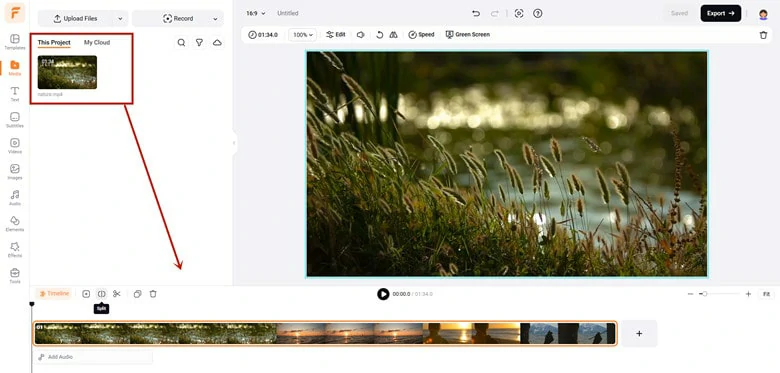
Add the Video to the Timeline
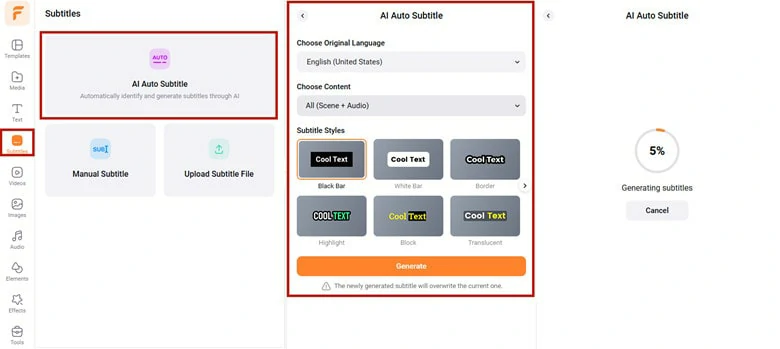
Extract Text from Your MOV File
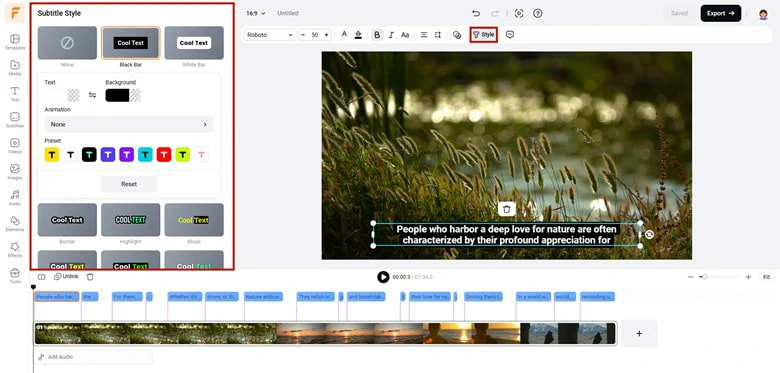
Make Subtitle Customization as You Want
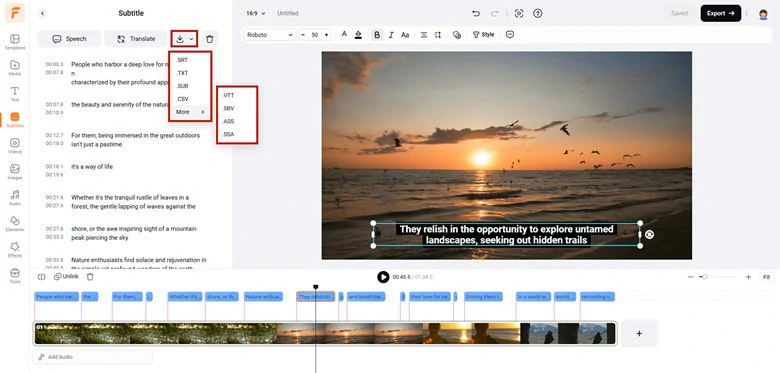
Download the Generated Text in Subtitle Format
Alternatively, you can use FlexClip’s inbuilt translator or TTS features to unleash endless creativity or directly tap on Export button to permanently add the subtitles to your videos.
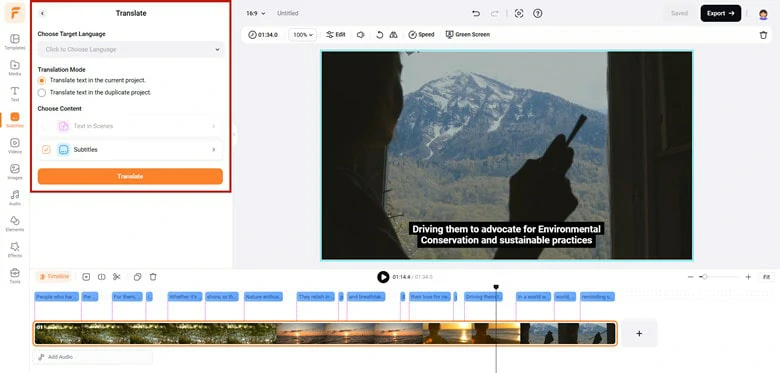
Translate or Convert Text to Speech
Convert MOV to Text via Descript
If you're looking to transcribe an interview, podcast, or video in MOV format with multiple speakers, Descript’s automatic transcription tool is an excellent option. Using AI technology, Descript can identify the audio in your MOV file, differentiate between speakers, and label them accordingly in the generated transcript. Additionally, Descript supports text-based editing, meaning when you edit the text, the audio automatically adjusts to match, resulting in a highly accurate transcript.
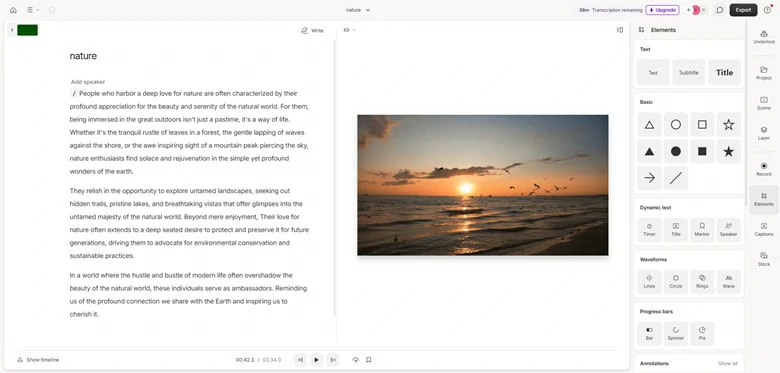
Convert MOV to Text Using Descript
Pros:
Drawbacks:
Convert MOV to Text Using Google Docs
The last recommendation for converting MOV to text is Google Docs, a free tool to generate transcript in real-time with the built-in voice-typing feature. Just play the video behind and this speech-to-text tool will automatically type the transcript out in the documents and let you download with great ease. Since Google Docs relies heavily on soundtrack recognization, it’s crucial to have a clear and audible audio track within the video as it significantly affects the accuracy of the transcription process.
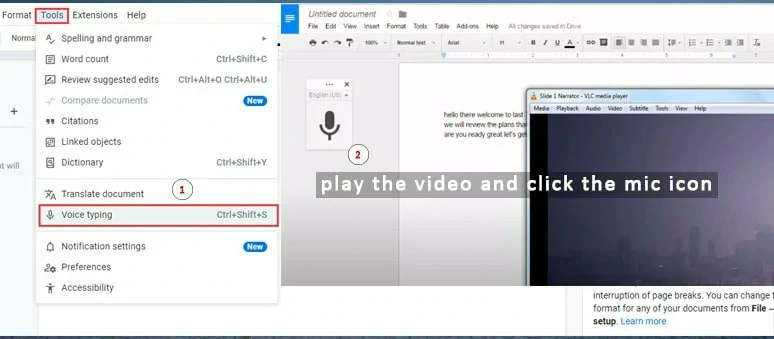
Convert MOV to Text Using Google Docs
Pros:
Drawbacks:
The Bottom Line
In conclusion, converting MOV to text makes subtitling easier and allows you to repurpose transcripts for translations or podcasting. In this article, we’ve recommended three best ways to automatically convert MOV to text. Which MOV-to-text converter is your favorite? Choose the one that suits your needs and begin your conversion journey today!




FlexClip AI Video Maker
Reach professional-quality videos faster with easy editing tools, templates, and smart AI.
Start Now for Free
Hot & Trending
-

Ultimate Tik Tok Guide – How to Tik Tok & How to Make a Tik Tok Video that Gets Likes
-

7 Best Ways to Find Music in YouTube Videos
-

Instagram Story Video Quality Bad After Upload? Fix It!
-

How to Repost Video on TikTok & How to Remove TikTok Repost
-

Improve Video Quality Online: 3 AI Video Quality Enhancers You Can't Miss
-

4K Convert to HD 1080p without Watermark: Best 4k Video Converters
-

Top 13 Birthday Video Makers with Music and Effects Free
-

How to Search Filters on TikTok & Use a Filter You See - TikTok Filter Guide