


Professional video editors always suggest adding audio files to video in the postproduction process, because voice collecting while shooting can’t achieve the best result. If you want to merge audio and video with perfect quality, a powerful audio and video merger is necessary.
Stop guessing and start creating! We've tested 30 tools and rounded up the 10 best free audio and video mergers. Check their best features and hidden limitations, then pick one to join your files in no time.
1. Top AI Audio and Video Merger: FlexClip
Free Plan Limitation: Up to 720P export resolution & 10 minutes maximum length.
FlexClip’s online audio and video merger is simple and intuitive. As a timeline-based video editor, FlexClip lets you upload multiple video and audio files, then seamlessly sync them by dragging the slider, all the way up to 4K resolution.
Besides simple audio and video merging, FlexClip also polishes your video to perfection. You can improve the quality of audio and video by applying effects to videos, reducing background noise from audio, or even creating a brand new SFX that matches the video. Ignite your creativity, take your video into the next level.
How to Merge Audio and Video with FlexClip

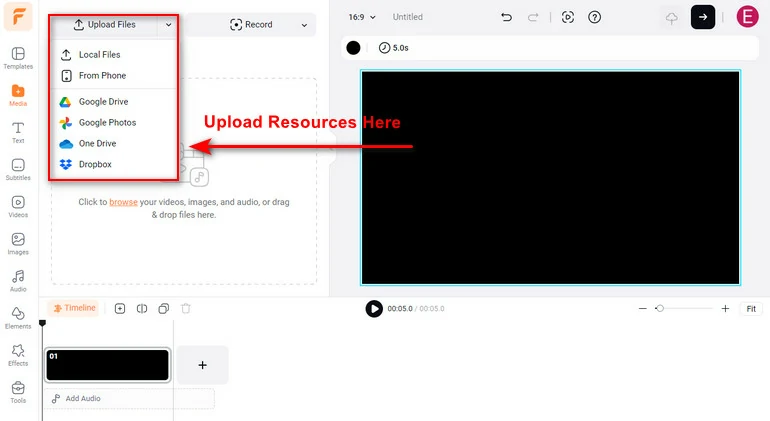
Upload Music Video to FlexClip
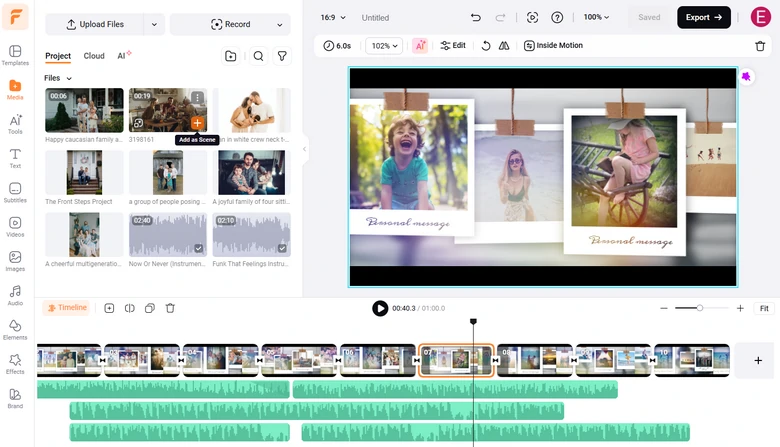
Merge Audio and Video with FlexClip
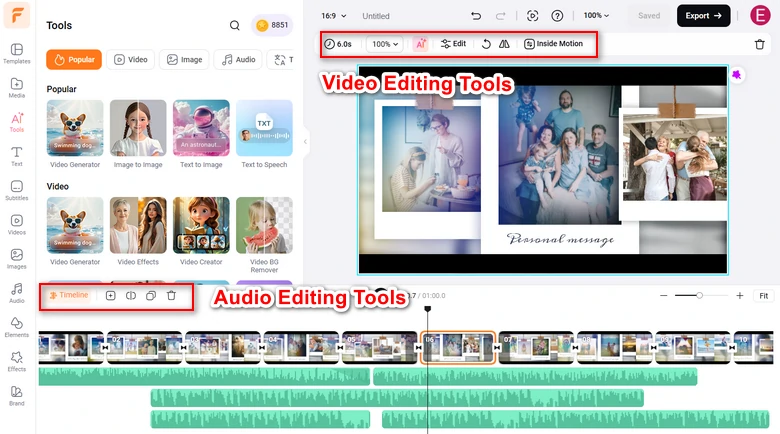
Polish Audio and Video with FlexClip
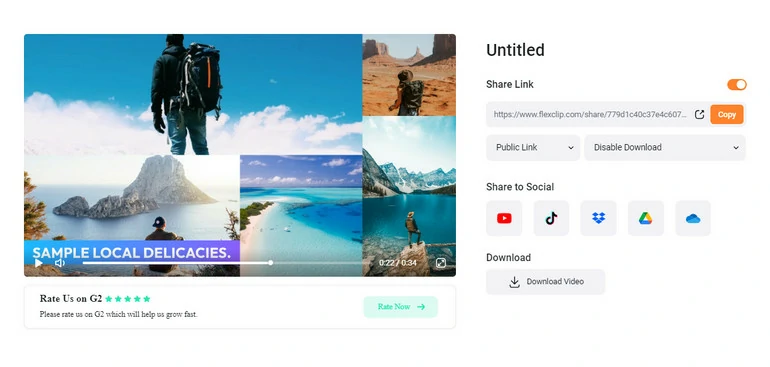
Save & Share Merged Audio & Video
2. Clideo
Free Plan Limitation: Watermark on all exports, a 500 MB file upload size limit, and a lower processing speed.
Clideo is another easy-to-use audio and video merger. It instantly combines your videos, photos and music into one integrated video, even videos and photos online. The supported media formats are MP4, AVI, MPG, VOB, WMV, MOV and more.
Here is one more thing to be noted. To use Clideo, you have to register. As for non-subscribers, a watermark will be added to the output.
How to Merge Video and Audio with Clideo
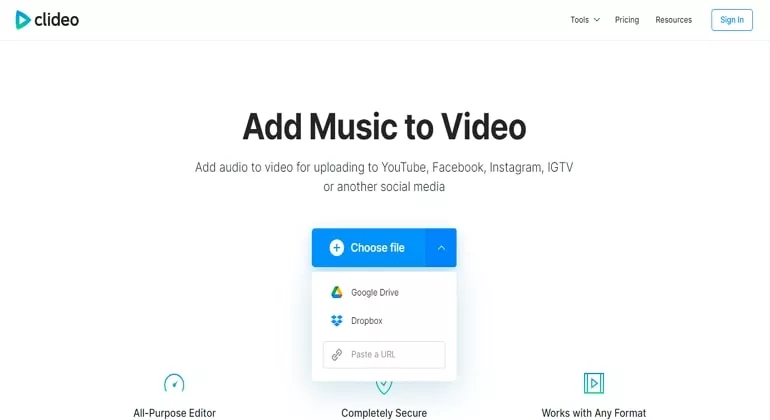
Merge Audio and Video with Clideo
3. CapCut
Free Plan Limitation: 1080P resolution with watermarks on all videos. Most editing features and resources are also behind the paywall.
CapCut is a audio and video merger working across all devices. You can download the CapCut software and use it on computer desktop, navigate to its official website and kick start right on browser, or install the CapCut app on mobile. No matter which way you go, video and audio combination would be easy.
What sets CapCut apart is its TikTok-popular resources. It includes trending music tracks, effects, transitions, fonts, etc. These built-in assets let creators easily craft videos that easily get popular. Also, you can play some tricks to change voice, adding AI avatar, etc.
How to Merge Audio and Video with CapCut Online
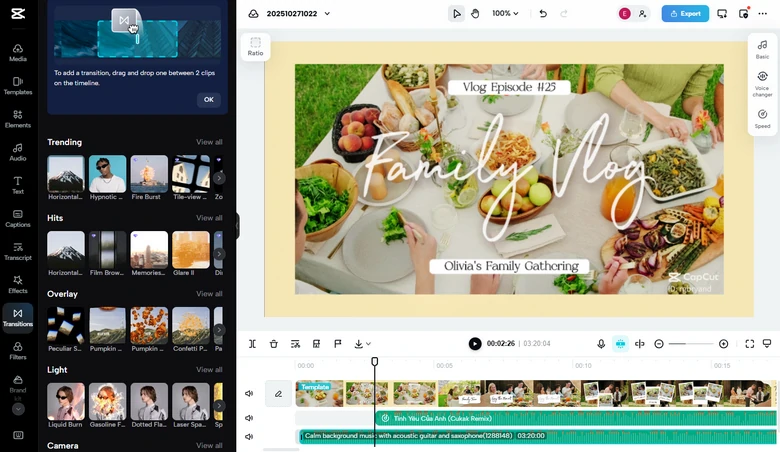
Merge Audio and Video with CapCut
4. Adobe Express
Free Plan Limitation: Free version limits you to 16:9 aspect ratio and original video quality. Plus, you can't overlay multiple audio in the timeline.
Not all software inside Adobe requires advanced editing skills. Adobe Express is designed to make video editing as simple as photo editing. With its clean, drag-and-drop interface, you can quickly upload clips, trim them, apply background music or voiceover in clicks. Everything runs smoothly online, no editing skills needed.
However, Adobe Express doesn't come with advanced editing tools, like volume adjustment, color correction, masking, etc. It is perfect for those who are after big names but new to video editing.
How to Merge Audio and Video with Adobe Express
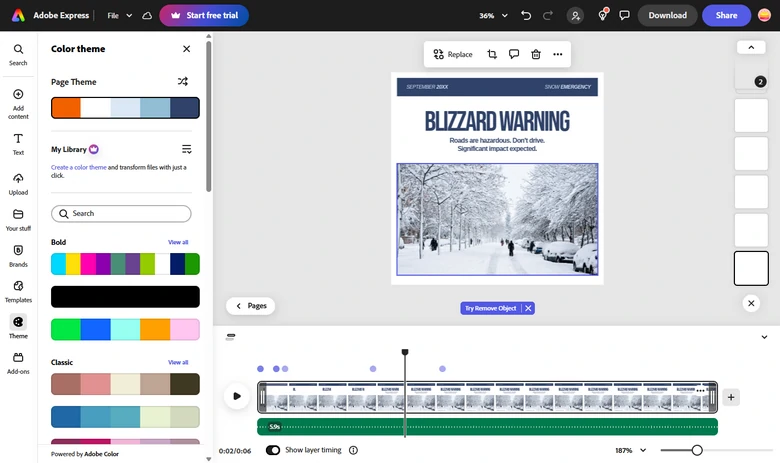
Merge Audio and Video with Adobe Express
5. OnlineConverter
Limitation: You can only upload videos in 250MB.
OnlineConverter can help join audio and video. Whether you want to add new audio to the video while retaining the old, or replace the audio in the video, you can achieve that.
Since OnlineConverter is just a tool, it doesn't provide you any editing tools. By default, the output video will have the same duration as the original video, and if the video is longer than the audio, the audio will automatically loop itself.
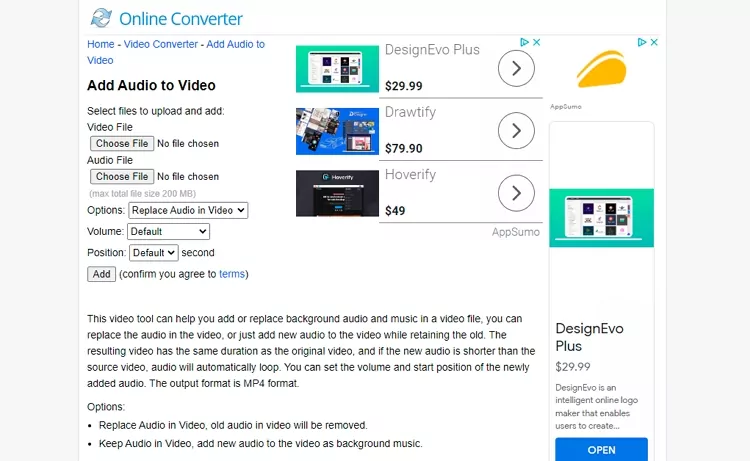
Merge Audio and Video with OnlineConverter
6. ClipChamp
Free Plan Limitation: 1080P export resolution and restricted access to stock media library, resources as well as features.
With drag-and-drop controls, real-time previews, and seamless Microsoft integration, you can use ClipChamp to combine clips and audio effortlessly. Also, its extensive stock library of sounds, music, and video templates helps creators produce polished, professional-quality videos in minutes.
There are also some AI tools you can try out. For instance, automatically trim silences, supress background noises. Elevate videos with music and sound effects without sparing any effort.
How to Combine Audio and Video with ClipChamp
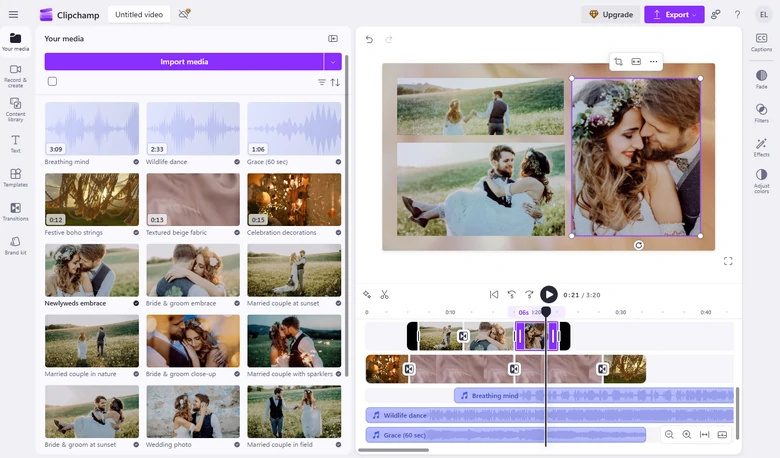
Merge Audio and Video with ClipChamp
7. VLC
VLC is an open-source media player as well as an excellent video editor. It does a great job to combine audio and video files, then save to a local folder. You can also select the desired format.
How to Merge Audio and Video on VLC
8. iMovie
iMovie is a video editor that is equipped on all Mac devices. Most people use it to do lots of professional video editing. If you happen to be a Mac user, do use iMovie to combine audio and video. Merging audio and video is not a complicated editing.
Besides being easy to merge audio and video, you can export your video and audio in high resolution. The shortcoming of using iMovie is that iMovie only supports video that's 16:9. If you have a vertical video at hand, it might disappoint you.
How to Merge Audio and Video with iMovie
Merge Audio and Video with iMovie
9. OpenShot
OpenShot is an open-source video editor available for all. It is free to use. As long as you have downloaded it to your computer, you can use Openshot to do all kinds of video editing, including merging audio and video.
Similar with other video editing tools, OpenShot is a timeline based video editor. Drag and drop your video and audio and sync them, you can have your video with sound in seconds.
How to Merge Audio and Video with OpenShot
Merge Audio and Video with Openshot
10. VSDC
VSDC is a free multimedia suite brings a set of tools for putting a video together. It can help you more than just merging audio and video. You also have the option to improve audio, use filters, do color correction to level up videos and photos.
We don't encourage you to buy its pro version, because the basic version is good enough if you just want to merge audio and video.
How to Merge Audio and Video with VSDC
Merge Audio and Video with VSDC
Bonus Tip: Merge Video and Audio with FFmpeg
To merge video and audio with audio re-encoding, try:
ffmpeg -i video.mp4 -i audio.wav -c:v copy -c:a aac output.mp4
You may also want to copy the audio without re-encoding, the following will work.
ffmpeg -i video.mp4 -i audio.wav -c copy output.mkv
If your input video already contains audio, and you want to replace it, you need to tell FFmpeg which audio stream to take:
ffmpeg -i video.mp4 -i audio.wav -c:v copy -c:a aac -map 0:v:0 -map 1:a:0 output.mp4
The Bottom Line
The above are 10 ways to merge video and audio. If you are not satisfied with the results, you can always replace the audio in video. So, which works best for you? Tell us via Facebook. You are also welcomed to reach our support team if there are any questions.




FlexClip AI Video Maker
Reach professional-quality videos faster with easy editing tools, templates, and smart AI.
Start Now for Free
Hot & Trending
-

Best Ways to Find Music in YouTube Videos
-

Instagram Story Video Quality Bad After Upload? Fix It!
-

How to Repost Video on TikTok & How to Remove TikTok Repost
-

Improve Video Quality Online: 3 AI Video Quality Enhancers You Can't Miss
-

4K Convert to HD 1080p without Watermark: Best 4k Video Converters
-

Best 8 Free Video Editors - No Download Required
-

Top 13 Birthday Video Makers with Music and Effects Free
-

How to Search Filters on TikTok & Use a Filter You See - TikTok Filter Guide




