Want to make your YouTube videos more engaging or reach a wider audience on social media? Try adding animated subtitles. They make it easier for viewers to follow along with the sound off while keeping them hooked with eye-catching caption animations.
So, here we'll discuss how to animate captions in Premiere Pro with step-by-step guide. Let's dive in right now!
Also Interested in: How to Auto Generate Captions with Premiere Pro>>
Directly Add Animated Captions to Video Using Online Subtitle Generator>>
Part 1. How to Create Captions/Subtitles in Premiere Pro
In Premiere Pro, creating animated subtitles involves two steps: generating subtitles and animating them. Before diving into the animation process, make sure your captions/subtitles have already been generated in Premiere Pro. If you haven’t done this yet, follow this tutorial to learn how to automatically create subtitles in Premiere Pro first.
How to AUto Generate Subtitles in Premiere Pro
Part 2. How to Animate Captions in Premiere Pro
With captions appear on Premiere Pro, it's time to make text come alive with eye-catching animation effects. Here Premiere Pro lets you achieve various captions animations with keyframe feature, such as word-by-word subtitle animation, pop-up effects, karaoke-style subtitle and so on. Here, we'll show you how to animate captions in Premiere Pro using the pop-up text effect.
How to Animate Captions in Premiere Pro
While Premiere Pro offers multiple caption animation styles and great flexibility, its feature-rich interface and complex workflow can feel overwhelming for many users—even those who are tech-savvy. If you’re looking for an easier way to animate captions, here’s an online alternative to Premiere Pro worth trying.
Part 3. Premiere Alternative to Animate Subtitles Online
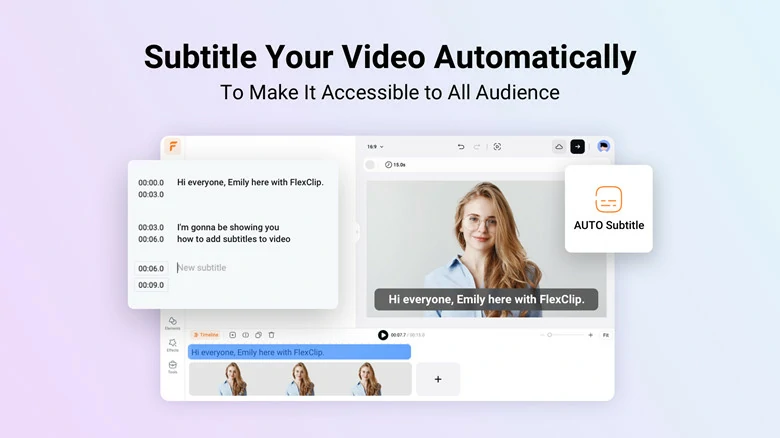
FlexClip is an AI-powered video editor that offers a one-click solution for animating subtitles.
Whether you’re using captions from an existing subtitle file or auto-generating subtitles from a video, FlexClip lets you animate them with effects like pop-up, word-by-word, highlight, hollow, and more for a dynamic and engaging look.
No editing experience or complicated steps are required—just a few clicks, and FlexClip will automatically bring your subtitle animations to life.
Auto Subtitle Editor Online to Animate Subtitles - FlexClip
How to Animate Subtitles Online With FlexClip
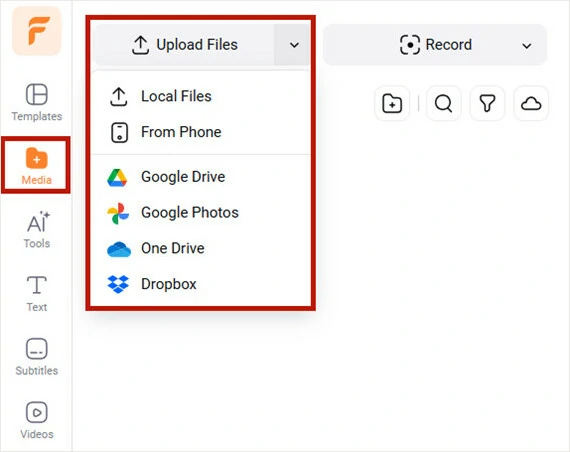
Upload the Desired Video to FlexClip

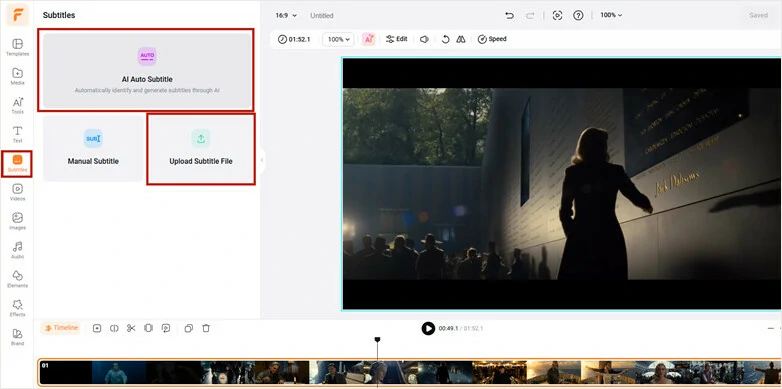
Create Subtitles for Your Video
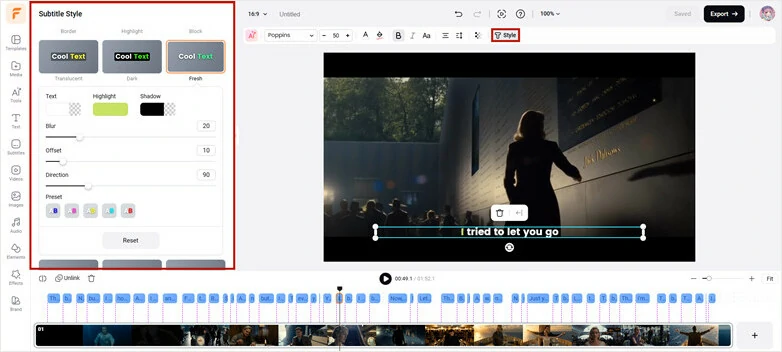
Choose a Style to Animate Subtitles
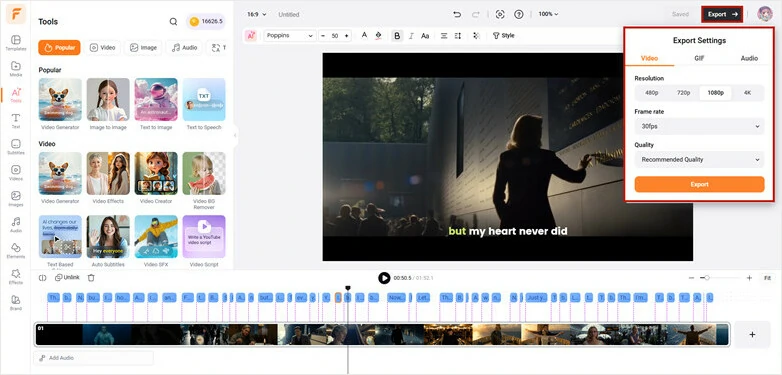
Export the Satisfied Video to Local Computer
As a feature-rich subtitle editor, FlexClip does more than just animate subtitles. It also helps you repurpose them in multiple ways—convert captions into realistic AI voiceovers, automatically translate subtitles for localization, or edit them to fix incorrect timecodes, spelling errors, and styling to match your video’s theme. It’s a creative playground for working with subtitles and exploring endless possibilities with powerful AI tools. Ready to give it a try? Start creating your inspired project today.
Revolutionize Your Video Editing with FlexClip's AI Tools
The Bottom Line
That's all for how to animate captions in Premiere Pro. While Premiere Pro offers flexible ways to achieve this, the process can be overwhelming. If you're looking for an easier method, try using FlexClip as an alternative.




FlexClip AI Video Maker
Reach professional-quality videos faster with easy editing tools, templates, and smart AI.
Start Now for Free
Hot & Trending
-

Best Ways to Find Music in YouTube Videos
-

Instagram Story Video Quality Bad After Upload? Fix It!
-

How to Repost Video on TikTok & How to Remove TikTok Repost
-

Improve Video Quality Online: 3 AI Video Quality Enhancers You Can't Miss
-

4K Convert to HD 1080p without Watermark: Best 4k Video Converters
-

Best 8 Free Video Editors - No Download Required
-

Top 13 Birthday Video Makers with Music and Effects Free
-

How to Search Filters on TikTok & Use a Filter You See - TikTok Filter Guide