Google Translate, a free platform, provides language translation services for iOS, Android, and computer users. It effortlessly translates text, audio, documents, and images from one language to another automatically. Among its notable features, the voice-to-text functionality of Google Translate is particularly remarkable, allowing users to transcribe voice into text without the need for manual typing.
So, in this article, we’ll discuss how this feature works on desktop and mobile devices respectively. Now let’s learn how to use Google Translate to transcribe voice to text.
How to Translate Voice to Text Using Google Translate on Desktop
To use Google Translate from voice to text, you can follow the steps below:
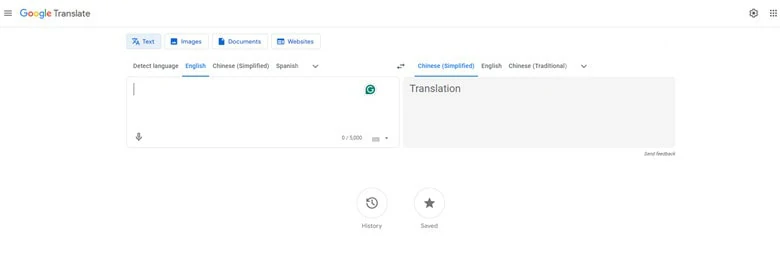
Select the Source and Target Language in Translate Interface
How to Use Google Translate to Translate Audio to Text on Mobile
To use the Google Translate app on mobile devices, first install it. If you already had it on your phone, check the version is the latest one. Then trace the instructions below to use voice-to-text feature in Google Translate on your mobile phone.
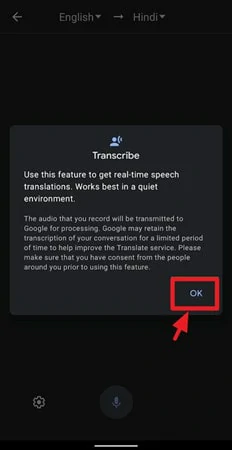
Activate Translate Feature of Google Translate Android Version
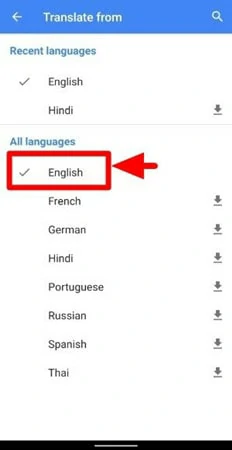
Select the Source Language in Google Translate on Mobile
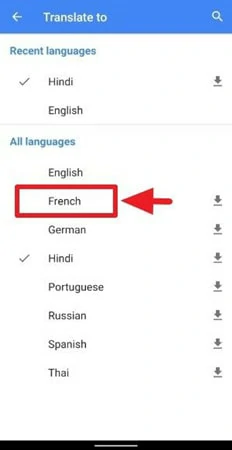
Choose the Target Language for the Translation
While Google Translate makes it efficient to translate voice to text, it still has limitation as below:
An Easier Way to Translate Voice to Text Online
FlexClip is an advanced online speech-to-text tool that seamlessly converts various sound files, including meeting recordings, voice memos, and podcasts, into text without limitations. Supporting over 140 languages with different accents, it utilizes AI technology to accurately identify your soundtrack and transcribe it with up to 95% accuracy.
Moreover, FlexClip offers extensive editing capabilities for the transcribed text, allowing you to adjust timecodes, select output file formats, check spelling, and more. Following transcription, you can conveniently download the text in formats such as TXT, SRT, VTT, SBV, and others.
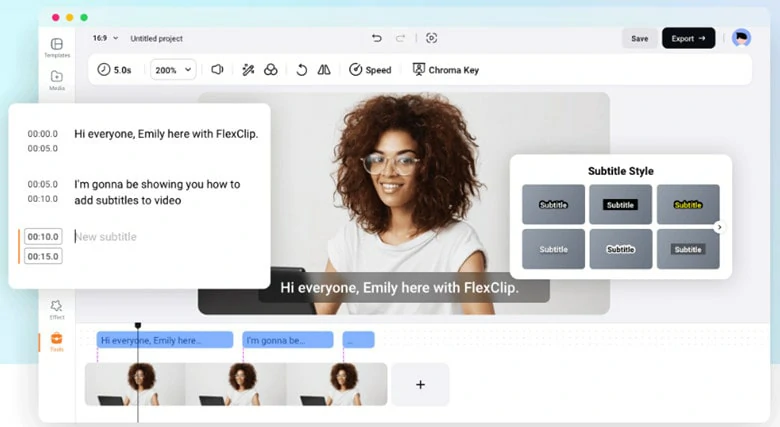
Translate Voice to Text Online Using FlexClip
In addition to its voice-to-text feature, FlexClip embarks a diverse creative journey:
How to Transcribe Voice to Text Online Using FlexClip


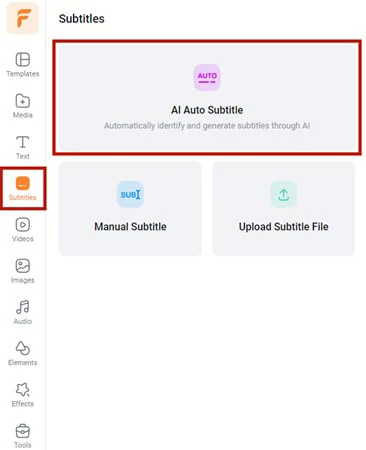
Choose AI Auto Subtitle Option in FlexClip
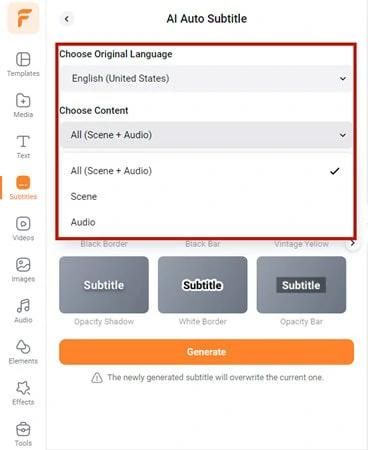
Select the Language in the Voice
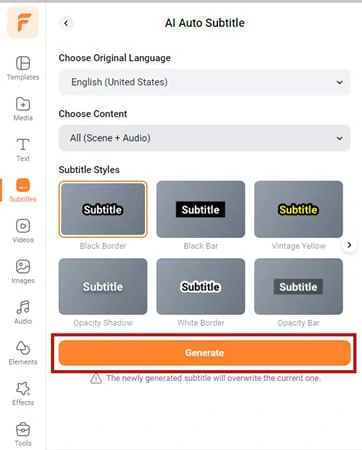
Initiate the Voice to Text Conversion Process
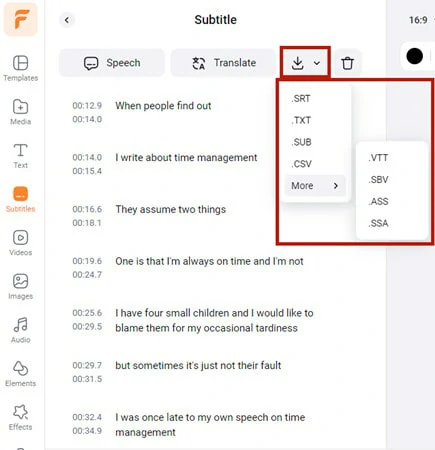
Download the Transcribed Text as Your Preferred Format
FAQs
Google Translate voice-to-text service supports up to 133 languages, including commonly spoken languages like English, Chinese, Spanish, Japanese and more.
The answer is Yes and No, depending on your specific requirements. Google Translate can transcribe audio files when played in a clear background. However, if you wish to upload a voice file for automatic handling by Google Translate, there's currently no available solution.
Google Translate enables you to edit the transcript including changing the font size. To do this, you need to tap on the Settings icon on the bottom left corner and explore a list of editing options to meet your specific requirements.
Google Translate doesn’t offer a direct feature for saving or downloading transcribed text. However, you can manually copy the text from the translation output box and paste it into another document or application for saving or additional processing.




FlexClip AI Video Maker
Reach professional-quality videos faster with easy editing tools, templates, and smart AI.
Start Now for Free
Hot & Trending
-

Best Ways to Find Music in YouTube Videos
-

Instagram Story Video Quality Bad After Upload? Fix It!
-

How to Repost Video on TikTok & How to Remove TikTok Repost
-

Improve Video Quality Online: 3 AI Video Quality Enhancers You Can't Miss
-

4K Convert to HD 1080p without Watermark: Best 4k Video Converters
-

Top 13 Birthday Video Makers with Music and Effects Free
-

How to Search Filters on TikTok & Use a Filter You See - TikTok Filter Guide
-

Large Collection of Creative and Funny Birthday Video Ideas for Ones You Care