


Ever sketched a character and wished you could make it move? Try to make your characters waving, dancing, or even talking? Thanks to AI-powered tools, animating basic character movements is now easier than ever! Whether you want your character to walk, jump, wave, or dance(like the example below), AI-driven animation simplifies the process, making it accessible even if you're a complete beginner.
Animated Character Video with FlexClip AI
In this guide, we'll introduce an easy online AI character animator, called FlexClip, and explore how to use it to animate your character without rigging in different ways. Let's get started!
Bonus: Editable Animation Video Templates You Might Love:



Create Video Faster with FlexClip's Pre-Made Templates →
Start from Scratch Easily with FlexClip's Online Video Maker →
Can't Miss: 5 Best AI Dance Video Generators to Make Your Photo Dance for Viral TikTok Videos >
Part 1 Quick Solution for Animating Your Characters without Rigging
Generally speaking, creating animated characters used to be a complex task requiring advanced skills in animation software, but now, AI animation tools like FlexClip have made it incredibly easy for you to animate your own characters without rigging in simple clicks.
FlexClip's AI animation video generator offers versatile ways to animate your still character images into dynamic videos. Whether you want to transform still character images into smooth animations using different AI generation models based on simple prompt or mimic the movements of the subject in an existing video perfectly with your uploaded character image and a reference video, FlexClip AI enables everyone, even the beginners, to animate still characters with great ease.

Part 2 How to Animate Your Character without Rigging Using FlexClip AI
FlexClip's user-friendly interface and powerful AI features help you create professional-looking animations in no time. Now that you know what FlexClip is all about, let's get started now, and let your creativity flow as you bring your characters to life!
Step 1 Prepare Your Character Design(Optional)
Before diving into animation, you'll need a character image to animate. You can use an image of your favorite character downloaded from internet or a custom character sketched by yourself.
Or if there is no fitting character image in hands, you instantly create consistent character using FlexClip's built-in AI tools - AI photo editor and text-to-image tool. Check the detailed steps below to create a character with AI.
#1 Turn Your Image into an AI Character:
For those who want to transform yourself, family, friend, or even pet into a unique character, FlexClip's AI photo editor helps you achieve that with simple clicks:
1. Upload your image to FlexClip's photo editor and select an AI model you like.
2. Describe the style you want to transform your photo, such as Ghihli, Retro Anime, and more, and start generating.
3. Once generated, check the final result and save the AI-transformed character image.
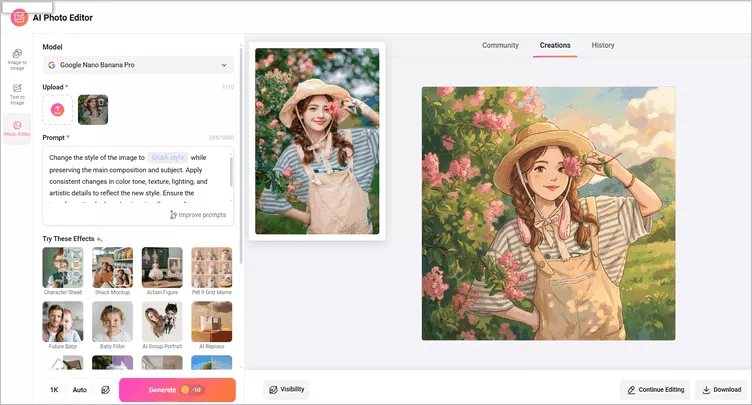
Turn Your Image into an AI Character
#2 Generate AI Character from Text Prompt:
Or you can try FlexClip’s Text-to-Image generator for swiftly creating a character from text. Unleash your imagination and use written words to create any type of characters. Whether you're after an anime girl or cartoon boy, a cute or cool one, simply describe your desired character, and watch AI transform your ideas into stunning image.
1. Go to FlexClip's AI text to image generator, and then describe the character you want to generate in detail. Let's try the prompt below:
A rebellious biker girl with short, spiky purple hair, wearing a leather jacket adorned with patches. She rides a high-tech motorcycle, and her look is tough yet cool. The background shows a city at night, illuminated by streetlights and neon signs.
2. Choose the art style and ratio for your character image, and wait for AI to generate.
3. Once done, you can download AI-generated character directly. Or click the Image to Video button to quickly animate your character using FlexClip AI animation tool.
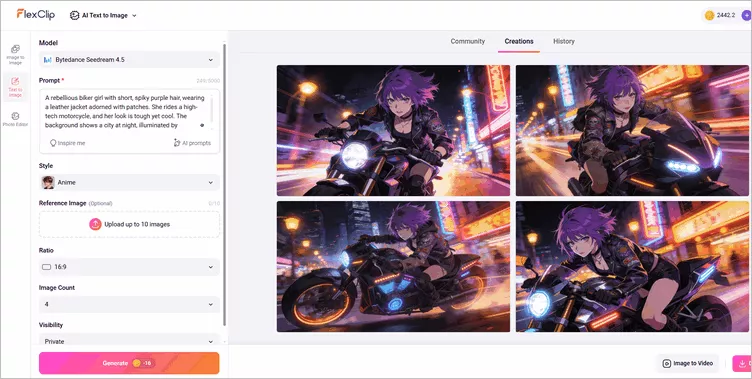
Generate AI Character from Text Prompt
Step 2 Animate Your Character Using FlexClip AI
Now that you have your character ready, it's time to animate it! FlexClip offers a powerful AI video generator tool for you to animate your character with simple clicks.
FlexClip offers multiple generation AI model from Kling, Hailuo, Sora 2, Google Veo 3 and FlexClip’s built-in options for you to turn your still character pictures into dynamic videos simply by uploading your character image, and giving any needed animation prompts, like dance, run, walk, kiss, hug and more, and then just wait for the AI to animate your character according to the prompt to bring your character to life.
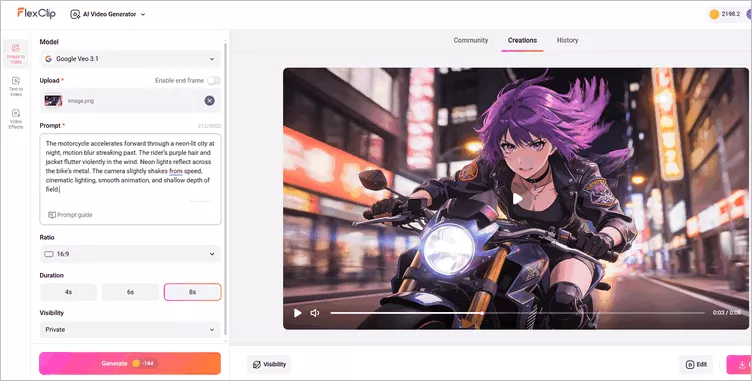
Animate Your Character Using AI with Text Prompt
Let's take a look at an example animation created with FlexClip AI using Google Veo 3.1 mode:
Animated Character Video with FlexClip AI
Alternatively, you can try the newly integrated Kling 2.6 Motion Control model, which allows AI to automatically transfer movements, gestures, and facial expressions from a reference video onto your static character image. This high-fidelity motion transfer ensures natural movement while preserving your character's original appearance, style, and identity.
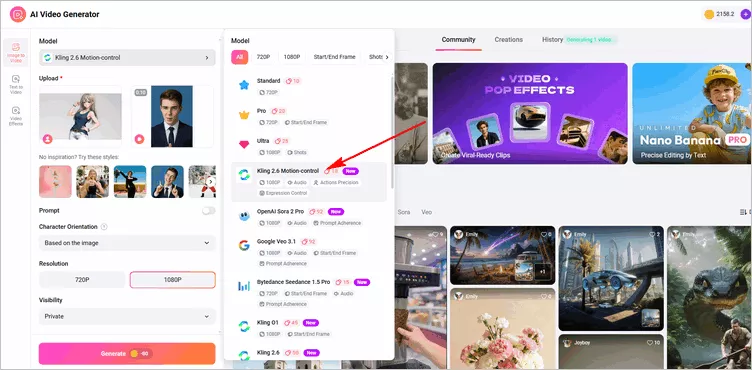
Animate Your Character Using AI from Reference
Let's take a look at an example animation created with FlexClip AI using the Kling 2.6 Motion Control model:
Animated Character Video with FlexClip AI
Step 3 Make More Edits, Like Voiceover, Music and Captions (Optional)
Besides animating your character with AI, FlexClip also allows you to add the character animation to its built-in editor to further customize your character animation with powerful tools, rich resources, and stunning effects.
If you want your character to speak or display text, go to the "Text" tab and add animated text. You can even sync those words with a voiceover or use FlexClip’s text-to-speech feature. To make the animation more engaging, you can also add background music. FlexClip allows you to upload audio files or use their built-in music library.
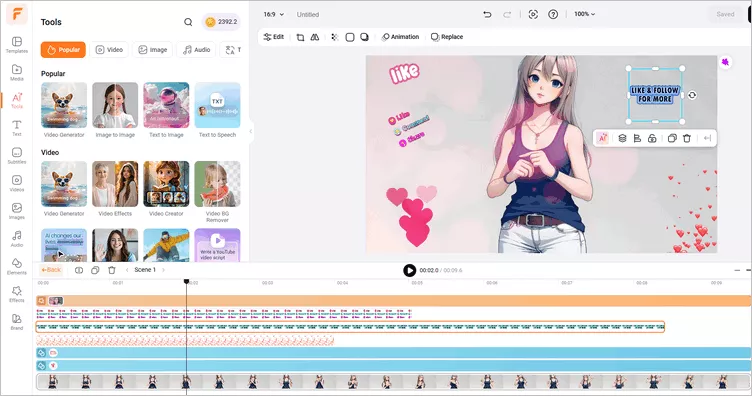
Make More Edits, Like Voiceover, Music and Captions
Step 4 Export and Share the AI Character Animation
Once you've done all the edits with the AI character animation, click the "Preview" button to see it in action. If everything looks great, export the video in your desired resolution (e.g., 720p or 1080p) and format.
Final Words
FlexClip may not have the deep AI features found in more complex animation software, but it does offer a super accessible and powerful platform for anyone looking to create engaging character animations. So, if you're looking for a user-friendly, fast, and fun way to animate characters with minimal hassle, give FlexClip a try right now!




FlexClip AI Video Maker
Reach professional-quality videos faster with easy editing tools, templates, and smart AI.
Start Now for Free
Hot & Trending
-

Best Ways to Find Music in YouTube Videos
-

Instagram Story Video Quality Bad After Upload? Fix It!
-

How to Repost Video on TikTok & How to Remove TikTok Repost
-

Improve Video Quality Online: 3 AI Video Quality Enhancers You Can't Miss
-

4K Convert to HD 1080p without Watermark: Best 4k Video Converters
-

Best 8 Free Video Editors - No Download Required
-

Top 13 Birthday Video Makers with Music and Effects Free
-

How to Search Filters on TikTok & Use a Filter You See - TikTok Filter Guide




