Have you ever though that still photos are flat and seemed a little lifeless, and wanted to add some camera movement animations to make your photos feel like videos?
Previously, adding camera movement animation to a static photo meant learning After Effects or even hiring someone who did. But now, things have changed. Thanks to AI, there are many AI camera movement animation tools, you can try to add smooth camera movement to any image within simple clicks! Let’s dive in.
Contents:
Awesome Videos Generated from Still Photos You Might Love:


Create Video Faster with FlexClip’s Pre-Made Templates →
Start from Scratch Easily with FlexClip's Online Video Maker →
Can't-miss: Photo to Video Maker AI: How to Convert Image to Video with AI >
Introducing AI Camera Movement Animation Tool - FlexClip
To help you add camera movement effect to a static photo easily, here we have FlexClip. It offers powerful AI solutions for you to create realistic camera movement for you photo, including 3D animation tool and advanced AI image to video generator. With them, there is no animation experience needed at all, everyone can create camera movement for a still photo with great ease.
#1 AI Image to Video Generator: uses textual prompt to describe what you want the camera to do (or even ask for more creative animation, such as dancing walking, fighting, etc.), and the AI system analyzes your text and applies realistic camera movement to your photo, transforming your still pictures into dynamic videos.

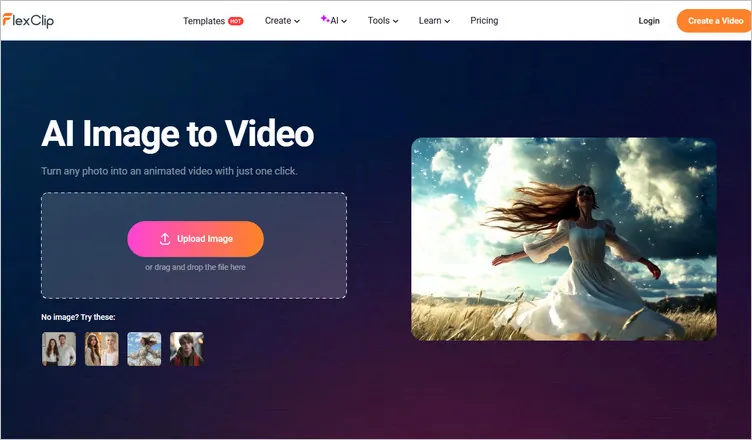
FlexClp AI Image to Video Generator for Camera Movement Effect
#2 3D Photo Animation Tool: offers different camera movements, such as zoom, circle, vertical, and horizontal, to automatically add animation to any static image naturally like it was born in this way, which can certainly add depth and visually enhance your photos.
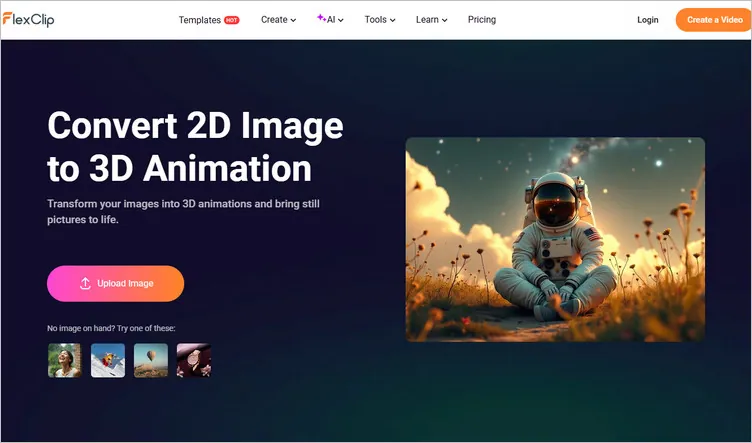
FlexClp 3D Photo Animation Tool for Camera Movement Effect
Method 1: Create AI Camera Motion to Still Photo Using Text Prompt
It's pretty easy to create AI camera motion to a still photo is using FlexClip's AI image to video generator. Let’s check the simple steps below.
Step 1 Upload Your Still Photo
First, head over to FlexClip's AI image to video generator, then pick a desired AI model, from Sora 2 to Veo 3, Hailuo AI, Kling AI and more, and upload any photo you want to add AI camera movement to.
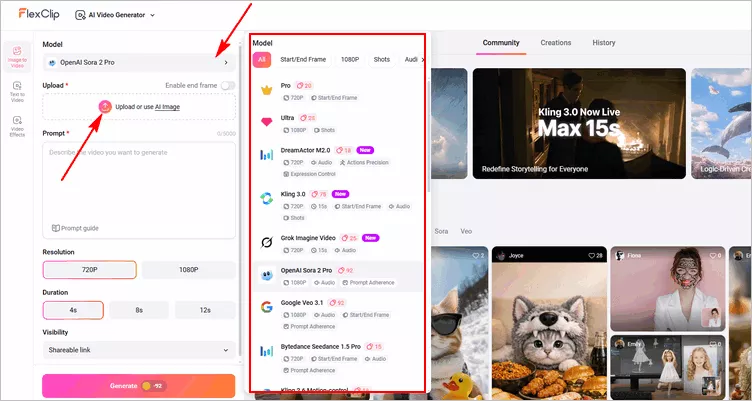
Upload Your Still Photo for Camera Movement Effect
Step 2 Type Text Prompts Describing the Camera Movement
Now, here comes the most fun part. Just write down the text prompt to tell the AI what camera movement you want it to add to your photo. For example, you can simply say "pan right across the photo" or try "zoom slowly into the center".
It's wise to specify the subject, subject action, and give more details in your prompt for getting better camera movement animation. Here let's try "the camera moves to reveal a smartphone with a wooden-textured back, positioned on a tree stump, with a backdrop of lush green tropical leaves" with the Pro AI Model.
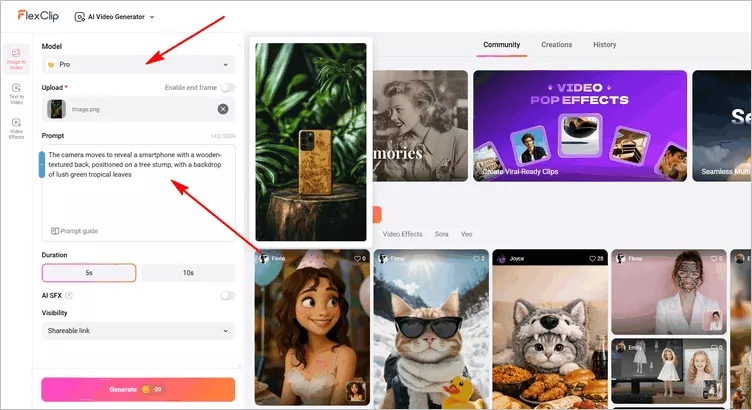
Add Prompt for Camera Movement Effect
Step 3 Add AI Camera Movement and Generate a Video
Once your photo and camera movement animation description are ready, just adjust the settings to choose the video resolution, duration, and visibility. And finally hit the Generate button to let AI do the rest.
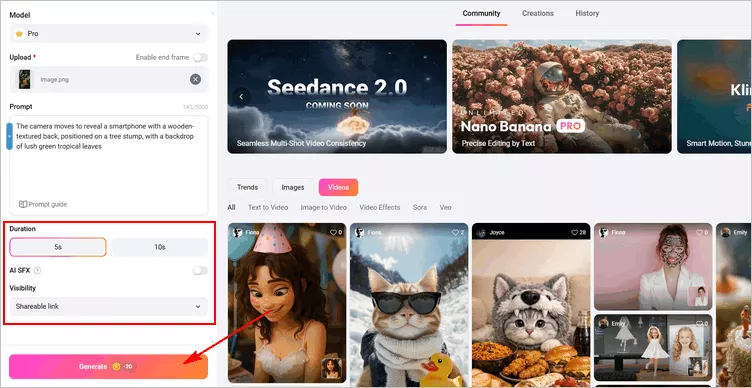
Add AI Camera Movement and Generate a Video
Step 4 Preview and Download the AI-generated Video
Within a few seconds, FexClip’s AI will add the camera motion to the still photo just as you described it and generate a smooth animated video.
Once finished, you can preview the AI-generated AI camera movement animation video and then download it directly or edit it further with powerful tools to elevate your story.
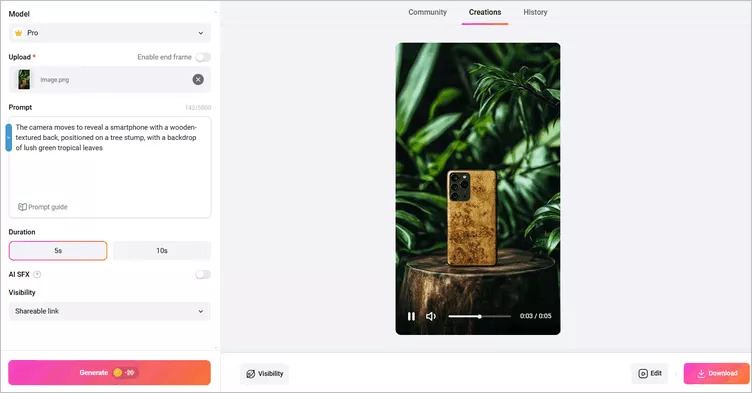
Preview and Download the AI-generated Video
Method 2: Add AI Camera Motion to Photo with Fake 3D Animation
Another easy way you can try to add AI camera movement to a still photo is using FlexClip's fake 3D animation tool. Follow us and click on the Get Started Now button below to access the 3D animation tool and start the generation.
Step 1 Access FlexClip's 3D Animation Tool
Open your browser and navigate to FlexClip's AI 3D Photo Animation tool, and then upload the image for which you want to add the camera movement animation.
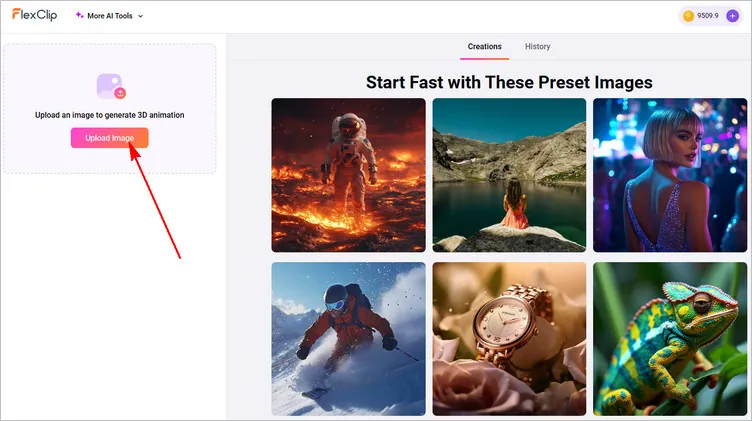
Access FlexClip's 3D Animation Tool for Camera Movement Effect
Step 2 Select Camera Movement Animation
Now, you'll see different camera movements you can add to your image, feel free to experiment them out, and trick with different settings to find your desired effect to make your image move as you want.
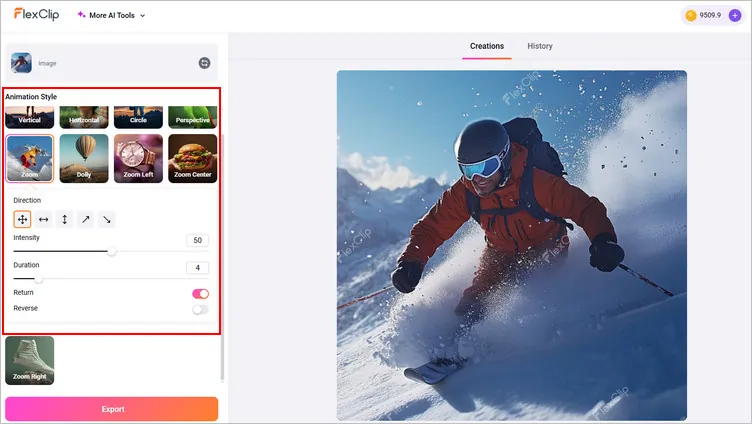
Select Camera Movement Animation for Camera Movement Effect
Step 3 Export the Camera Movement Animation Project
Once you've got the desired camera movement animation on your static picture, click the Export button to save the moving picture as a video or an animated GIF.
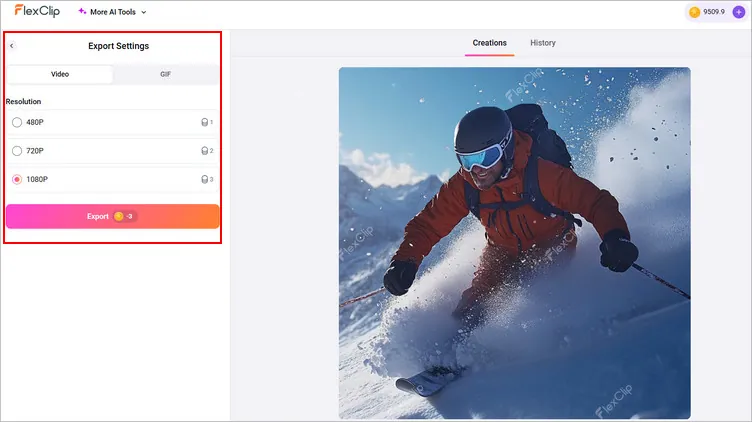
Export the Camera Movement Animation Project
Final Words
That's all for how to add camera movement to a static photo with FlexClip's AI tool. Hopefully, with FlexClip's powerful AI, everyone can create realistic AI camera movement animations to bring a still photo to life with great ease.




FlexClip AI Video Maker
Reach professional-quality videos faster with easy editing tools, templates, and smart AI.
Start Now for Free
Hot & Trending
-

Best Ways to Find Music in YouTube Videos
-

Instagram Story Video Quality Bad After Upload? Fix It!
-

How to Repost Video on TikTok & How to Remove TikTok Repost
-

Improve Video Quality Online: 3 AI Video Quality Enhancers You Can't Miss
-

4K Convert to HD 1080p without Watermark: Best 4k Video Converters
-

Best 8 Free Video Editors - No Download Required
-

Top 13 Birthday Video Makers with Music and Effects Free
-

How to Search Filters on TikTok & Use a Filter You See - TikTok Filter Guide