


Your next Instagram growth breakthrough lies in your YouTube library. When done strategically, a single YouTube video can fuel weeks of Instagram content, and quietly outperform brand-new posts.
In this guide, we will learn the detailed steps to share YouTube videos to Instagram, as well as some practical strategies to help the YouTube video stand out. Refer to the part you need.
Table of Content


Get More Customizable Instagram Templates >
Also Read: Instagram Story Quality Bad After Uploading? Fix It!
Importrant Notice
Please do not download or repost other people’s YouTube videos without their permission. Sharing someone else’s content without consent may violate copyright rules and could lead to legal issues. Always give credit and ask for permission before sharing someone else’s work.
Part 1. AI Automatically Convert Long YouTube Video to Instagram
YouTube and Instagram award different video types. YouTube prefers long, horizontal videos, and most Instagram videos are short, 9:16 vertical videos. To maximize reach and boost repurposing efficiency, you will need a tool like FlexClip's Long to Shorts tool that automatically changes aspect ratio and extracts highlights. No manual edits, no complicated setup needed.
Click the Repurpose YouTube Video to Instagram button, follow the steps below to reach wider audiences now.

Step 1. Upload a YouTube Video
Copy and paste a YouTube video link to the empty square, or upload a YouTube video from a local folder. FlexClip's AI will analyze your video soon.
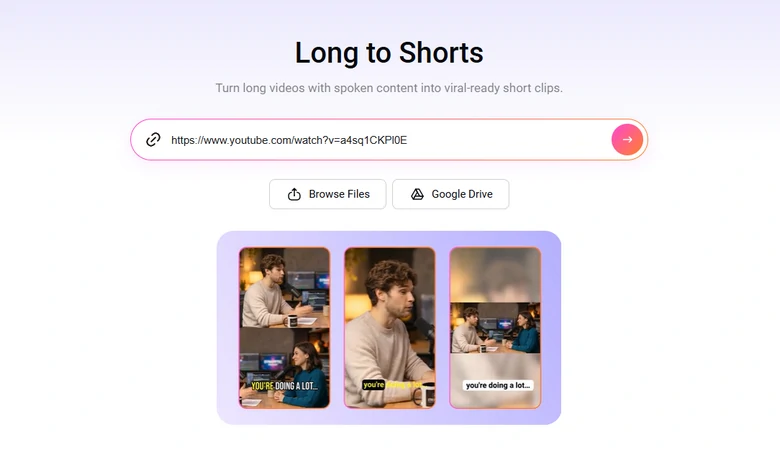
Upload YouTube Video to FlexClip's Long to Shorts Tool
Step 2. Basic Setups
Make some basic setups like video language, highlight type, video duration, and aspect ratio. Hit Generate.
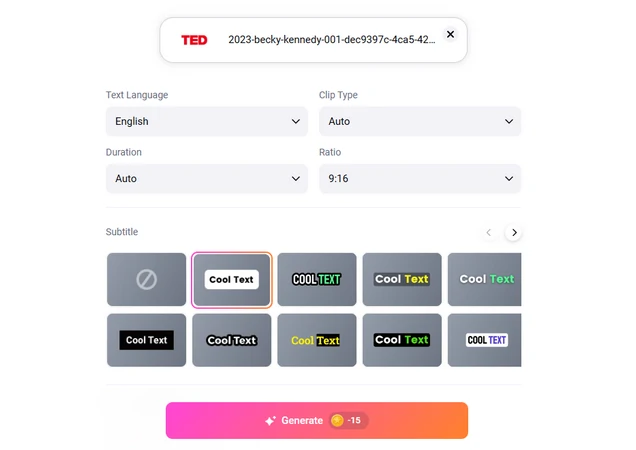
Make Basic Setups
Step 3. Choose a Viral Clip
By default, FlexClip generates you 6 clips at a time. Each comes with a viral potential score to help you decide which one is the best. Save it to a local folder. Direct upload access to Instagram will be available soon. Please stay tuned.
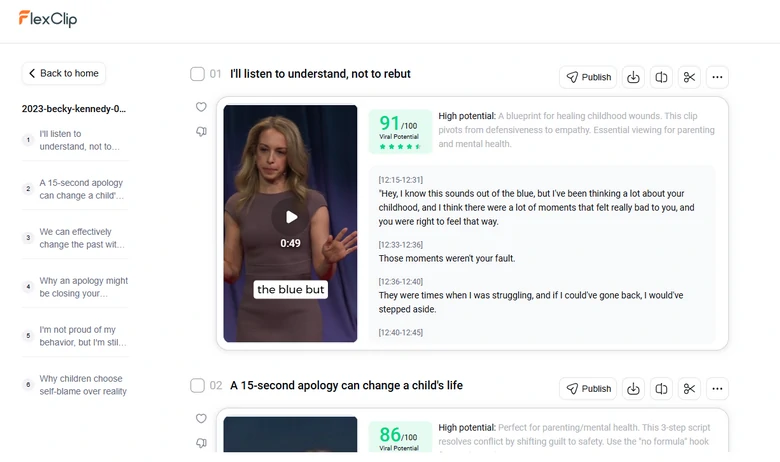
Choose a Viral Clip
Part 1. Resize and Share YouTube Video to Instagram Post/Reel
Feel like making manual edits? Then we will be covering the easiest-to-use tool FlexClip. There are other video editors you can try out like ClipChamp, CapCut, or iMovie.
Step 1. Import Your YouTube Video
You are now at FlexClip's editor page. Go to the Media section, import your YouTube video from a local folder, cloud service, or mobile device. Drag and drop will also do.
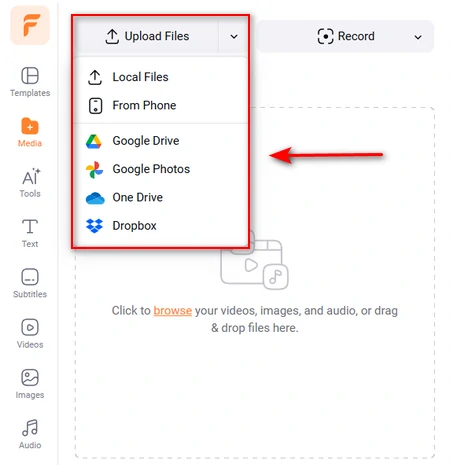
Upload YouTube Video to FlexClip
Hover your mouse to the YouTube video on the Media section, then click on the Add as Scene button. The video will be added to the timeline.
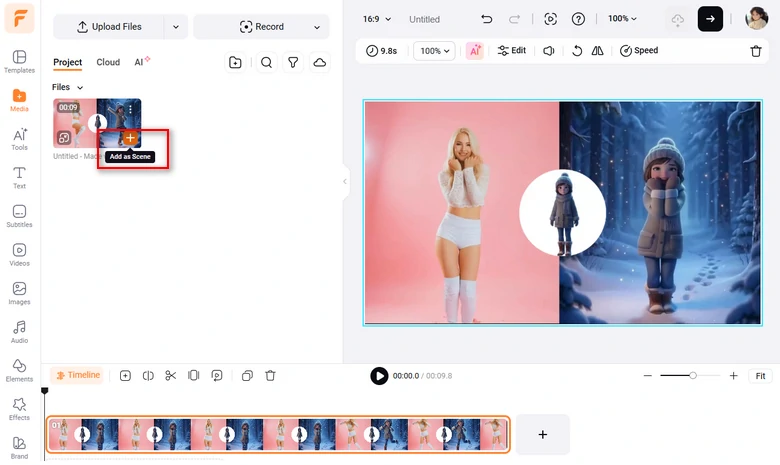
Apply YouTube to FlexClip Timeline
Step 2. Resize YouTube Video
The video resize button are above the timeline. By default, it is canvas aspect ratio is 16:9, but you can change it to 9:16 for Instagram Reels, or 1:1, for Instagram feed and carousel posts. Choose the one you love.
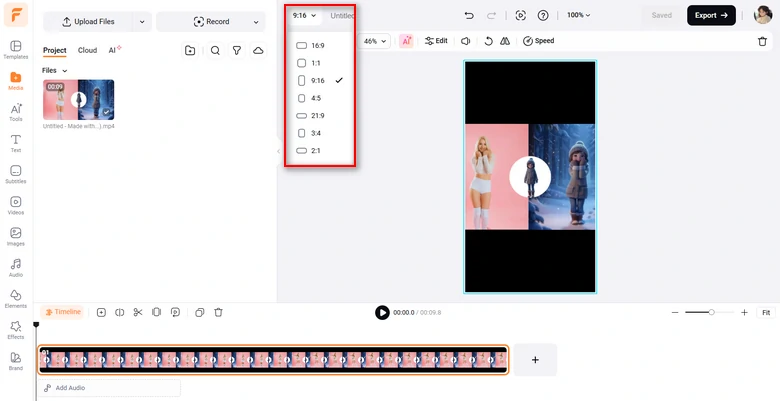
Resize Horizontal YouTube Video to Vertical Instagram Video
While fitting the YouTube video to the 9:16 canvas, you will notice black bars above and below the video. Click the background color button, head over to the blur section. FlexClip will automatically add a blurry background that matches the original video.
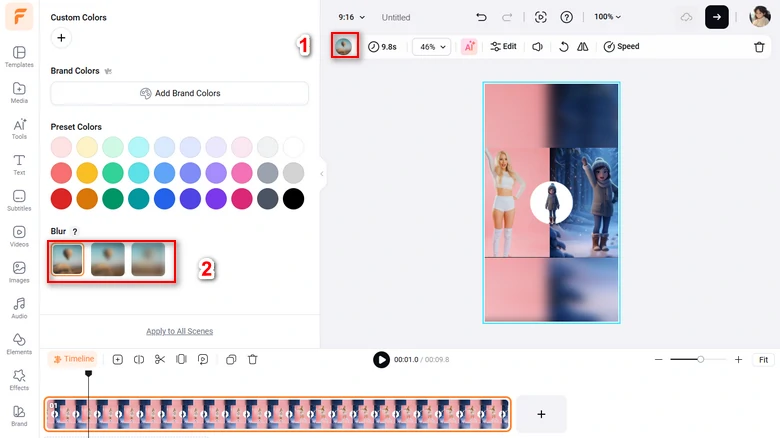
Get Rid of the Black Bars
Step 3. Make Other Edits
You may need to edit the YouTube video so that it performs better on Instagram. Here are some of the recommended edits to do.
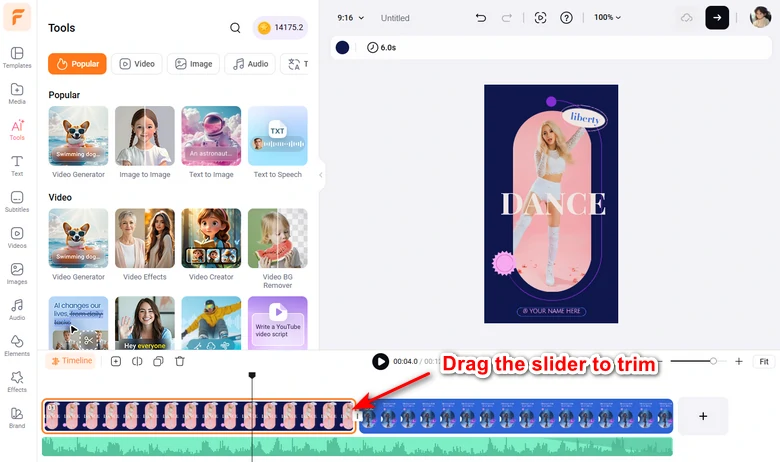
Trim YouTube Video
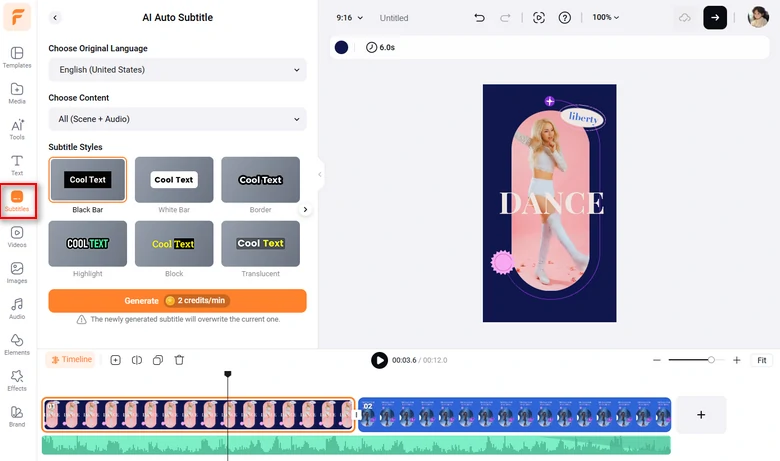
Add Caption to Video
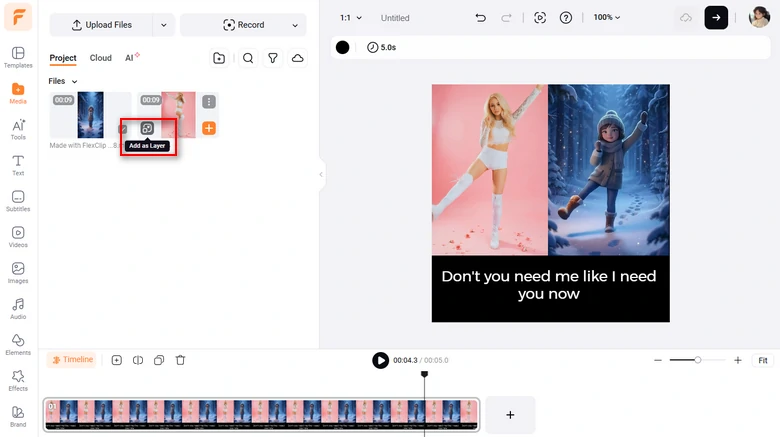
Create Video Collage
Step 4. Export & Download
Preview the video. If every detail is perfect, download the video to a local folder. You can also save it to connected cloud service.
Step 5. Post the Resized YouTube Video to Instagram
Head over to your Instagram app. Click on the "+" sign, and the Post will be the default option. You can switch to the Reels, Story.
Choose the video file inside the camera roll, follow the instructions to edit the video, add descriptions, then tap the Share button.
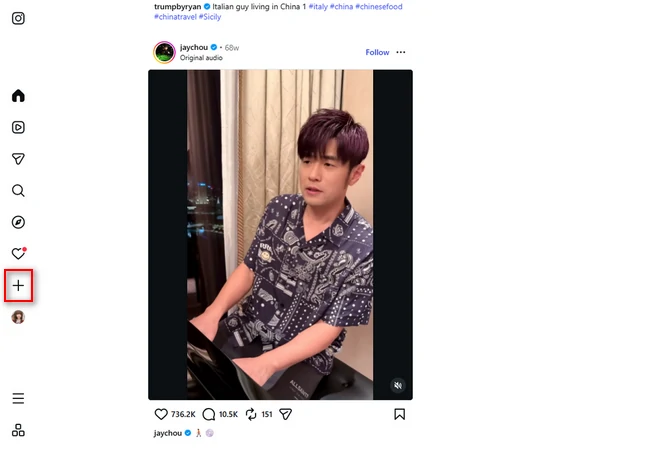
Post Resized YouTube Video to Instagram
Embed YouTube Link to Instagram Story
Downloading, resizing, and reposting YouTube videos can be complicated. Luckily, Instagram Stories offer a URL sticker, letting you share YouTube links directly. While followers can’t watch the video inside Instagram, they can tap the link to open it in YouTube, making it simple and safe to share content.
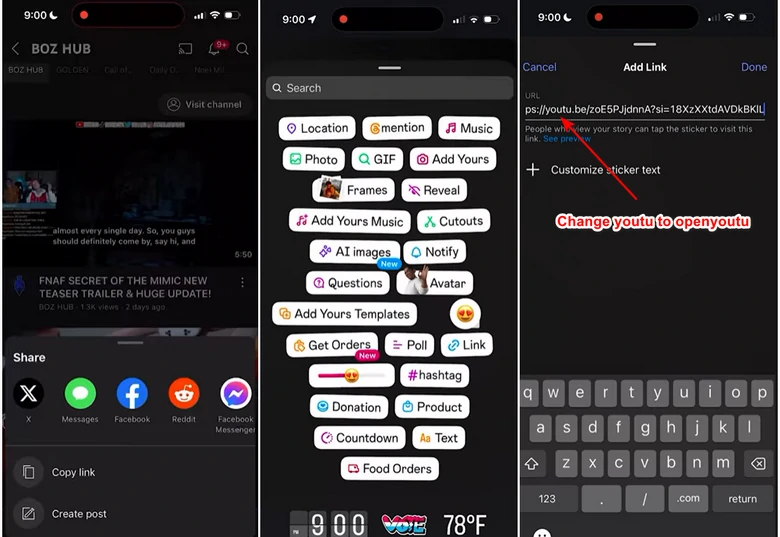
Embed YouTube Video Link to Instagram Story
Part 3. Strategies to Make YouTube Video Stand Out on Instagram
Resizing and posting popular YouTube videos doesn't guarantee success on Instagram, because the content are not originally designed for this platform.
Here are some of the small but effective actions to make your repurposed YouTube connent feels more polished and native.
Frequently Asked Questions
1. Will reposting YouTube videos reduce video quality?
FlexClip doesn't reduce YouTube video quality. To maintain quality, please export in MP4 format, 1080p resolution.
2. Is it better to post YouTube clips as Reels or Feed posts?
Reels generally get more reach and discovery, while feed posts are better for existing followers. For growth, Reels are usually a better option.
3. Does Instagram penalize reposted YouTube content?
Instagram doesn't penalize reused content, but videos with visible YouTube watermark or low engament may perform worse.




FlexClip AI Video Maker
Reach professional-quality videos faster with easy editing tools, templates, and smart AI.
Start Now for Free
Hot & Trending
-

Best Ways to Find Music in YouTube Videos
-

Instagram Story Video Quality Bad After Upload? Fix It!
-

How to Repost Video on TikTok & How to Remove TikTok Repost
-

Improve Video Quality Online: 3 AI Video Quality Enhancers You Can't Miss
-

4K Convert to HD 1080p without Watermark: Best 4k Video Converters
-

Best 8 Free Video Editors - No Download Required
-

Top 13 Birthday Video Makers with Music and Effects Free
-

How to Search Filters on TikTok & Use a Filter You See - TikTok Filter Guide




