I want to have 4 videos on screen at once, how do I do this?
How do people make 4 split screen videos on YouTube?
How do I add four videos in one frame?
4 split screen videos are highly popular on social media, especially in vlogs, music videos, tutorials, and other content that requires detailed comparisons or conveys more information. Want to impress your viewers with an four split screen video? In this guide, we’ll show you how to put four videos on one screen using mobile, computer, and online tools. Let’s dive in!
Free and Customizable 4 Split Screen Video Templates for You:


Can't Miss: How to Put Two Videos Side by Side>>
Part 1. How to Put 4 Videos in One Screen Online with Templates
Looking for a simple way to make a 4-way split screen video by dragging and dropping? FlexClip is the perfect tool to bring your vision to life! As a multi-screen video editor, FlexClip offers a variety of customizable split-screen video templates with sleek designs that let you effortlessly create engaging 4-way split screen videos using simple drag-and-drop actions.




Plus,you can also personalize your project by applying filters, changing video shapes, and accessing FlexClip’s extensive editing tools to unleash your creativity. Whether you're aiming for a professional look or just having fun, the possibilities are endless. If you’re more tech-savvy and prefer complete control, FlexClip allows you to start from scratch and customize everything to your liking - all within minutes!


How to Put 4 Videos in One Screen Using FlexClip’s Template
Can’t wait to put 4 videos in one frame for producing a fantastic 4-way split screen video? Follow this step-by-step guide to create a 4-way split screen video using FlexClip’s templates:

Access FlexClip's Template Library and Pick Your Favorite
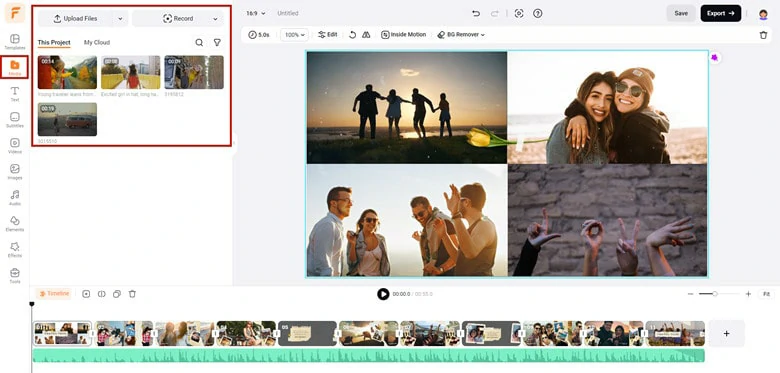
Upload Your Videos to FlexClip
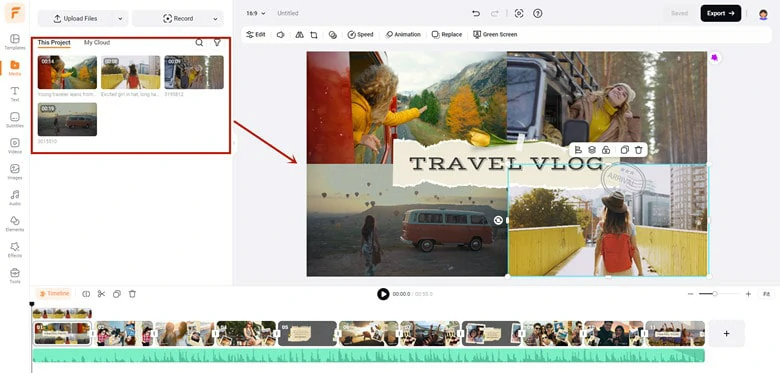
Replace the 4 Split Screen Template with Your Video
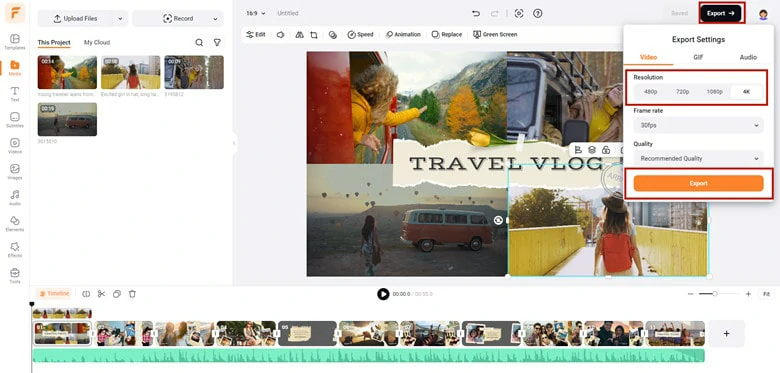
Download Your 4-way Split Screen Video in High Resolution
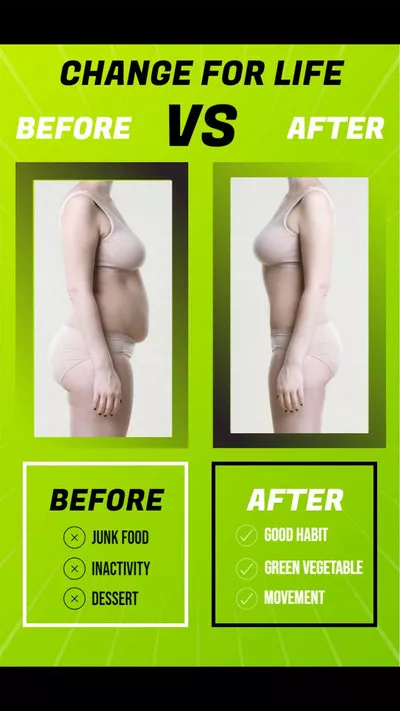
FlexClip’s Templates to Put Two Videos in One Frame


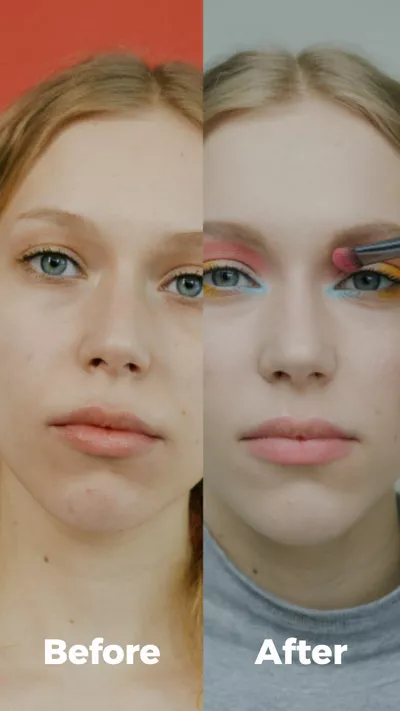

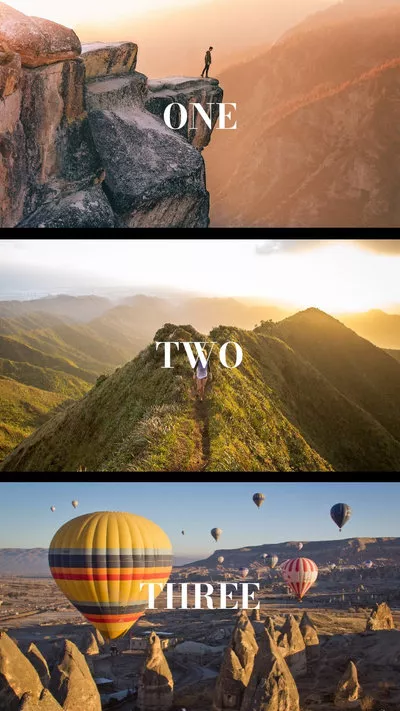
FlexClip’s Templates to Layer 3 Videos in One Screen



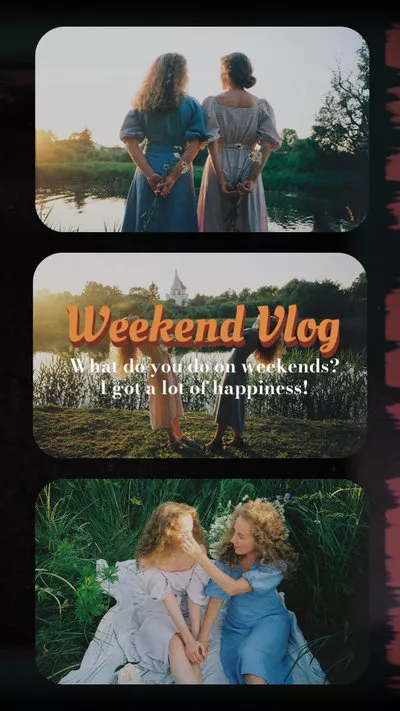
FlexClip’s Templates to Combine Multiple Videos into One Frame





Quickly access FlexClip’s video collage template to explore more>>
Part 2. How to Put 4 Videos in One Screen Using Premiere Pro
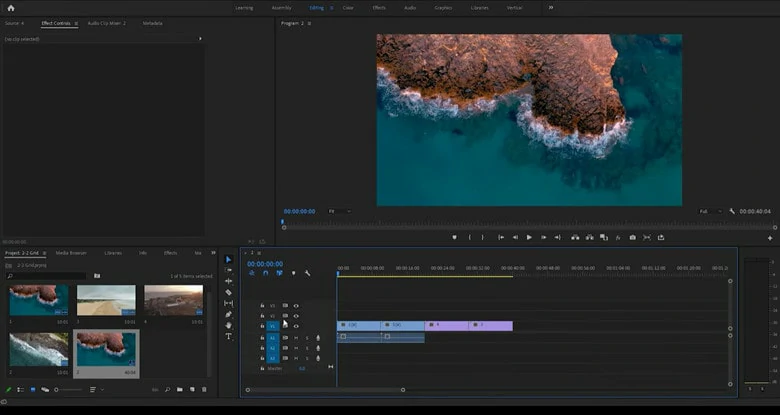
If you ask professionals how to put 4 videos in one screen, they'll likely recommend Premiere Pro. As a leading video editing software, Premiere Pro offers advanced tools that allow you to seamlessly combine four videos into a single frame, with full control over each detail for maximum customization. However, its complex interface can be challenging for beginners. To help you easily get started, follow our step-by-step tutorial to easily create a 4-way split screen video.
Add Your Videos to Premiere Pro
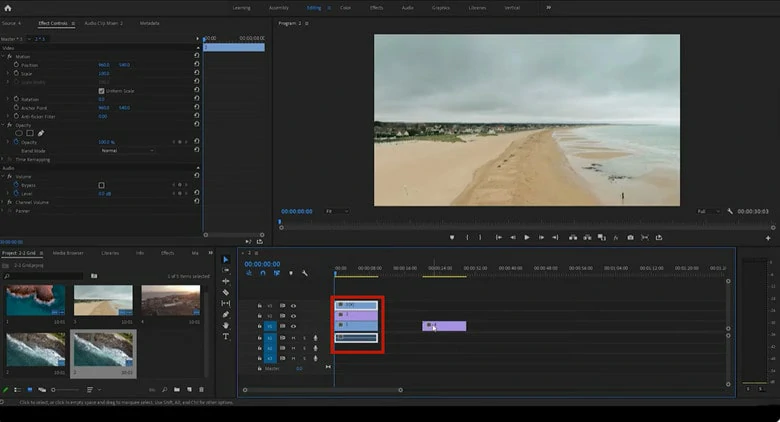
Stack the Videos on Top of Each Other in the Timeline
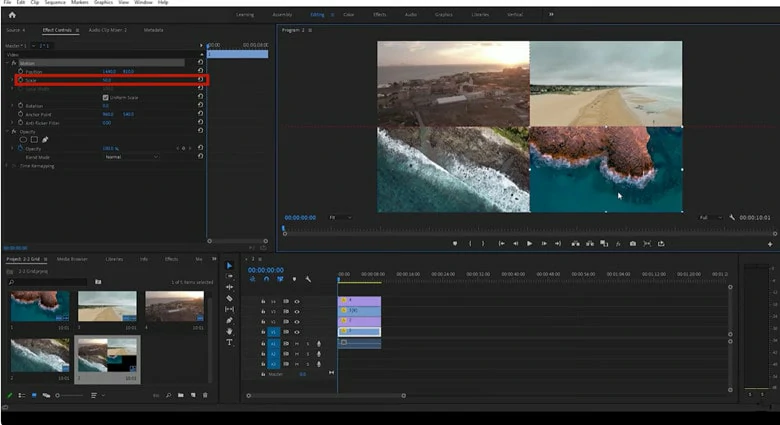
Set the Scale Value of Each Video as 50 to Create a 4-way Split Screen Effect
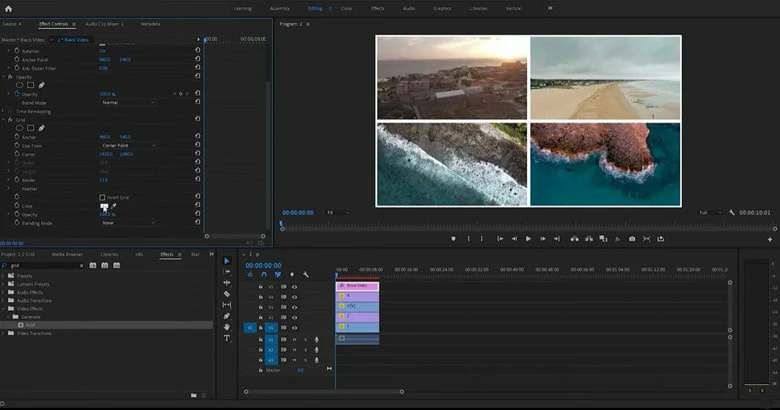
Enhance Your 4 Split Screen Video with Borders in Premiere Pro
Part 3. How to Put 4 Videos in One Screen with iMovie
When it comes to displaying 4 videos on one screen, iMovie, Apple's built-in video editor for Mac users, can also handle the task using its split-screen or picture-in-picture features. However, one limitation is that iMovie only allows you to place two videos in a frame at a time. To achieve the four-video layout, you'll need to repeat the process of importing, overlaying videos in picture-in-picture mode, and exporting the project multiple times. While this method may seem a bit tedious, if you're willing to follow these steps, you can successfully create a 4-way split screen video in iMovie.
How to Layer 4 Videos in One Screen with iMovie
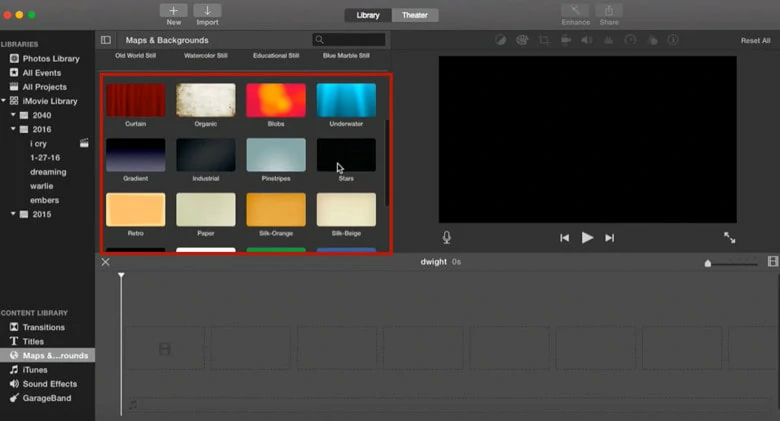
Go to Backgrounds Section in iMovie
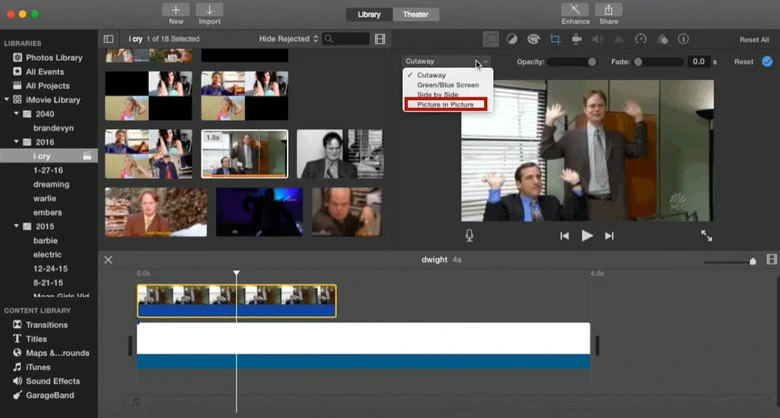
Add Your First Video and Set it as a Picture in Picture Overlay
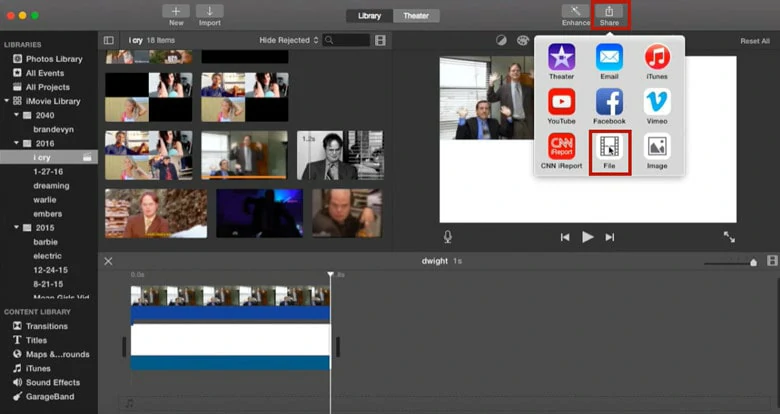
Export Your First Overlay Video to Local
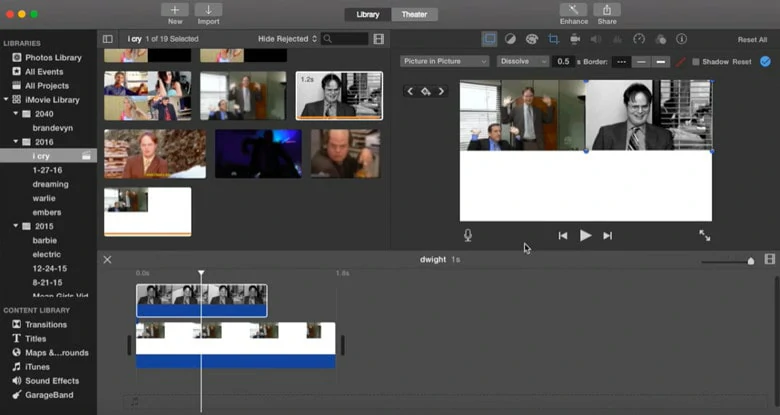
Import the Saved Video and Add the Second Video as a Picture in Picture Effect
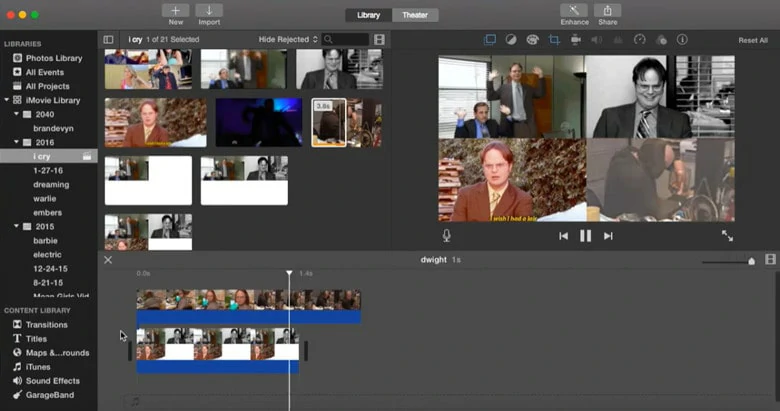
Repeat the Process Until You Create a 4-way Split Screen Video
Part 4. How to Put 4 Videos in One Screen with CapCut
Whether you're an Android or iPhone user looking to create a video with four layers, CapCut is a free and powerful tool. As a timeline-based video editor, it allows you to overlay multiple videos on the screen at once, and easily adjust their duration. Beyond simple four-way split screen video creation, CapCut offers an extensive editing toolkit, enabling you to add filters, eye-catching text, music, and more to enhance your project. Now, let's explore how to put four videos on one screen using CapCut.
How to Combine 4 Videos in One Screen on Mobile Using CapCut
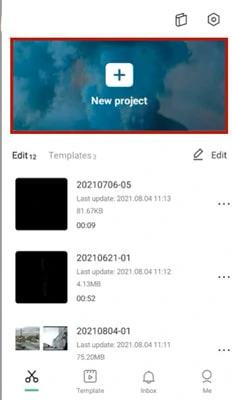
Launch CapCut and Create a New Project to Load a Background
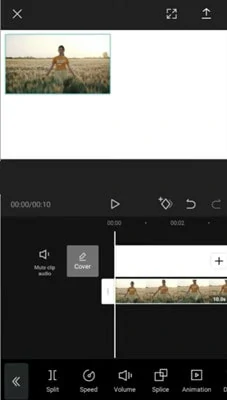
Tap on Overlay to Add Your First Video on CapCut
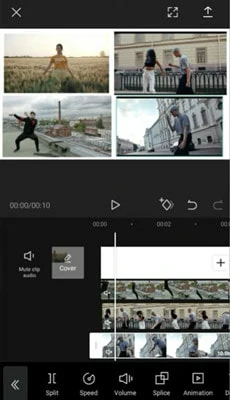
Repeat the Process Until You've Got the 4-layer Video
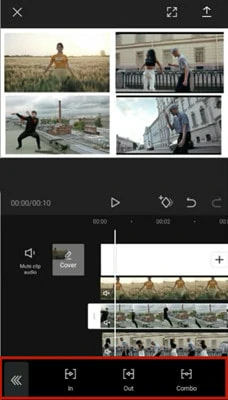
Enhance Your 4-way Split Screen Video with CapCut's Further Edits
The Bottom Line
OK, that’s the end for how to put 4 videos in one screen using mobile, computer, and online tools. Which method do you prefer? Choose your favorite and start creating your own four-way split screen video today!




FlexClip AI Video Maker
Reach professional-quality videos faster with easy editing tools, templates, and smart AI.
Start Now for Free
Hot & Trending
-

Best Ways to Find Music in YouTube Videos
-

Instagram Story Video Quality Bad After Upload? Fix It!
-

How to Repost Video on TikTok & How to Remove TikTok Repost
-

Improve Video Quality Online: 3 AI Video Quality Enhancers You Can't Miss
-

4K Convert to HD 1080p without Watermark: Best 4k Video Converters
-

Best 8 Free Video Editors - No Download Required
-

Top 13 Birthday Video Makers with Music and Effects Free
-

How to Search Filters on TikTok & Use a Filter You See - TikTok Filter Guide