


Are you still adding text directly to videos in PowerPoint? It's time to catch up with the latest trend. Instead of traditional methods, more and more creators are opting to place videos inside text for a visually stunning effect. Sound intriguing? Follow our guide on how to merge text and video in PowerPoint and elevate your presentations to the next level.
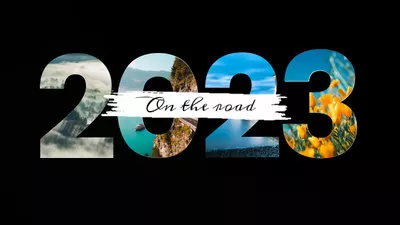



Also Interested in: Make a Self-Running Slideshow on PowerPoint>>
Part 1. How to Put Video Behind Text in PowerPoint
Enhancing your presentations with integrated video and text can significantly elevate their impact. PowerPoint simplifies this process with its Merge Shapes feature, which allows you to seamlessly incorporate video behind your text within slides. Follow these steps to achieve this effect effortlessly:
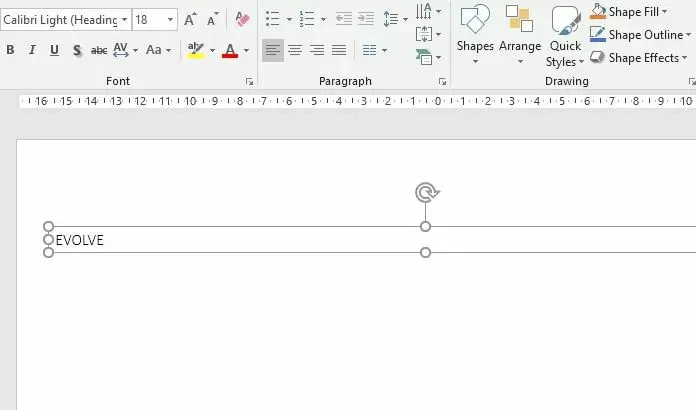
Add Text to Your Slides in PowerPoint
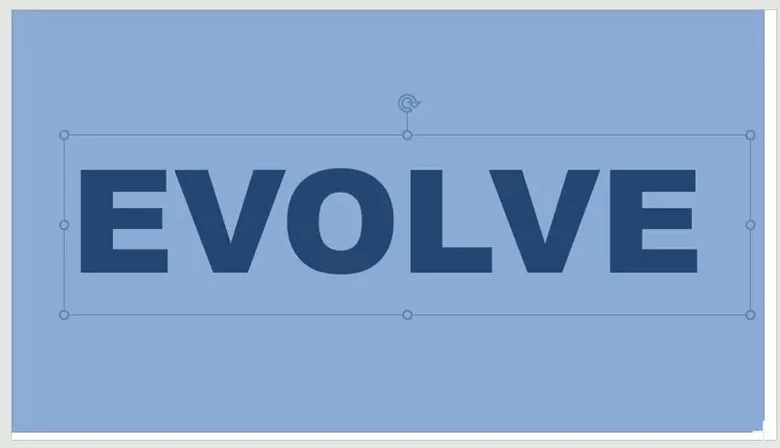
Use Rectangle Shape to Cover the Entire Slide
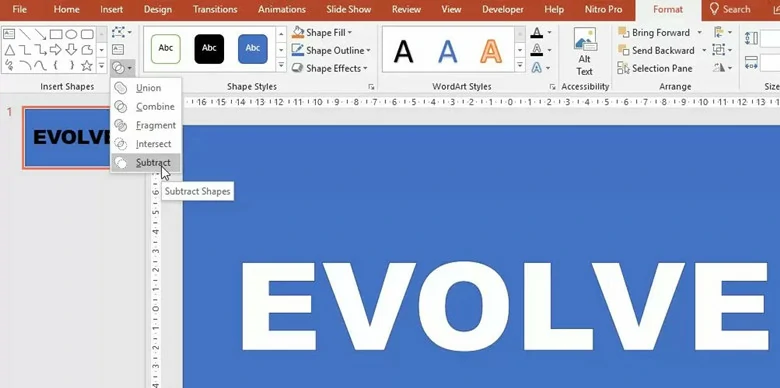
Subtract the Shape for Merging Later
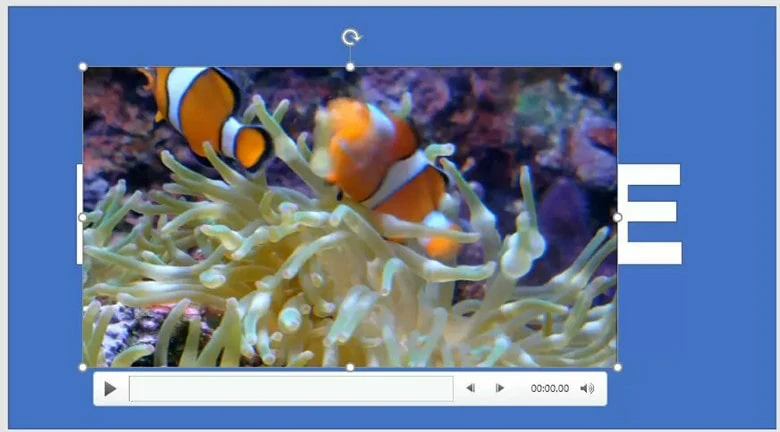
Insert the Video to Fill the Text
Once inserted, send the video to the back to position it behind the text. Customize playback settings as per your preference.
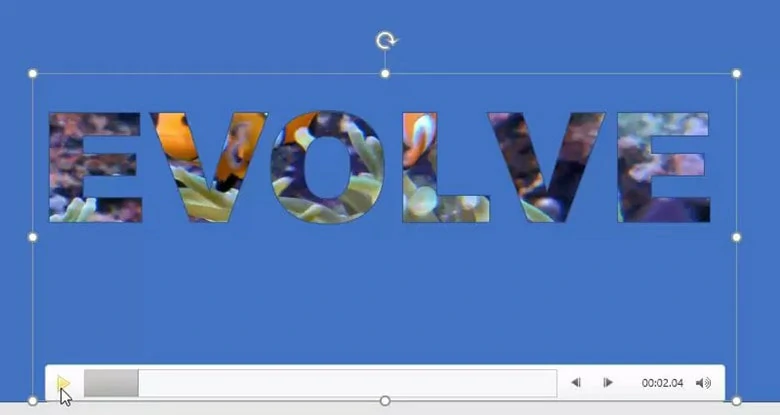
Send the Video to the Back
While the process of merging text and video in PowerPoint is straightforward, some users may encounter unworkable issues with the Merge Shapes feature. In such cases, exploring alternative methods for achieving the video-inside-text effect becomes necessary. Here keep reading to discover alternative approaches for seamless integration.
Part 2. Alternative Way to Create Video Inside Text Effect Online
Looking for an effortless way to seamlessly merge video behind text? Look no further than FlexClip, the ultimate online video editor. With just one click, you can effortlessly integrate video behind text, whether it's within a single word or across separate letters. Plus, you have access to a range of editing tools to perfect your text-filled video, including cropping, filtering, speed adjustment, parameter tweaking, and animation effects.
How to Create Video Inside Text Effect in FlexClip
But that's not all FlexClip has to offer. Check out these additional features:
How to Fill Text with Video Online Using FlexClip
Achieving the perfect merge of text and video in FlexClip is a breeze. Follow these steps to get started:


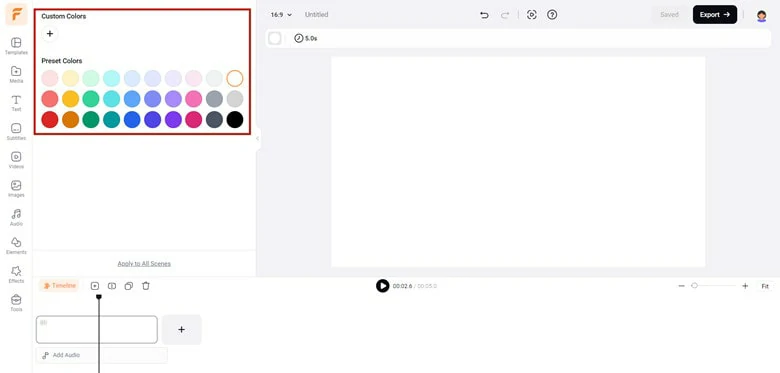
Set the Video Background as You Like
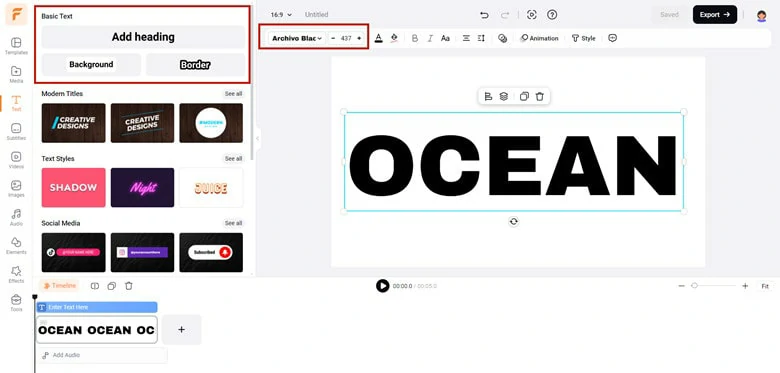
Add Text You Want to Place Video
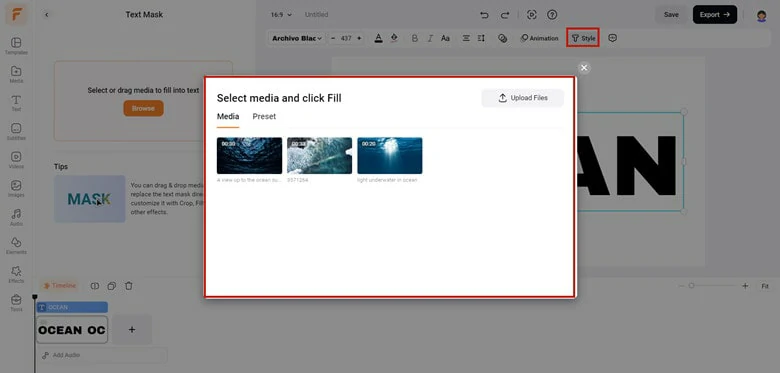
Enable Text Mask Feature in FlexClip
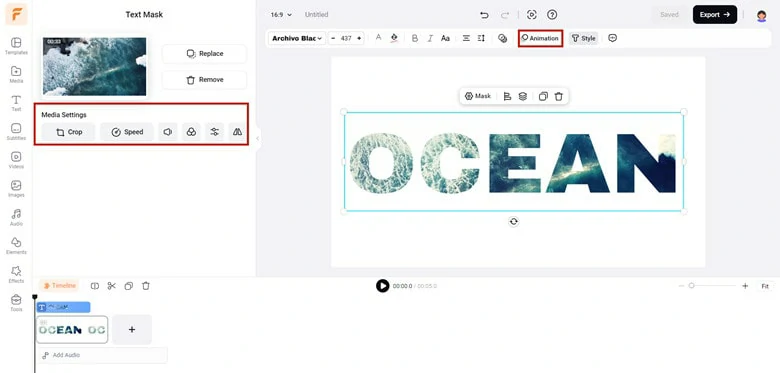
Customize the Video Inside Text Effect with FlexClip's Editing Features
Merge Text and Video Using Multiple Letter Masks in FlexClip
Want to merge multiple texts and videos into one frame? Follow these steps:
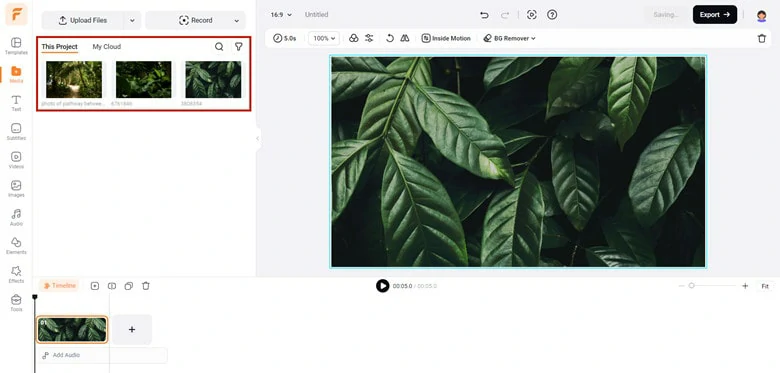
Set the Background to Match Your Theme
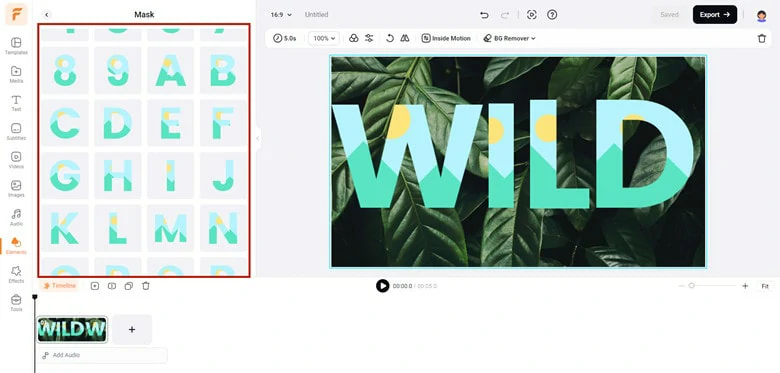
Select the Letter Mask You Want to Use
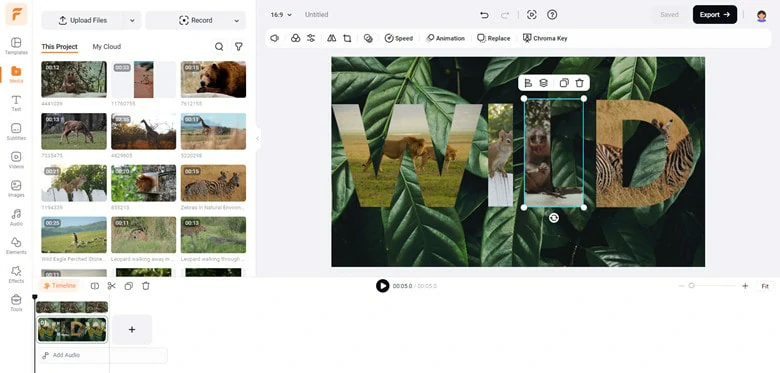
Add Video to the Letter Mask
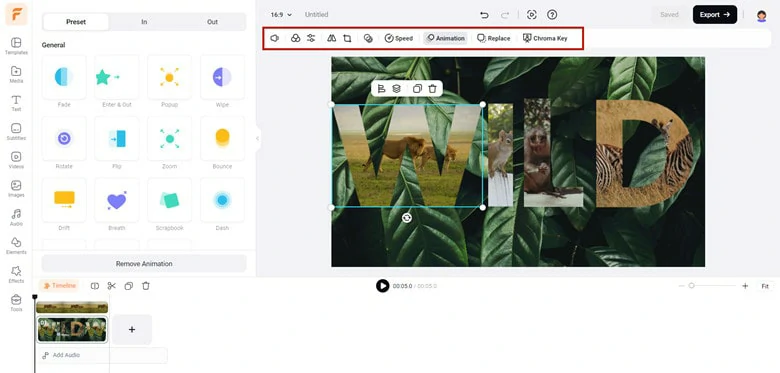
Customize the Effect as You Need
The Bottom Line
That’s all for how to merge text and video in PowerPoint and a simple workaround for placing video and images behind text to address the Merge Shapes issue. Which method stands out to you as your favorite? Make your choice and dive in right away to get started!




FlexClip AI Video Maker
Reach professional-quality videos faster with easy editing tools, templates, and smart AI.
Start Now for Free
Hot & Trending
-

Best Ways to Find Music in YouTube Videos
-

Instagram Story Video Quality Bad After Upload? Fix It!
-

How to Repost Video on TikTok & How to Remove TikTok Repost
-

Improve Video Quality Online: 3 AI Video Quality Enhancers You Can't Miss
-

4K Convert to HD 1080p without Watermark: Best 4k Video Converters
-

Best 8 Free Video Editors - No Download Required
-

Top 13 Birthday Video Makers with Music and Effects Free
-

How to Search Filters on TikTok & Use a Filter You See - TikTok Filter Guide




