


We’ve all been there. Sora 2 creates perfect visuals. The characters, the motions, even lip movements are so realistic. Yet when it comes to voice, something might feel missing - the emotions in the dialogue, the realism of SFX that make the scene truly come alive.
As a matter of fact, there are some tricks you can follow to get better audio in Sora 2. Additionally, some powerful AI tools can recreate Sora 2 audio without any effort. Let’s dive in for more details.
Table of Content


Check More Customizable Video Templates >
Can't Miss: How to Create AI UGC Video Ads that Convert >
How to Generate Video with Better Audio Using Sora 2
After testing hundreds of times, we come up with the following tricks that make huge difference on generated Sora 2 audio.
The lady: Sorry, I’m late. (pause) The traffic is just crazy.
The man: Oh, no worry. (assuring sound) I just got here like 3 minutes ago.
Sora App Tutorial
How to Recreate Audio of Sora 2 Voice
The only tool we will need to recreate audio of Sora 2 voice is FlexClip. It is integrated with advanced text-to-speech tool as well as sound effects generation tool, helping you reshaping Sora 2 generated audios. Let’s dive in for more detailed steps.
Step 1. Download Sora 2 Video
First up, you need to download Sora 2 video for use. Go to sora.com, log in to your account, navigate to your project page. Click the three-dot menu player and hit Download. Usually the Sora 2 video will be saved as MP4 format.
If you are on Sora app, tap the video, look for the Share/Export option, and select Download.
Step 2. Separate Audio from Sora 2 Video
In this step, we will remove the Sora 2 audio completely. Head over to flexclip.com using browser, visit its editing panel. Upload Sora 2 video to its Media section, and drag to the timeline.
Click the Sora 2 video on the timeline, select Detach Audio, and delete the audio completely from the timeline.
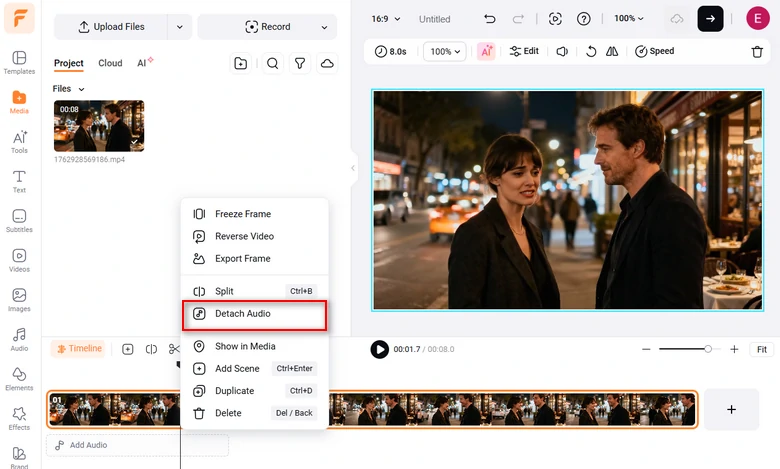
Detach Audio from Video
Step 3. Generate AI Dialogue
Whether you are aiming for a calm narrator, a lively protagonist, or a dramatic tone for storytelling, FlexClip AI Text to Speech generates vivid talks, in any sound, style, tone you love.

Go to FlexClip’s Text to Speech tool, render among over 1000 voice models that speak 130+ languages, pick the best one, enter the script and hit Generate. You will get satisfying output in several seconds.
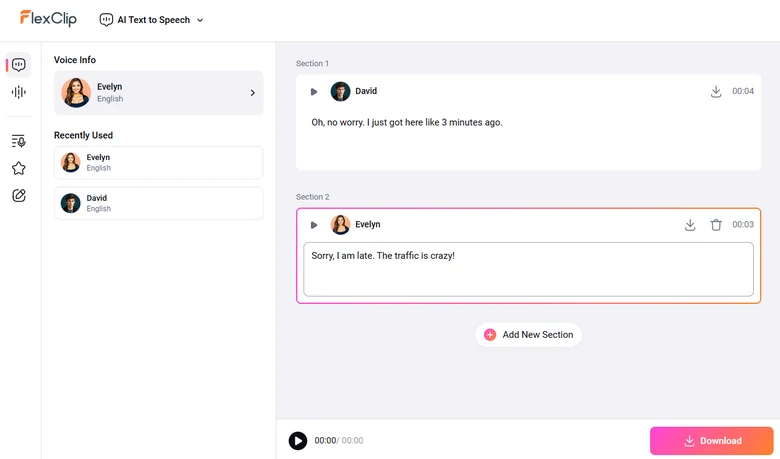
Regenerate Sora 2 Video Dialogue
No AI sound you love? Upload an audio track, use FlexClip to create a voice clone model ready to use in seconds. This significantly broadens Sora 2 voice possibilities.
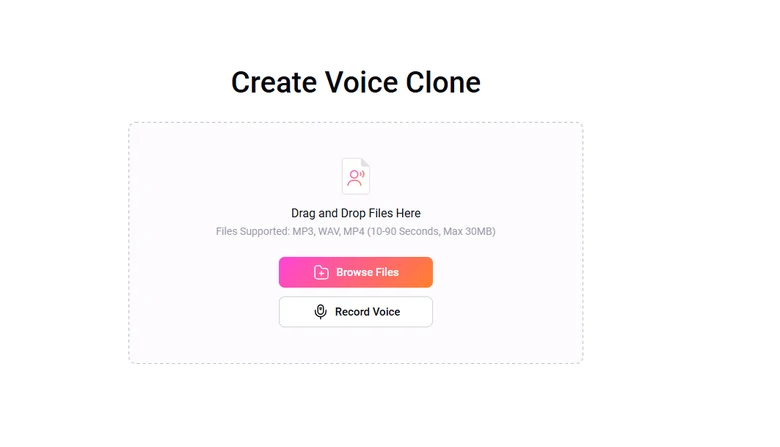
Clone Video Voice
Step 4. Recreate Sora 2 Sound Effect
We must say Sora 2 creates nice sound effects. However, if you are not giving the right prompt, Sora 2 may not include it to the video production.
This is where FlexClip’s AI Video to Sound Effects comes to handy. It automatically analyzes your video content, then composes sound effects that match the visual.
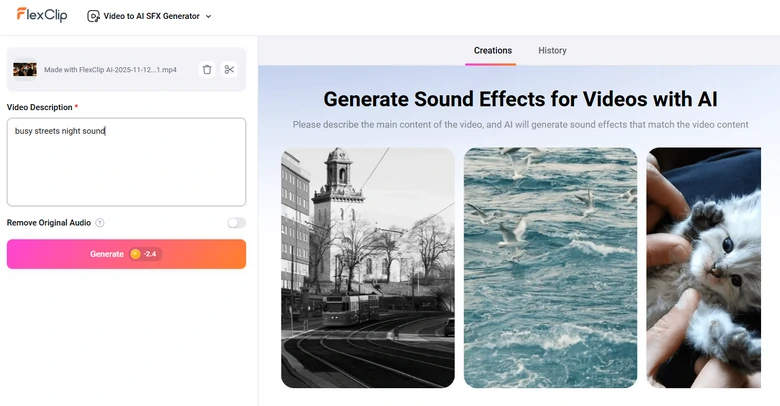
Generate Video Sound Effects
Step 5. Merge All Sound with Sora 2 Video
Add all recreated audio files into the timeline, drag and drop to sync them with the visuals. Preview and make sure every detail is polished to perfection.
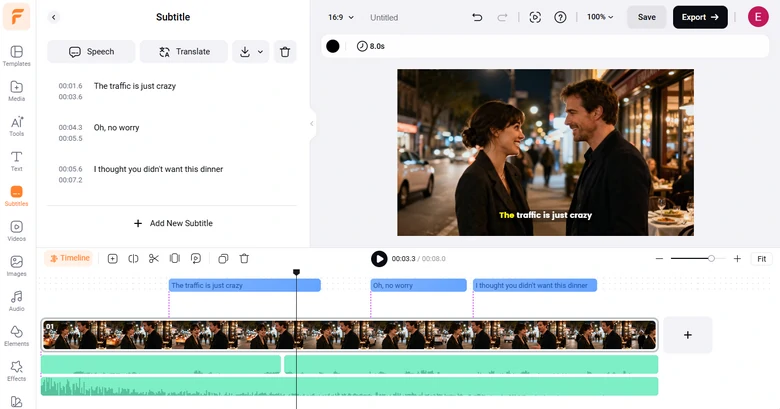
Merge Audio with Video at FlexClip
Step 6. Export & Share
FlexClip gives you the ultimate freedom of video sharing. After editing, you can save Sora 2 video to a local folder, cloud services, share via a short link, or post directly to social media.
Frequently Asked Questions
1. Can I use Sora 2 to voice multiple characters?
Yes, you can generate distinct voices for multiple characters in Sora 2, as long as you are entering a detailed prompt. However, please don’t excel more than two voices, otherwise Sora 2 can make mistakes.
2. Does Sora 2 support multiple languages or accents?
Sora 2 currently support 10 languages. That’s impressive, however, it may struggle with generating different accents.
3. Can I make Sora 2 mimic real human voices?
Yes, Sora 2 can create voices that sound convincingly natural, but it doesn’t clone specific people’s voices.




FlexClip AI Video Maker
Reach professional-quality videos faster with easy editing tools, templates, and smart AI.
Start Now for Free
Hot & Trending
-

Best Ways to Find Music in YouTube Videos
-

Instagram Story Video Quality Bad After Upload? Fix It!
-

How to Repost Video on TikTok & How to Remove TikTok Repost
-

Improve Video Quality Online: 3 AI Video Quality Enhancers You Can't Miss
-

4K Convert to HD 1080p without Watermark: Best 4k Video Converters
-

Best 8 Free Video Editors - No Download Required
-

Top 13 Birthday Video Makers with Music and Effects Free
-

How to Search Filters on TikTok & Use a Filter You See - TikTok Filter Guide




