


If you want to share your screen recording with others, you should avoid making the whole screen recording look disorganized and unprofessional because of the unimportant parts of the screen recording. One of the best ways is to crop your screen recording and remove unwanted parts of your recorded screen to let viewers focus on the most important areas. And cropping your screen recording will reduce its overall resolution and file size, making it easier to share and stream.
Therefore, we will provide an excellent way for you to crop your screen recording online. This is the ultimate guide on how to effortlessly crop screen recordings. Read on!
Contents:
Part 1 The Strong Screen Recorder with Crop Feature - FlexClip
FlexClip is a strong screen recorder with crop feature that allows users to hide or crop out some areas in their screen recordings. It offers different options for you to crop your screen recording quickly and easily. You can upload your own screen recording, use the useful cropping feature in FlexClip, or even record your screen directly.
Part 2 How to Record and Crop Your Screen Recordings in FlexClip Quickly
It’s super easy for you to crop your screen recordings with FlexClip. Follow these steps below to learn how to crop your screen recording in FlexClip easily. Let’s get started!


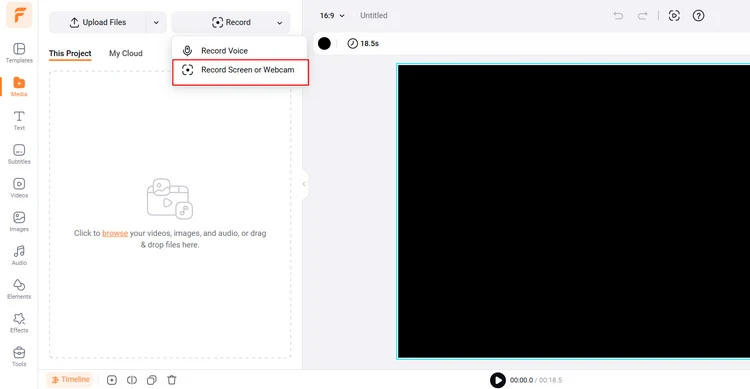
Record Your Screen - FlexClip
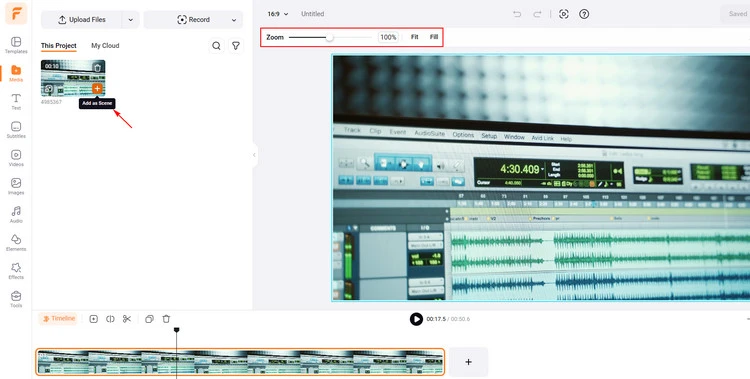
Crop Your Screen Recording - FlexClip
Or you can tap the Add as Layer button to add your screen recording. And tap the Crop button to crop the added screen recording into different shapes.
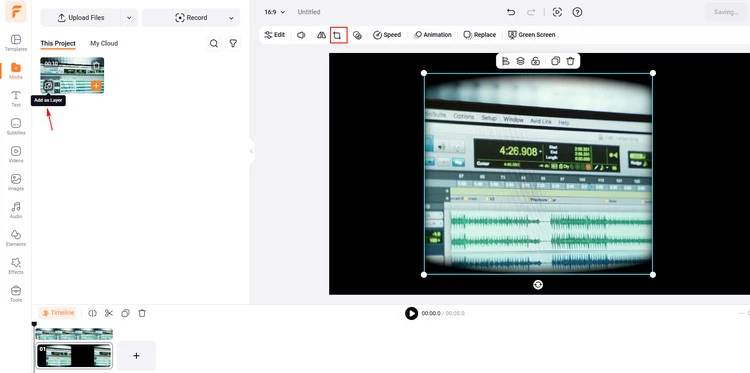
Crop Your Screen Recording into Different Shapes - FlexClip
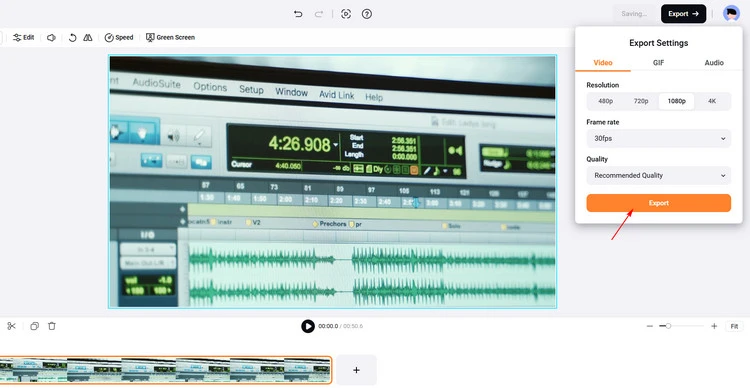
Download Your Screen Recording - FlexClip
The Final Words
That’s all for how to how to crop screen recording easily and quickly in FlexClip. If you find this post helpful, please share it with others. By the way, FlexClip can help you do more video/photo editing. Have a try!




FlexClip AI Video Maker
Reach professional-quality videos faster with easy editing tools, templates, and smart AI.
Start Now for Free
Hot & Trending
-

7 Best Ways to Find Music in YouTube Videos
-

Instagram Story Video Quality Bad After Upload? Fix It!
-

How to Repost Video on TikTok & How to Remove TikTok Repost
-

Improve Video Quality Online: 3 AI Video Quality Enhancers You Can't Miss
-

4K Convert to HD 1080p without Watermark: Best 4k Video Converters
-

Top 13 Birthday Video Makers with Music and Effects Free
-

How to Search Filters on TikTok & Use a Filter You See - TikTok Filter Guide
-

Large Collection of Creative and Funny Birthday Video Ideas for Ones You Care




