


Canva Video 2.0 promises sleek templates, simple editing, and fast results. It should be a major upgrade that brings video editing to the next level. However, it may have failed lots of users’ expectations.
Canva Video 2.0 Official Launch Video
So many bad comments below. This is rare for big company like Canva.
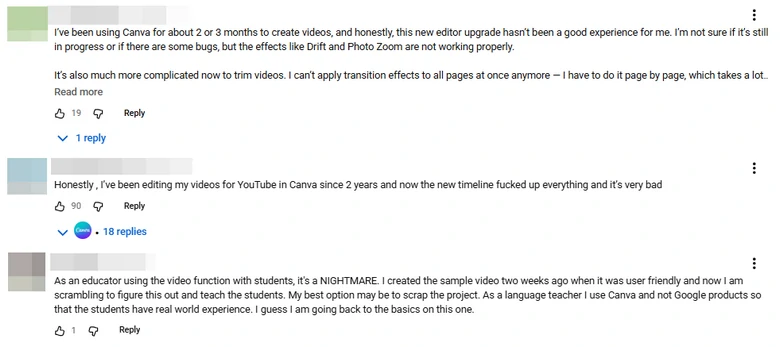
Canva Video 2.0 Update Comments from YouTube
Why Canva Video 2.0 Update Gets So Many Negative Comments
We studied the comments on social media, tried Canva Video 2.0 and understood where you are coming from. It was the cluttered timeline, less interactive options, and bugs that upset.
Timeline Mode Is Not For Everyone
Canva Video 1.0 was all about storyboards, the comfort zone for video editing beginners. It saves the trouble of juggling all clips at once, and helps focus on scene-by-scene structure. Users loved the convenience of making simple edits and instant sharing.
Canva Video 2.0, however, switched to the timeline mode. Video editing beginners can feel overwhelming in front of multiple layers. It takes time to be a master of timeline.
Less Interactive Options
Things are not getting better for pro editors. You can easily mess up the entire timeline with multiple elements in the video. Canva doesn’t offer the flexibility to select multiple layers adjust their duration in one go. Additionally, videos are, by default, added as a layer, instead of the main timeline. These are reasons why users find Canva Video 2.0 hard to use.
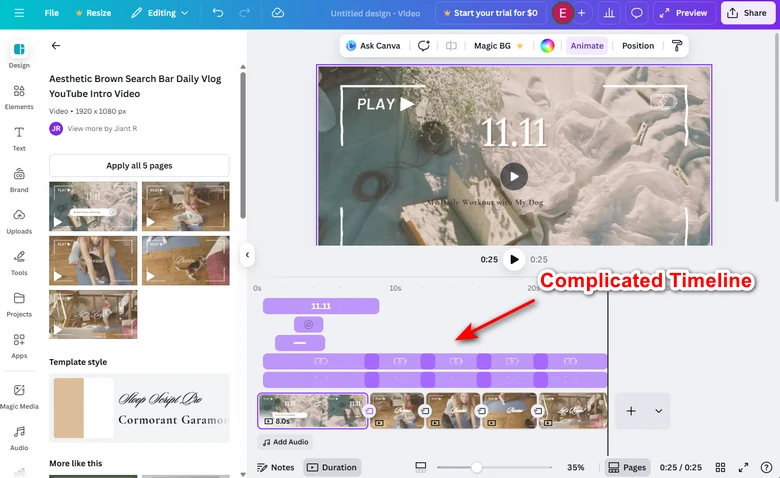
Canva Video 2.0 Complicated Timeline
Tons of Bugs
Canva is a renowned software and its development team should fix big bugs before the launch. However, normal users can encounter them very easily. Here are some of the problems we found.
Canva Video 2.0 Review
It is not the timeline to blame. Timeline mode offers the flexibility to add elements across the scene. Additionally, timeline mode always comes with advanced features like keyframing, speed ramping, chroma key. This mode is a blessing for advanced video editing.
The problem with Canva Video 2.0 roots in its basic features. They should hide some layers so that users feel less overwhelming, automatically adjust the element duration along the video, and fix some bugs.
Canva Video 2.0 Tutorial
Canva Video 2.0 Alternatives to Go
Though Canva Video 2.0 is being criticized, we have faith that Canva can fix all problems in the next update. In case you don’t feel like waiting, here are 3 Canva Video 2.0 alternatives to go.
FlexClip
FlexClip successfully managed the balance of powerful features and ease of use. With a simple interface, handy timeline, and powerful features, FlexClip makes video editing effortless and enjoyable for both beginners and seasoned professionals.
FlexClip Overview
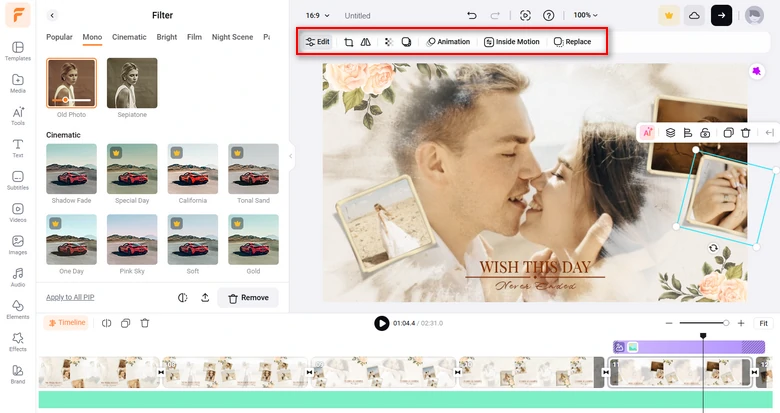
FlexClip Editing Tools


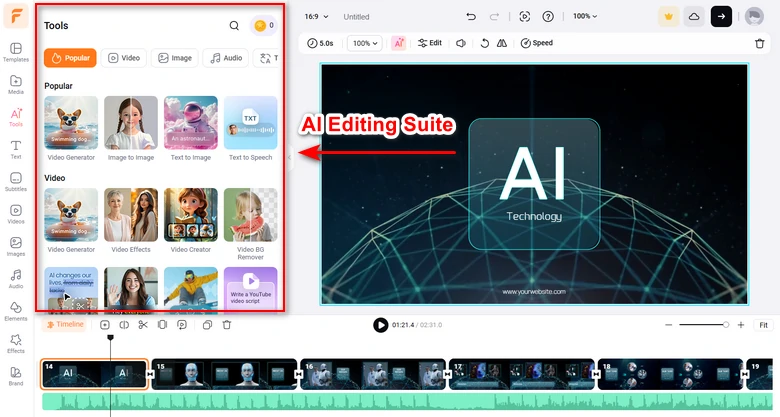
FlexClip AI Editing Suite
CapCut
CapCut is a versatile, AI-powered video editing tool working across mobile, web, and desktop. You can work on your video wherever you are. Let’s dive into CapCut’s key features.
CapCut Overview
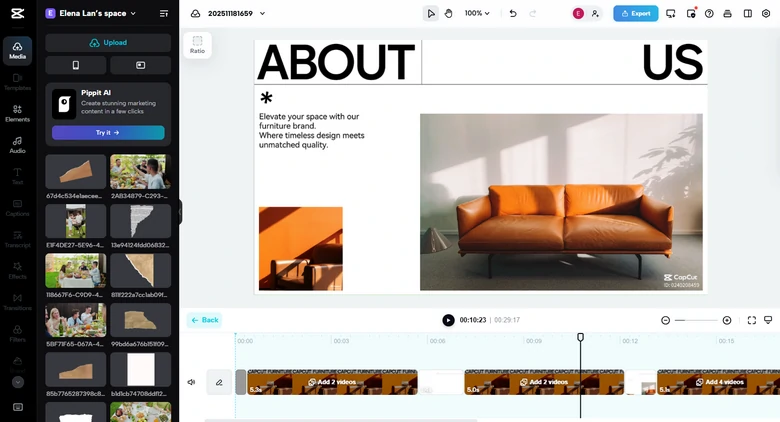
CapCut Online Interface
Adobe Express
Use Adobe Express if you want a software under a big name. It is part of the Adobe ecosystem and leverages AI to create better social content and branding.
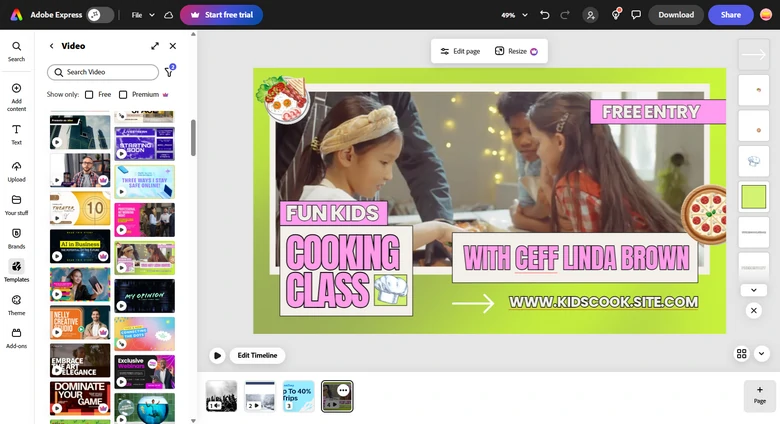
Adobe Express Interface
Frequently Asked Questions
1. Can I switch back to the old Canva video editor if I don’t like Video 2.0?
Yes, under your Profile > Settings, disable the New Multi-Track Video Editor option, you can get back to the old version. Some people succeed, but some report that even after disabling it, their project still open in the new editor.
2. Can I precisely control the duration of each clip?
Precise control in Canva is harder now. The Duration tab for individual scenes may disappear or be harder to access. Audio sometimes resets at each scene rather than playing continuously across the timeline.
3. Will large or complex projects with many layers slow down Canva?
Yes, there are frequent complaints the more complex the project is, the laggy or glitchy the experience becomes. Even if you are creating a simple project, Canva responds more slowly than other video editors.




FlexClip AI Video Maker
Reach professional-quality videos faster with easy editing tools, templates, and smart AI.
Start Now for Free
Hot & Trending
-

Best Ways to Find Music in YouTube Videos
-

Instagram Story Video Quality Bad After Upload? Fix It!
-

How to Repost Video on TikTok & How to Remove TikTok Repost
-

Improve Video Quality Online: 3 AI Video Quality Enhancers You Can't Miss
-

4K Convert to HD 1080p without Watermark: Best 4k Video Converters
-

Best 8 Free Video Editors - No Download Required
-

Top 13 Birthday Video Makers with Music and Effects Free
-

How to Search Filters on TikTok & Use a Filter You See - TikTok Filter Guide




