


The text masking effect is a widely utilized technique in videos and images to reach visually striking impact. Unlike traditional text overlay methods, text masking enables you to embed videos or images within the text itself, creating an aesthetic vibe that draws viewers' attention to the subject.
For anyone who’re eager to have a try, crafting the text masking effect is surprisingly simple if you have the right tool at your disposal. So, in this article, we’ll take you through the process of creating text mask effects on videos or images using Photoshop, After Effects, or an online tool. Can’t wait anymore? Let’s dive in right now.
Also Interested in: How to Create a Neon Text Effect>>
Part 1. Make Masking Text in Photoshop to Image
Undoubtedly, Photoshop stands out as the most enchanting platform for transforming your graphic creations into reality. With its comprehensive toolkit, it empowers you to finely tune every aspect of image editing. When tackling text masking effects on images, Photoshop emerges as the top choice, offering a Clipping Mask feature that delivers results with just a few clicks. While its interface may seem complex and daunting for beginners, fear not. With our guidance below, you'll swiftly find your footing and embark on your creative journey.
How to Mask Text in Photoshop
Make Masking Text in Photoshop to Image
Part 2. Create Text Masking Effect with After Effects to Video
Adobe is a top-notch company renowned for its series of industry-leading graphics and video editing applications, with After Effects being a standout program for addressing video-related challenges. With this tool, you can bring any idea to life with meticulous control over the entire process. While there are multiple methods supported for creating text masking effects, we'll focus on the simplest one here, considering the program's intricate interface. Follow our guidance to achieve it effortlessly.
Create Text Masking Effect with After Effects to Video
Part 3. Create Text Masking Effect to Videos and Images Online
Searching for an effortless way to create stunning text mask effects in your videos and images? Look no further than FlexClip, the premier video editor designed for simplicity and power. Unlike complex professional software that requires extensive training, FlexClip empowers beginners to effortlessly place videos or images within text with just a few clicks. Moreover, it offers a range of additional editing options such as filtering, adjusting video speed, cropping, and more, allowing you to fine-tune your creations to perfection.


But FlexClip isn't just about easy text masking. Here's what else it has to offer:
How to Fill Text with Video and Images with FlexClip
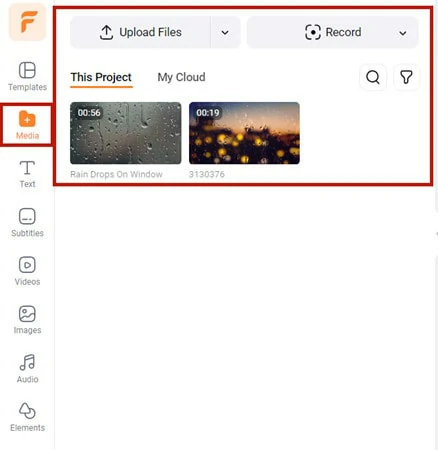
Upload the Desired Video to FlexClip
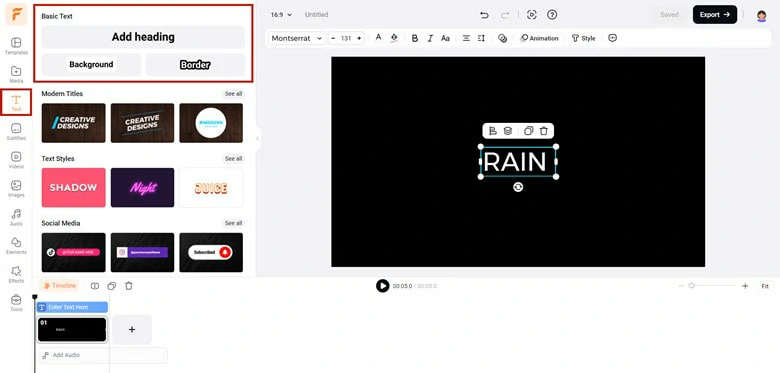
Add Text to Place Your Video
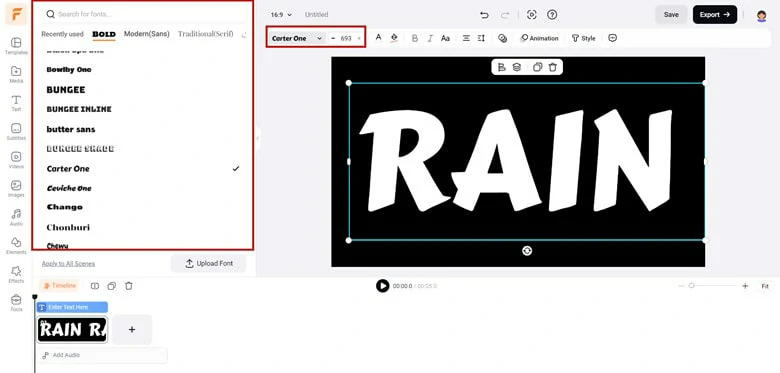
Adjust the Text to Fit Your Needs
Then, access the toolbar at the top of your screen and select Style > Create a Text Mask to fill the text with your chosen video or image.
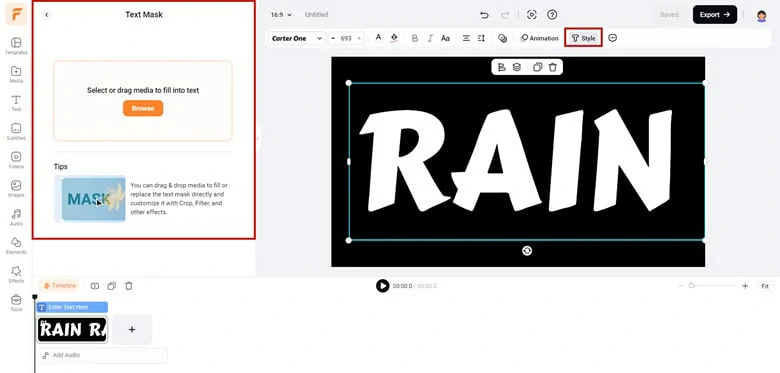
Choose Create a Text Mask to Place the Video Inside Text
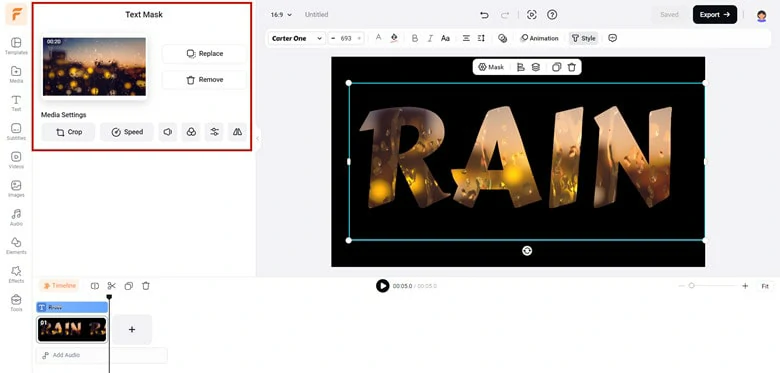
Customize the Text Masking Effect with Ease
Creating Multiple Text Masking Effects in One Frame
Occasionally, you may wish to employ multiple text masking effects to spell out specific words. Here's how to achieve this with FlexClip's letter mask presets:
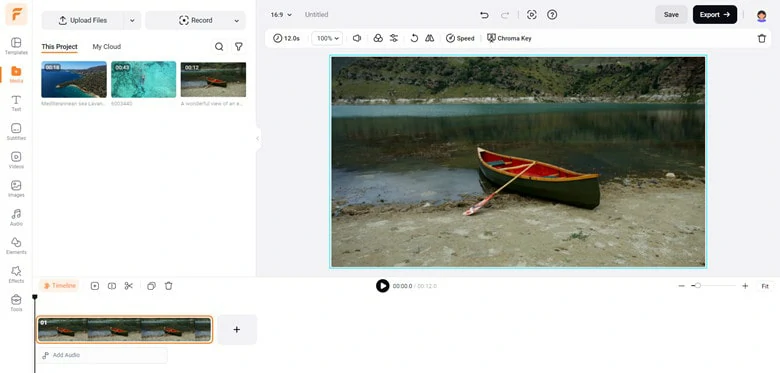
Set the Background for the Text Masking Effect
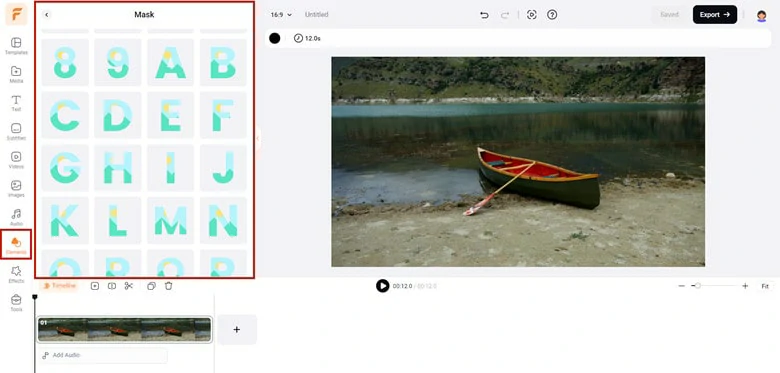
Find the Letter Mask from Elements Panel
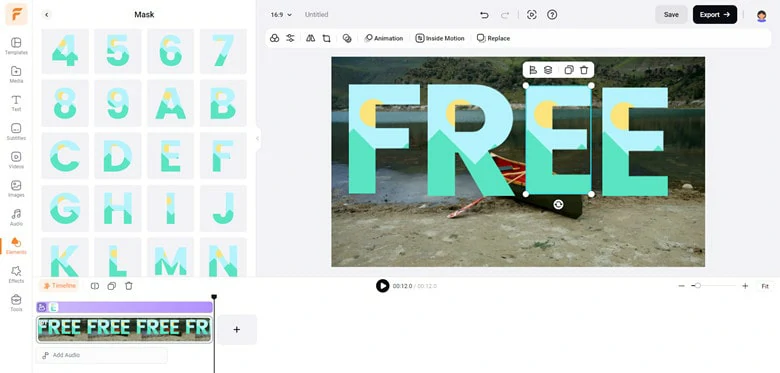
Add the Letter Preset in the Desired Spelling Sequence
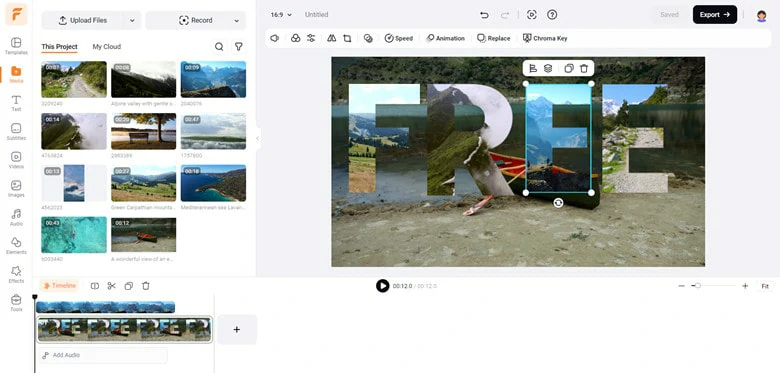
Customize the Text Masking Effect in FlexClip
Customize each letter's performance by adjusting speed, applying filters, tweaking color grading, adding animations, and more to enhance the effects.
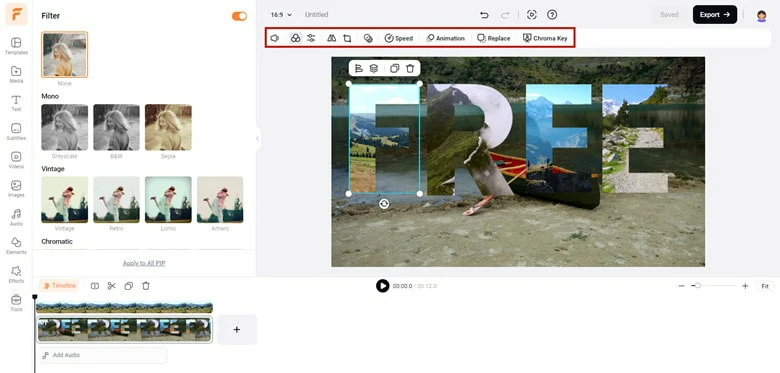
Make Edits to the Text Masking Effect
The Bottom Line
Well, that’s the end of how to make text masking effect to videos or images with Photoshop, After Effects and an online tool called FlexClip. Now, it's time to choose your preferred approach and give it a try. Which method appeals to you the most? Dive in and experiment with your chosen tool today.




FlexClip AI Video Maker
Reach professional-quality videos faster with easy editing tools, templates, and smart AI.
Start Now for Free
Hot & Trending
-

Best Ways to Find Music in YouTube Videos
-

Instagram Story Video Quality Bad After Upload? Fix It!
-

How to Repost Video on TikTok & How to Remove TikTok Repost
-

Improve Video Quality Online: 3 AI Video Quality Enhancers You Can't Miss
-

4K Convert to HD 1080p without Watermark: Best 4k Video Converters
-

Top 13 Birthday Video Makers with Music and Effects Free
-

How to Search Filters on TikTok & Use a Filter You See - TikTok Filter Guide
-

Large Collection of Creative and Funny Birthday Video Ideas for Ones You Care




