Doubtlessly, you can create all sorts of YouTube videos like lofi videos, box-opening videos, vlogs and get famous someday. Yet, choosing the right video type will surely narrow down the gap between you and success.
If you are here, you might have laid your eyes to movie recap videos. Movie recap video creation was an arduous journey. Now, with the power of AI, you are only a few clicks away from an excellent movie recap video. Follow this detailed post and get started.
Table of Contents


Check More Free & Customizable Music Video Templates >
Can't Miss: How to Create a Song As Well As Music Video with Suno AI >
How to Create a Movie Recap Video Using AI
Instead of asking users to watch, write scripts, and cut clips, FlexClip's AI Recap tool helps you automatically structure scenes, trim key moments, and align visuals with narration and captions.
Access FlexClip's AI Recap tool, follow us to make accurate, engaging movie recaps in minutes.

Step 1. Upload a Movie
Whenever you reach the AI recap tool, drag and drop your movie file from a local folder, cloud service, or paste a YouTube movie link.
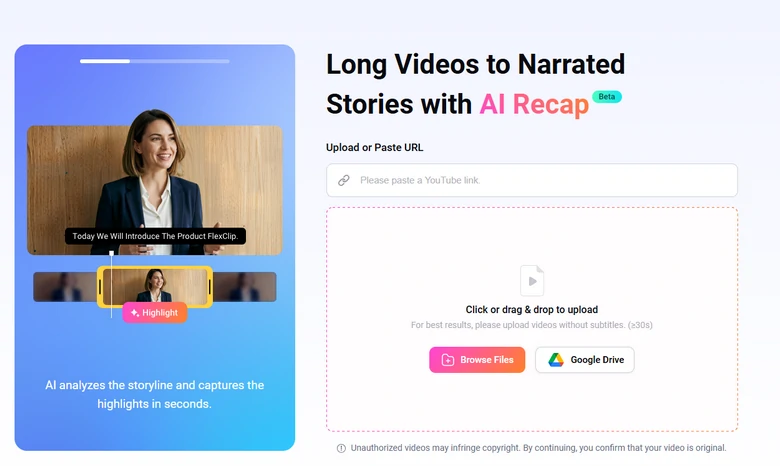
Upload Video to FlexClip's AI Recap Tool
Step 2. Trim the Movie
Currently, you can only make recaps for movie under 120 minutes at a time. Set a start point and end point for the recap.
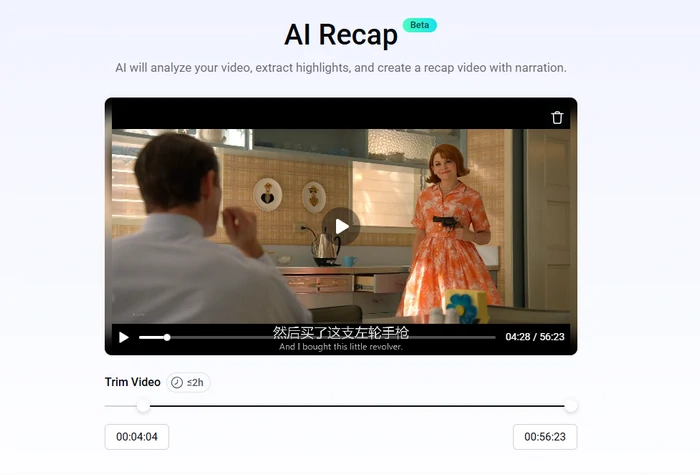
Trim the Movie & Keep It Under 120 Minutes
Step 3. Basic Setups
Make some setups like the video style, recap duration, aspect ratio, subtitle style, hit Generate. The AI will finish analyzing and generation within several minutes.
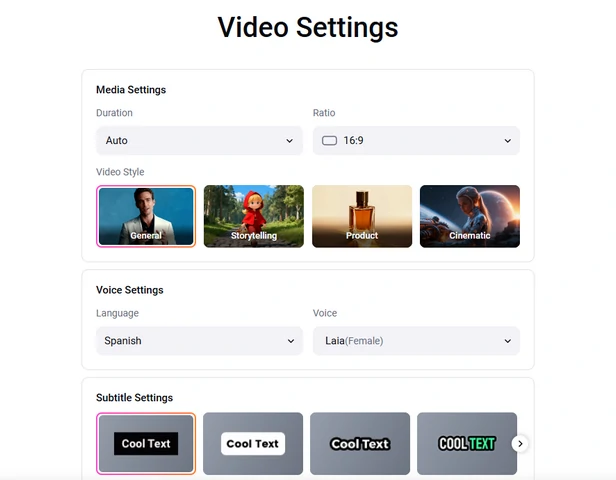
Make Some Basic Setups
Step 4. Preview and Edit
You are now taken to the timeline interface with a recap video project. Preview the AI-generated recap videos, make edits like trimming, changing the scripts, voiceover, caption style, then share to social media instantly.
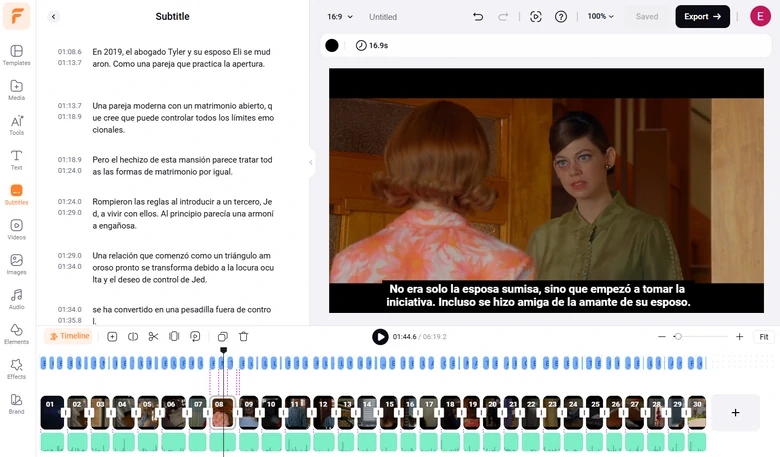
Preview & Edit the Recap Video
Manually Create a Movie Recap Video
If you want to have full control over every detail, then turn to FlexClip's easy timeline, where you can create video script, fine-tune clips, customize voiceover and music with precision. Check out how FlexClip can help.
Step 1. Generate a Video Script
Traditionally, generating video scripts for the movie recap video is extremely time-consuming. You need to watch the entire movie repeatedly, summarize the plots, and then come up with proper sentences.
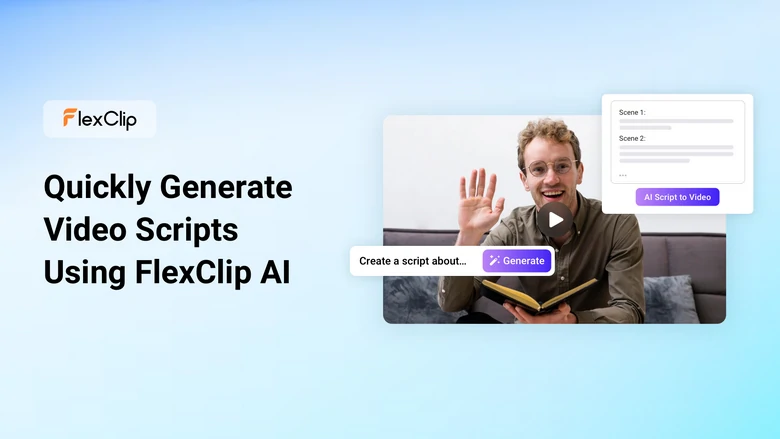
Alternatively, use FlexClip’s almighty AI script writer. The latest ChatGPT powers it and can quickly generate satisfying recaps for any movie. You can use the output as a reference or gradually improve the prompt so that AI generates the script you love.
Go to Tools > AI Video Script. Enter the prompt for the movie recap video script and hit Generate. It is suggested to use as many modifications in the prompt as possible, for example, character limitations, video lengths, tone, and style. Get the script, and make edits if necessary.
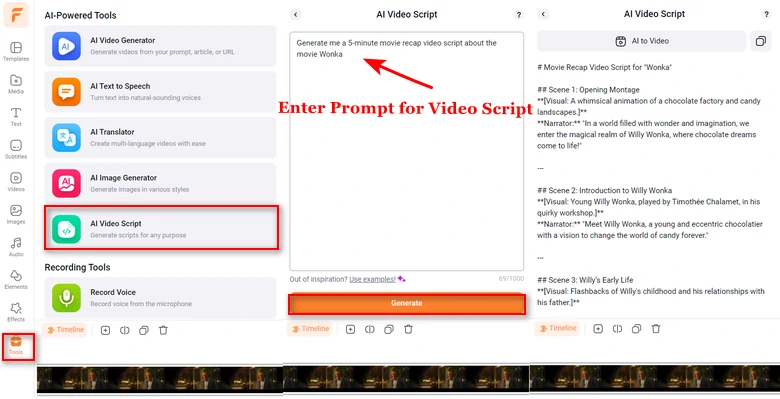
FlexClip AI Script Generator
Step 2. Generate Voiceover
FlexClip’s AI Text to Speech tool saves you from the trouble of doing voiceover manually. It understands 130+ languages, offers 400+ voices, and tools to make adjustments on the speed, tone, and pitches. In other words, you will not encounter any language barriers and always get the nicest voice you love. Farewell to robotic voiceover!
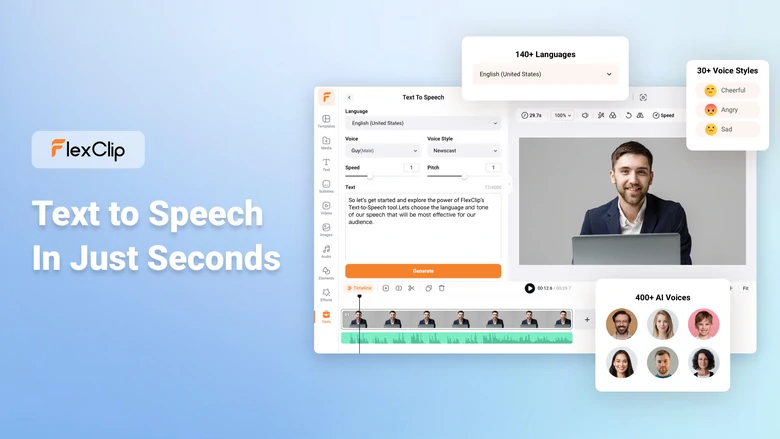
Again, dive into Tools. This time, we will use AI text to speech. Choose the right language, the voice you love, and make other adjustments like speed, pitch, voice style. Enter the script, and hit Generate. You can do this sentence by sentence, or do the whole script at once.
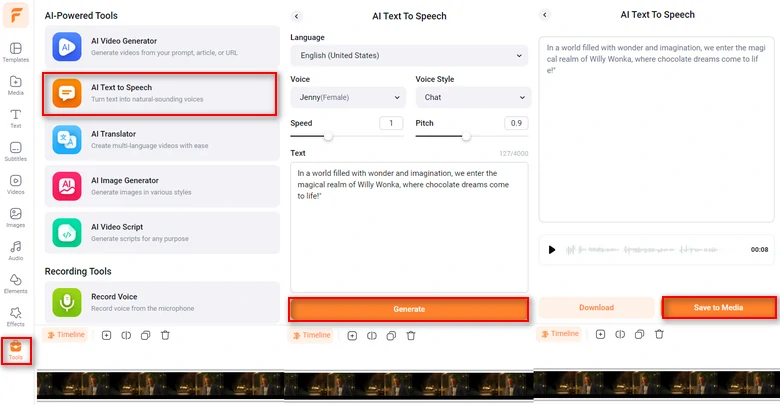
Generate AI Voiceover with FlexClip
Step 3. Edit Movie Clips According to the Voiceover
It is time to bring in the movie clips. Once you upload movie clips to FlexClip, you will be able to enjoy all easy-to-use editing tools like trimming, splitting, transition just right in the timeline.
Upload your the movie clips you need to FlexClip’s Media section from a local folder, from a cloud services, or mobile devices. Drag it to the timeline in consequence.
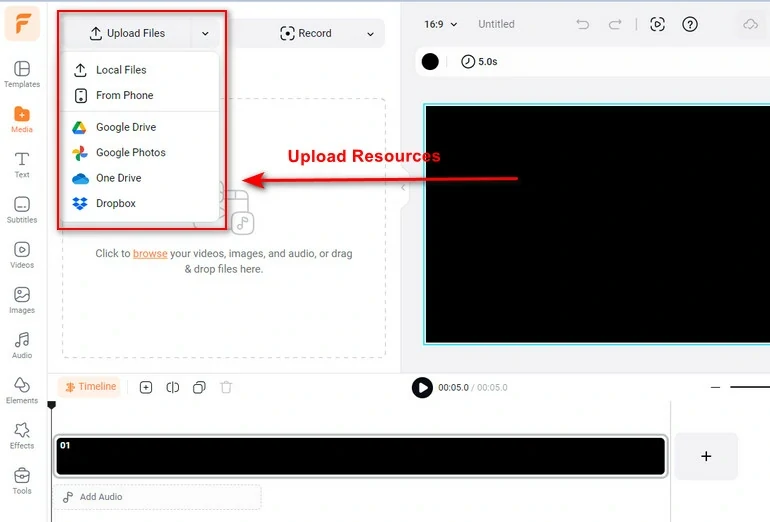
Upload Resources to FlexClip
Drag the slider to trim the movie clips according to the narration. The best practice is trimming the movie clip to the end of any narration sentence.
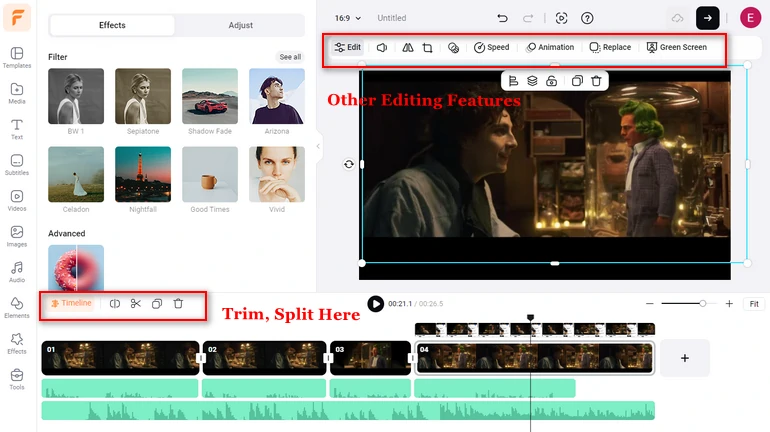
Edit Movie Clips
You can make other edits like adding eye-catching titles, adding background to enhance the movie atmosphere, GIFs, etc. All these resources are listed on the left side of FlexClip’s editing panel.
Step 4. Adding Captions
People don’t like videos without captions. If you have the script, you can definitely type them into the video. Normally, it takes hours to finish typing and syncing. Yet, FlexClip’s AI Auto Caption can get everything done in a few seconds. It can identify everything in the voiceover and turn them into accurate captions.
Go to Subtitles > AI Auto Subtitle. Select the language, and subtitle styles. Hit Generate.
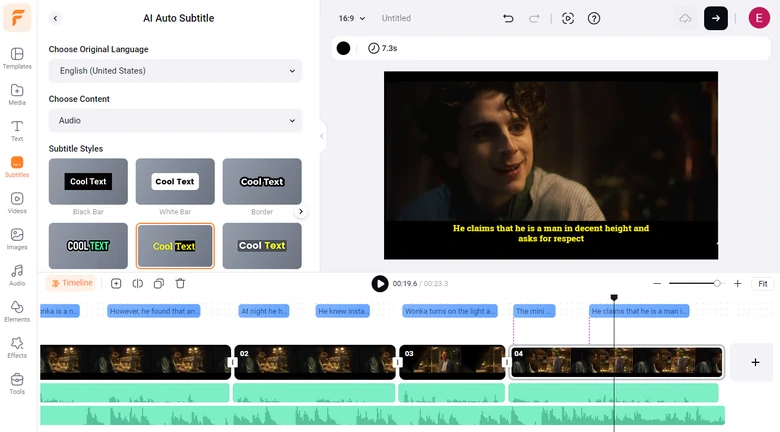
FlexClip Auto Caption
Step 5. Export and Share
Enjoy the ultimate freedom of sharing your movie recap video at FlexClip! You can save your movie recap video to a local folder, to cloud services, share via a short link, or post to social media directly.
Tips to Make Your Movie Recap Videos Go Viral
Not any movie recap videos can win lots of views. Here are some tips to follow in order to create spread-worthy movie recap videos.
Choose the Right Movie
Movies that require deep understanding and appreciation may not be the best fit for recap videos. Instead, genres like crime and horror, with their intense and straightforward plots, are ideal for recaps, as they are easier to condense without losing key details.
While audiences are often eager to see recaps of new releases, classic films are also great candidates. Viewers never tire of revisiting iconic plots, and these timeless stories are always worth watching again and again.
Movie Recap Video Length
Most movies run between 90 and 120 minutes, but a recap video should ideally be 5 to 15 minutes long. This requires carefully condensing the plot while ensuring it remains engaging and entertaining. Focus on the key moments and present them in a way that captivates viewers without losing the essence of the story.
High Video Quality
Make sure you get movie clips and export them in the highest quality. Any blurry clips may stop people from watching your video.
Mind the Copyright Issue
30% of movie recap videos are banned due to copyright laws. If your account gets penalties due to copyright, all videos may not get the recommendations they deserve.
It is a smart move to check the copyright regulations in your area, or any information released by the movie creation team and see if it is possible to make a recap video.
FAQs About Movie Recap Videos
What is a movie recap video?
A movie recap video is a condensed summary of a film, typically highlighting key plot points, character development, and major events in a short, engaging video. Here is a movie recap video from Movie Recaps YouTube Channel.
How do I avoid spoilers in my recap?
You can either provide a spoiler content warning or create a non-spoiler version that teases the main plot without revealing critical twists or the ending.
Can recap videos be monetized?
Certainly, most social media platforms allow monetization through partnerships, ads, but it is important to avoid copyright issues.




FlexClip AI Video Maker
Reach professional-quality videos faster with easy editing tools, templates, and smart AI.
Start Now for Free
Hot & Trending
-

Best Ways to Find Music in YouTube Videos
-

Instagram Story Video Quality Bad After Upload? Fix It!
-

How to Repost Video on TikTok & How to Remove TikTok Repost
-

Improve Video Quality Online: 3 AI Video Quality Enhancers You Can't Miss
-

4K Convert to HD 1080p without Watermark: Best 4k Video Converters
-

Best 8 Free Video Editors - No Download Required
-

Top 13 Birthday Video Makers with Music and Effects Free
-

How to Search Filters on TikTok & Use a Filter You See - TikTok Filter Guide