


Even if the photographer gets everything right, the perfect light and angle, a stiff pose ruins everything. Fortunately, with the rise of AI-powered photo editing tools, it is possible to change the pose of an existing photo, without the need for advanced Photoshop skills.
Now, let’s dive into more details, make exactly the same image but in another pose.
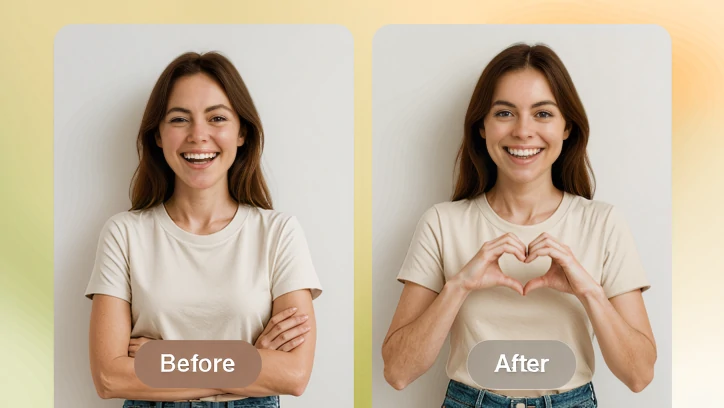
Change Photo Pose Sample
Also Read: How to Edit Messy Hair in Photo >
Can't Miss: How to Replace a Person in Photo >
How to Change Pose of a Photo
Unlike professional software that requires complex manual tweaks, FlexClip automates the process. Utilizing advanced AI, it analyzes the body structure in photo and then changes the pose without awkward distortions, even for slight postures like facial expression and gesture.
Click the Change Pose of a Photo button, follow us and explore the power of magic.

Step 1. Upload Image
Once you are at FlexClip's AI Photo Editor page, drag and drop your image to the Upload section. This is the example image we will be using.

FlexClip - Change Photo Pose Example Image
Step 2. Change Pose of a Photo
By default, you will be using the Google Nano Banana generation model. However, you also have access to other models like OpenAI-GPT, Bytedance Seededit, Qwen Image Edit, etc. Pick a model you love.
Enter a prompt describing the pose you love then hit Generate. This is the prompt we've entered: Transform this side profile portrait into a realistic front-facing portrait, keeping the same facial features, hairstyle, and lighting.
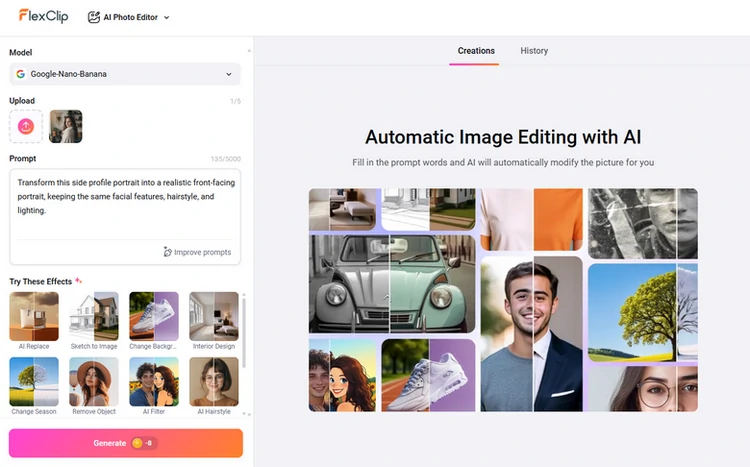
Change Photo Pose Using FlexClip's AI Photo Editor
Step 3. Preview & Download
You can preview the output within several seconds. Once you are happy with the output, save it to a local folder or post on social media.
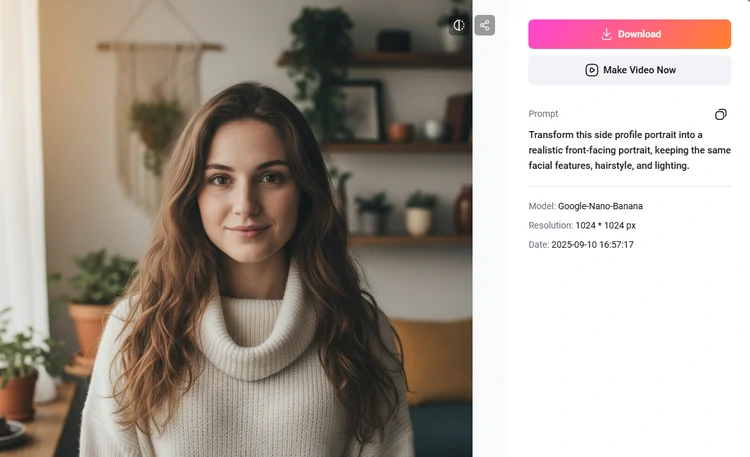
Preview & Download the Pose Changing Output
How to Turn an Existing Photo Into a Pose-Changing Video
Well, a still image is not enough to showcase your charm. That's where FlexClip's Image to Video tool comes to handy. It turns an image into a video that contains different poses and smooth movements. Try it out!
We uploaded the following photo.
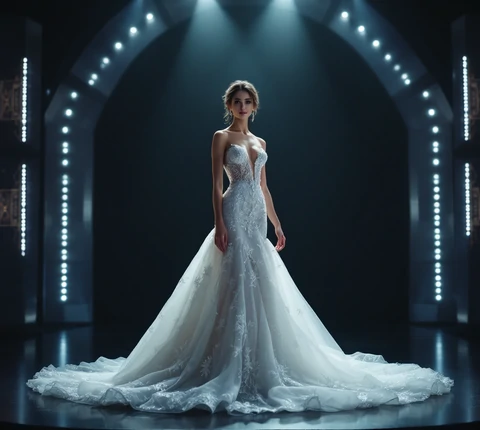
Image to Pose Changing Video - Example Image
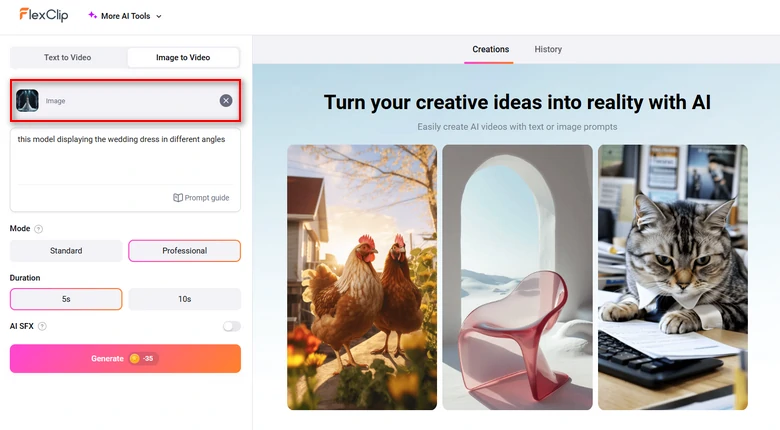
Upload a Photo
FlexClip AI Image to Video Generator Outputn
Best Tools to Change Photo Pose
Embrace FlexClip, a browser-based tool that changes pose (e.g., walking, turning, smiling). Whether it is a subtle adjustment on facial expressions, or full-body pose transitions, your photo will always be lifelike.
But Why FlexClip?
Traditionally, you need professional-level Adobe Photoshop skills or go through tedious AI training process. Thanks to FlexClip, you can instantly upload any photo and start changing photo pose in three steps. No download, no device restrictions.
Instead of offering fixed pose filters like other AI tools do, FlexClip allows you to control photo poses via a prompt. FlexClip utilizes AI that is trained with millions of real photos. You will always get lifelike results without distorting any information.
Besides changing pose of your image, you can play with your photo in more ways using FlexClip. For instance, remove image background and swap in a new one instantly, transfer an ordinary image to anime, popular ghibli, action figure, virtually put on new clothes, etc.
FlexClip AI Image Tools Overview
FAQs About Changing Photo Poses
1. Is it possible to make a group photo with changed poses?
It is difficult but possible. AI is better at handling solo images. For group photos, AI may make mistakes in identifying the figures, and bring in hallucinations. You may need Photoshop-level manual work or segment and edit each person individually.
2. Can I change only the facial pose (e.g., turn the head)?
Yes, AI can only change the facial pose, like head direction or facial expression without altering the full body, as long as you made it clear in the prompt.
3. Will AI keep my identify and face after changing pose?
High-end AI tools like FlexClip preserve identity well. However, slight alternation on facial features is inevitable.
4. Are there privacy risks with using pose-change AI tools?
You need to check any AI tools’ privacy policy and terms of use before using them. FlexClip is a trustworthy, reputable tool. It will not share your personal data or uploaded photos to any third parties. Feel safe to use it to process your personal or sensitive images.
5. How much does it take to duplicate a photo with a different pose at FlexClip?
If you stick to the cheapest standard mode, each adjustment takes about 10 credits, which is about $0.33.




FlexClip AI Video Maker
Reach professional-quality videos faster with easy editing tools, templates, and smart AI.
Start Now for Free
Hot & Trending
-

Best Ways to Find Music in YouTube Videos
-

Instagram Story Video Quality Bad After Upload? Fix It!
-

How to Repost Video on TikTok & How to Remove TikTok Repost
-

Improve Video Quality Online: 3 AI Video Quality Enhancers You Can't Miss
-

4K Convert to HD 1080p without Watermark: Best 4k Video Converters
-

Best 8 Free Video Editors - No Download Required
-

Top 13 Birthday Video Makers with Music and Effects Free
-

How to Search Filters on TikTok & Use a Filter You See - TikTok Filter Guide




