


Ever taken a perfect shot - except it’s from the wrong angle? Adjusting the angle is easy when you’re behind the camera, but what if it’s an old photo that needs fixing? Sure, simple rotation might help a little, but what about when you need something more advanced?
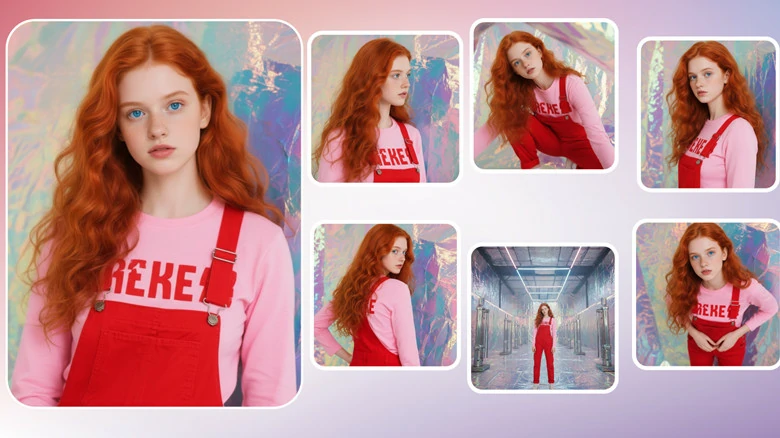
Change Angle or Perspective of Image Online
That’s where AI tools like FlexClip come in. With FlexClip, you can modify the image’s angle, orientation, and perspective digitally, even if you don’t have access to the original scene. Whether it’s a selfie, product image, or travel memory, FlexClip helps you adjust the angle online effortlessly — no reshooting or editing experience needed.

How to Change Angle of Image Online
Step 1: Upload Your Photo
Open your browser, go to FlexClip’s AI Photo Editor and upload the image you’d like to change angle.
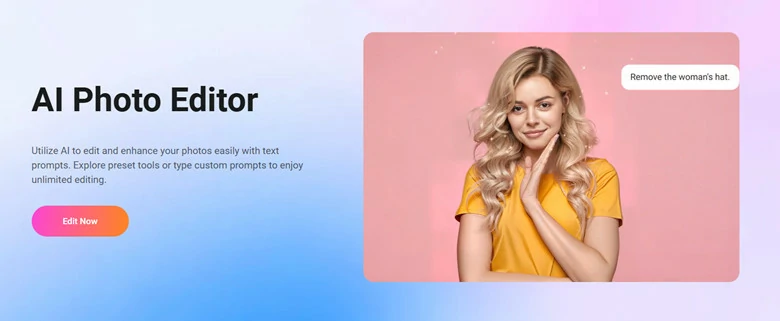
Upload Your Photo to FlexClip's Image Angle Changer
Step 2: Write Your New Perspective and Select an Image Generation Model
Type a simple prompt like “Make the photo front view” to describe the new perspective you want. Then, choose an image model to analyze, adjust, and generate your new photo.
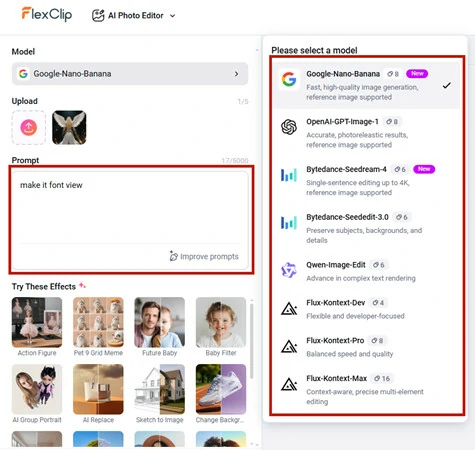
Write Your New Perspective and Select an Image Generation Model
Step 3: Generate the Result
Hit on Generate button and and your subject will appear from the desired viewpoint in just seconds.
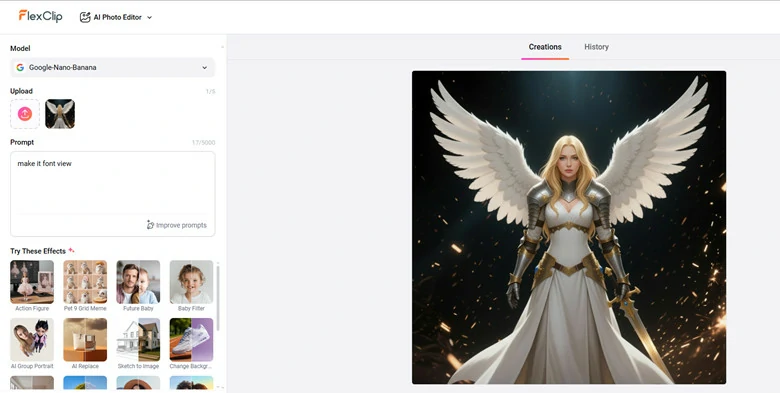
Generate the Result in a New Angle
Step 4: Download and Share
Download your refreshed images and share them to let everyone see your photo’s best angle.
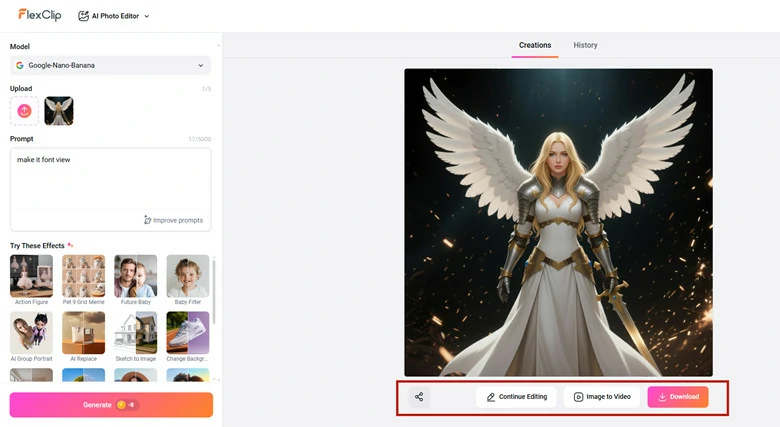
Download and Share Your New Angle Picture
Why Choose FlexClip to Change Angle of Your Image?
Examples of Image Angle Changes Generated by FlexClip:
Forget to capture different angles of your product? No worries! Use FlexClip to generate, workable for clothes, shoes, jewelry, and gadgets to appeal more buyers.
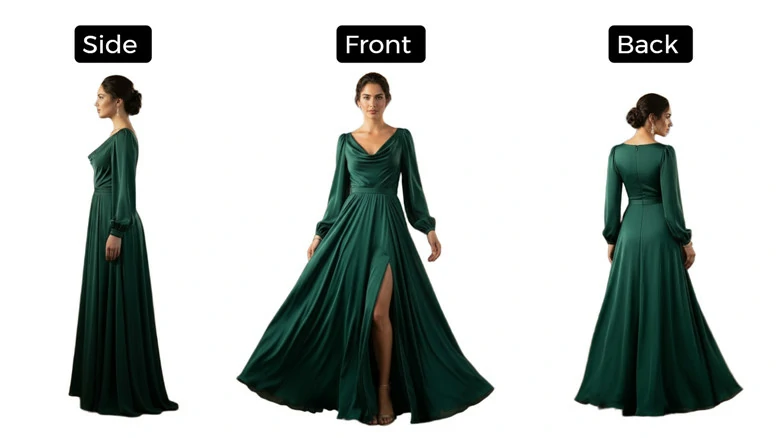
Change Angle of Product Image for E-commerce
Got an architecture shot that’s slightly off the horizon? Adjust the image angle to straighten lines and improve composition. Or, just have some fun with it — use FlexClip to rotate or tilt your picture creatively.
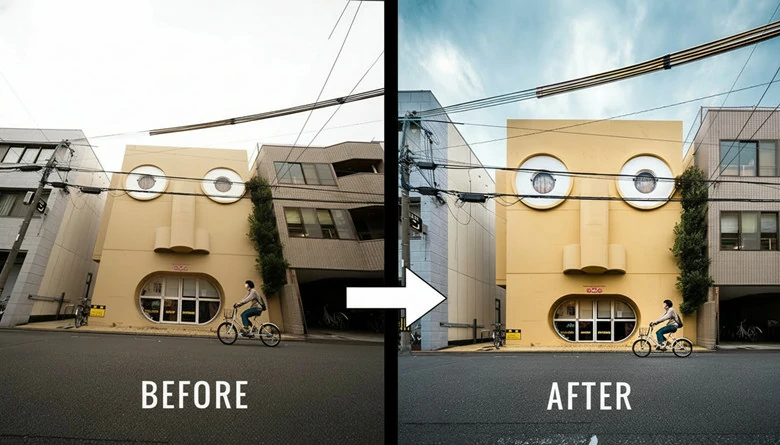
Change Angle of Tilted Architecture Image
Make your post stand out by changing the angle for a cinematic or trendy aesthetic. Perfect for Instagram or TikTok visuals.
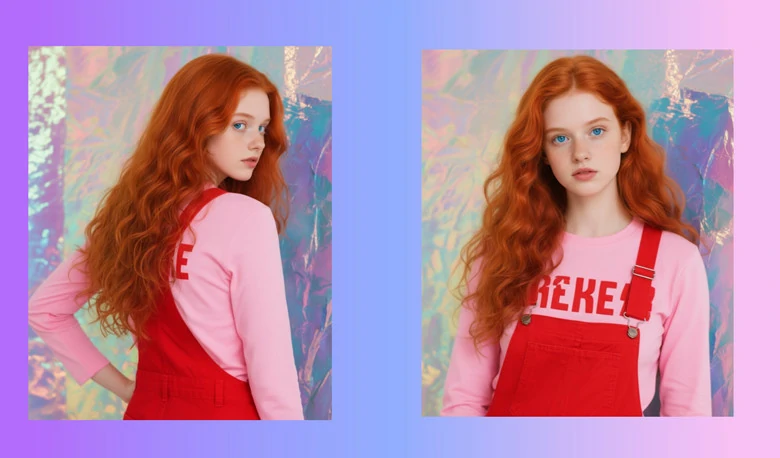
Change Angle of Portrait for Social Media
Bonus Tips: FlexClip has much more to explore. You can animate your photos with cool video effects, transform photo into a new style, generate a series of images for storytelling while character consistent or even bring your product ideas into stunning pictures. Simply access FlexClip and begin your creation journey here.
Explore Endless Possibilities with FlexClip's AI Tools
FAQs About Image Angle Change
1.What does image angle change mean?
Changing image angle means adjusting the perspective or viewpoint of a photo. For example, you can turn a side-facing portrait into front-facing one or generate the same image from different perspectives to reveal a new dimension.
2.How is angle change different from image rotating or flipping?
Rotating or flipping just spins the image around a fixed axis, but changing the angle goes further - it rebuilds the depth and perspective, making it look like the photo was taken from a completely different viewpoint.
3.Is it possible to change only part of image’s angle?
Yes. Some tools let you select a specific area like face to change the angle while keep the rest part unchanged.
4.How to change angle of image using Photoshop
If you want to change perspective of image in Photoshop to make it look like the photo was taken from another angle, follow the steps below to make it.
Step 1: Add your photo to Photoshop and Select the Move Tool.
Step 2: Go to Edit > Transform > Perspective.
Step 3: Drag the corners of your image — this stretches and skews the picture to simulate a new viewing angle.
Step 4: Once you’re happy with the result, press Enter to save all the changes.




FlexClip AI Video Maker
Reach professional-quality videos faster with easy editing tools, templates, and smart AI.
Start Now for Free
Hot & Trending
-

Best Ways to Find Music in YouTube Videos
-

Instagram Story Video Quality Bad After Upload? Fix It!
-

How to Repost Video on TikTok & How to Remove TikTok Repost
-

Improve Video Quality Online: 3 AI Video Quality Enhancers You Can't Miss
-

4K Convert to HD 1080p without Watermark: Best 4k Video Converters
-

Best 8 Free Video Editors - No Download Required
-

Top 13 Birthday Video Makers with Music and Effects Free
-

How to Search Filters on TikTok & Use a Filter You See - TikTok Filter Guide




