


AI vlogging has exploded in popularity, as creators and brands alike are embracing AI-generated avatars, voiceovers, and automated editing tools. The following Bigfoot and Yeti vlog has gained 416K views in 5 months.
Want to jump into the AI vlog trend but feeling quite overwhelmed? You are not alone. Which character to go? Which AI tool actually works? How to make vlogs feel natural instead of obviously generated? These are hard decisions to make!
In this guide, you will learn a practical, step-by-step workflow for creating AI vlogs, from character generation to final polish. Follow us to create AI vlogs that feel authentic, engaging, and ready to go viral.

5 Steps to Create Viral AI Vlogs
The only AI vlog generator you need is FlexClip. It is a one-stop video generation tool that helps from writing video scripts, scene generation, and distribution. Let’s jump into the details.
Step 1. Generate Images
Vlog focuses on the character. The first thing is creating a character. By the end of 2025, Bigfoot, aliens, Gods, animals are some of the most popular Vlog characters.
FlexClip’s Text to Image tool turns your ideas into realistic Vlog characters. Incorporating the most advanced image generation models like Nano Banana, Flux, and more, it understands your prompts and generates character photos in an instant.

Access FlexClip’s Text to Image tool, select a generation model you like, enter a prompt describing the vlog character, make other setups like aspect ratio, generation number, then hit Generate. The generation takes less than 10 seconds.
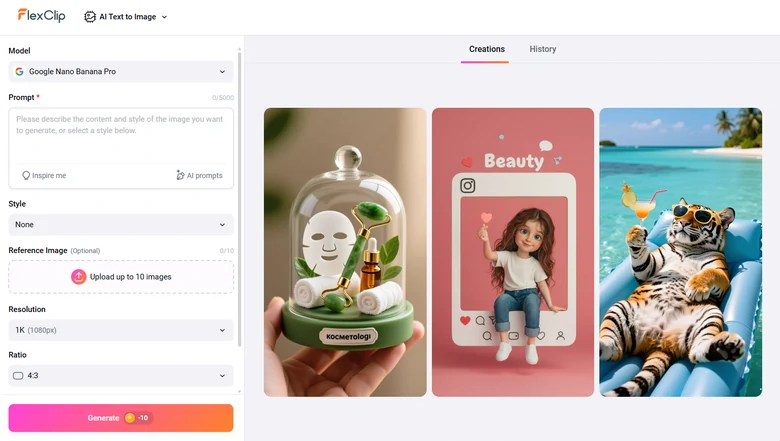
FlexClip Text to Image Tool
We entered the prompt: Human-like ape creature resembling a yeti sitting in a dense forest. Long brown fur, a broad muscular build, and a dark, gorilla-like face. It appears to be holding a selfie stick, angled toward itself, giving the scene a vlog-style feel. To its left side, there is a small campire, with smoke rising and stones arranged around the fire pit. This is the brand new Yeti we generated.
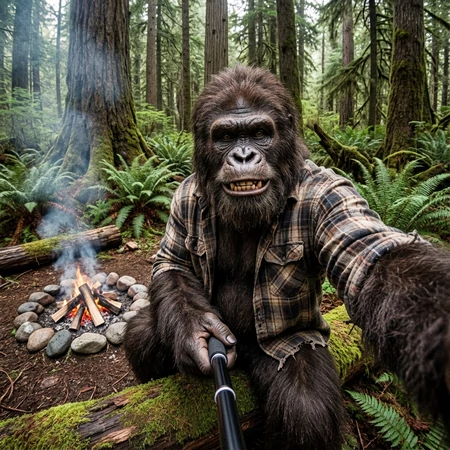
FlexClip Generated Yeti Image
Step 2. Create Scene Images
A simple character doesn’t speak aloud, even for Vlogs. You need to incorporate them into different backgrounds, or bring in different characters into one scene.
This is where FlexClip’s Photo Editor comes in handy. It edits, or merges multiple photos into one based on your prompt. Thanks to Nano Banana, it doesn’t change character facial details, so you can easily achieve consistency across all scenes.
Access FlexClip’s Photo Editor page, choose Nano Banana Pro for the best character consistency. Upload the character image plus more reference images, enter a prompt describing the scene image you need, hit Generate.
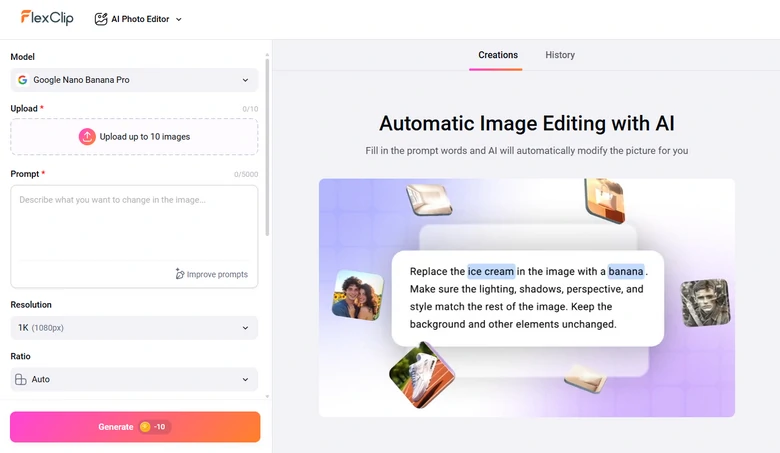
FlexClip Photo Editor Tool
We ask FlexClip to create a group portrait of Yeti and an alien, here is what we get.
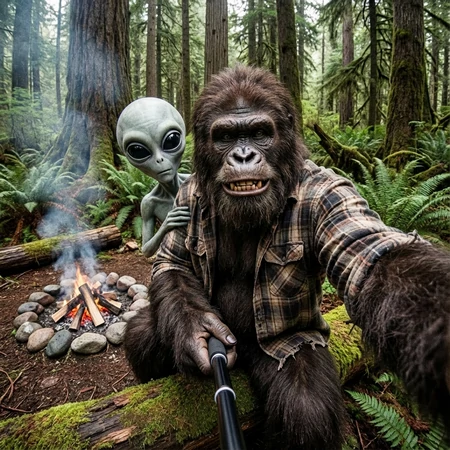
FlexClip Edited Yeti Images
Step 3. Animate Images to Vlog
Smooth movement, great voiceover, and lipsync is crucial for AI vlogs. You don’t need any animation skills. Jump to FlexClip’s Image to Video tool, where you have access to Veo 3, Sora 2 video generation models. No matter which model you go, you will barely encounter any hallucinations and movement that’s against the real world.
Switch to FlexClip’s Image to Video tool, drag and drop the scene image to the upload section, enter a prompt describing the movement, and what you want the character to say. Depending on the model you are using, you can generate video clips in 4-12 seconds.
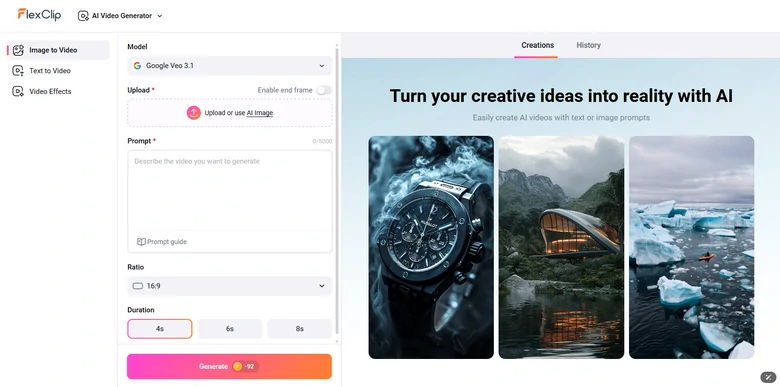
FlexClip Image to Video Tool
This is the prompt we entered: Yeti says calmly. Yo, this is Yeti. This is my roommie, he doesn't pay rent. FlexClip finishes the following clip under 5 minutes.
AI Vlog Clip Created by FlexClip
Step 4. Edit Vlog Clips
After getting all the vlog clips, it is time to combine them into one cohesive video. Drag and drop all your clips into the timeline, trim, merge, apply transitions, add captions, and make other edits.
FlexClip’s editing panel is easy to navigate. Click on any clip in the timeline, all available editing tools are listed above the preview window and the timeline. All resources and AI tools are to your left side. Polish AI vlog clips now!
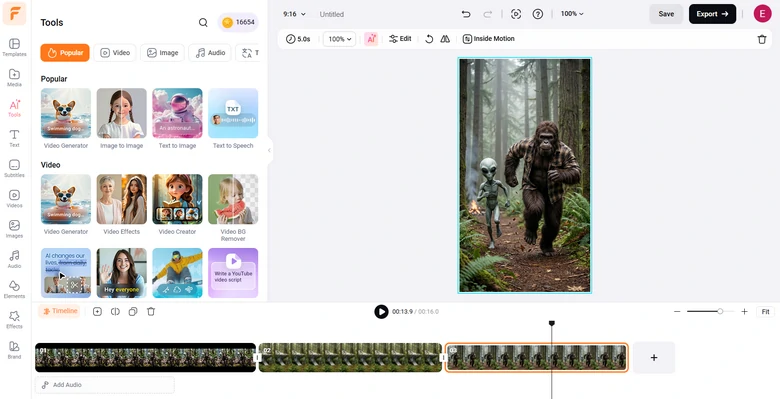
Edit AI Vlog
Step 5. Share Vlog
Enjoy ultimate freedom of sharing your AI vlogs at FlexClip! Besides exporting to a local folder, you are also able to save it to cloud services, share via a short link, or post to social media directly.
What Makes FlexClip an Irreplaceable AI Vlog Generator
AI image generation and video generation are not new anymore. However, FlexClip offers you access to the most advanced models like Veo 3, Sora 2, generating you clips with natural movements, voice over with perfect lip sync.
Many AI vlog generators don’t give you the flexibility to adjust the vlog clips. FlexClip offers a whole suite of video editing tools. Whether you are a seasoned editor or professional creator, you can always craft stunning AI vlogs without steep learning curve.
Feeling like adding an intro or outro for your AI vlog? Head over to FlexClip’s template page, where you can access over 7000 customizable templates. Pick the intro/outro templates you love, replace the resources and make them yours before anyone else.

Frequently Asked Questions
1. What’s an AI vlog?
An AI vlog is a video created using artificial intelligence, often featuring AI-generated characters, voices, scripts, or animations instead of a real person in front of the camera. However, it is possible to use a real person’s appearance in AI vlog.
2. Can I customize the AI character in my vlog?
Yes. You can create and edit an AI character image, then animate it to match the vlog theme.
3. Do I need editing skills to create an AI vlog?
No. AI vlog tools only ask you to input a prompt, upload reference images, then they automatically generate vlog clips. All you need to do is merging clips, applying captions, and other basic edits.




FlexClip AI Video Maker
Reach professional-quality videos faster with easy editing tools, templates, and smart AI.
Start Now for Free
Hot & Trending
-

Best Ways to Find Music in YouTube Videos
-

Instagram Story Video Quality Bad After Upload? Fix It!
-

How to Repost Video on TikTok & How to Remove TikTok Repost
-

Improve Video Quality Online: 3 AI Video Quality Enhancers You Can't Miss
-

4K Convert to HD 1080p without Watermark: Best 4k Video Converters
-

Best 8 Free Video Editors - No Download Required
-

Top 13 Birthday Video Makers with Music and Effects Free
-

How to Search Filters on TikTok & Use a Filter You See - TikTok Filter Guide


