


Motion blur is a visual effect in photography that captures movement. It occurs when the subject moves during the exposure. So, adding motion blur manually can make your still picture become more dynamic. If you want to add a professional motion blur effect to your photos, our recommended AI photo editor can make the process of adding motion blur effortless in seconds. Unlike complicated editing software, you don’t need editing skills. You can wait for AI to add this kind of dynamic, cinematic motion blur look to your photo.
Here is an example image of adding motion blur effect using FlexClip’s AI photo editor.
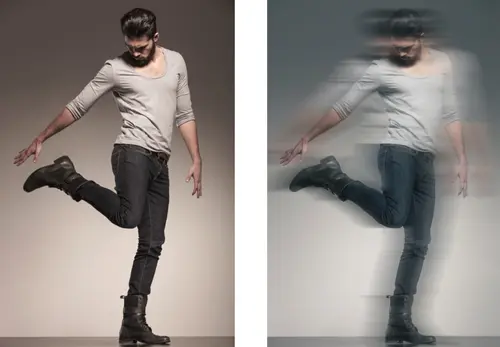
Example Image - FlexClip
Free and Customizable Photo Slideshow Templates for You


#1 How to Add Motion Blur to Photo Online in FlexClip
FlexClip’s AI photo editor can help you edit and enhance your photo as you need, effortlessly, like adding motion blur to the photo. It utilizes AI that allows you to add motion blur to the photo easily with text prompts. Just type what motion blur effects you want to add and click the Generate button with just a tap, and its AI will handle the rest. There is no need to have professional skills to achieve your dream motion blur look.
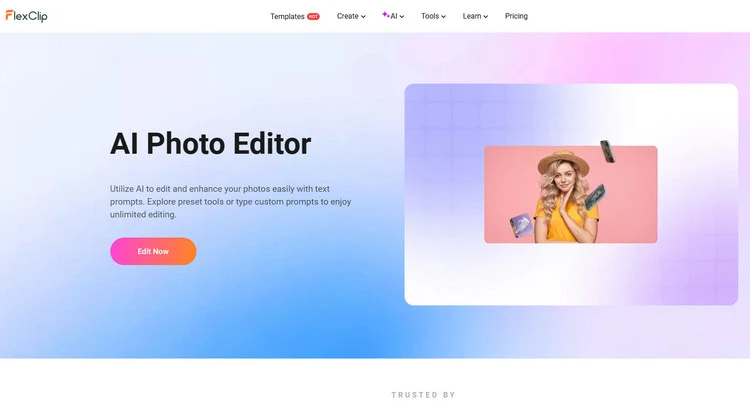
AI Photo Editor - FlexClip
FlexClip’s AI photo editor employs cutting-edge artificial intelligence to help you experience the magic of adding motion blur to the photo online by uploading your photo and beginning your unique image conversion. It will offer seamless and natural AI-generated motion blur effect results based on your uploaded photo and text prompt.
Now, you can check out these simple steps below to learn how to add motion blur effect to your photo using this recommended AI photo editing tool - FlexClip. It’s your time to start adding dynamic, cinematic motion blur look to your photo in FlexClip.
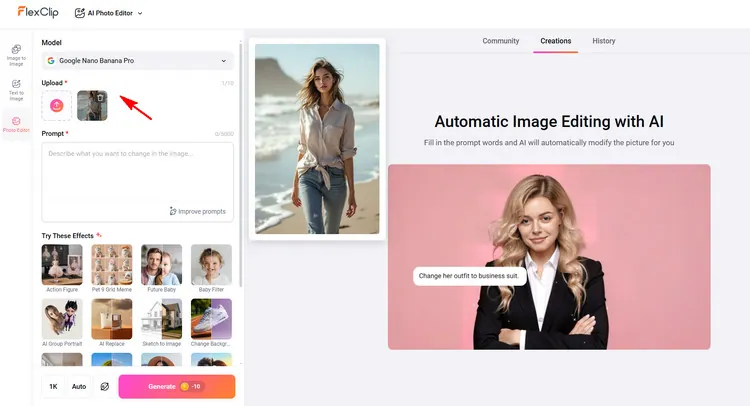
Upload Your Photo - FlexClip
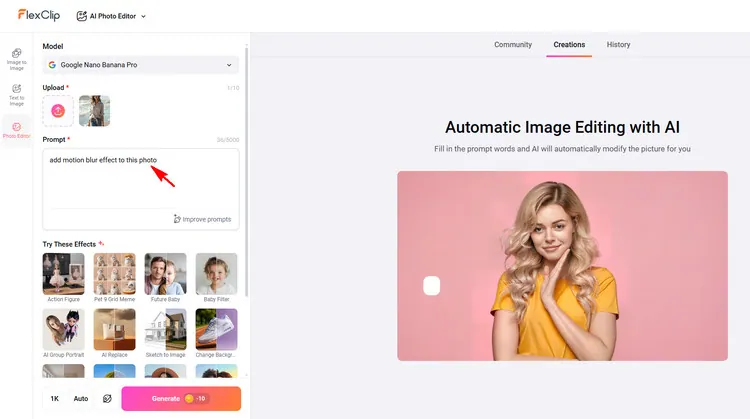
Type Text Prompt - FlexClip
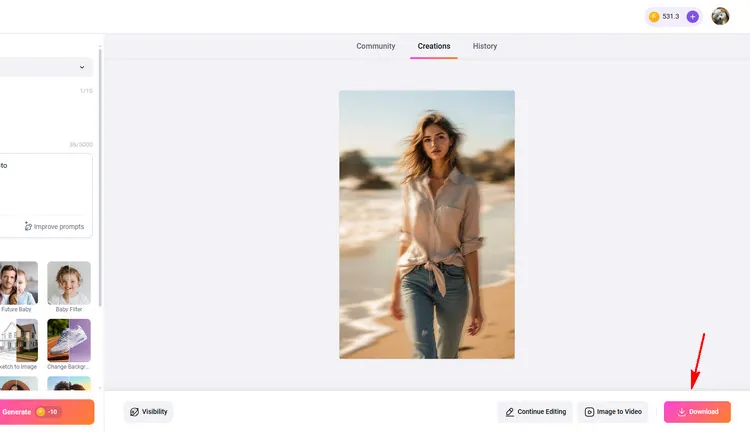
Download New Photo - FlexClip
#2 How to Add Motion Blur to Photo Online in Pokecut
Pokecut's AI image blur tool allows you to easily apply a motion blur effect online instantly. You can add realistic motion blur to your images online, even without any photography skills. Pokecut's image blur tool uses AI to simplify creating motion blur effects. First, the AI performs a precise photo cutout to protect the subject. Then, it applies the motion blur effect on the background. This ensures the subject remains sharp while the background becomes dynamic.
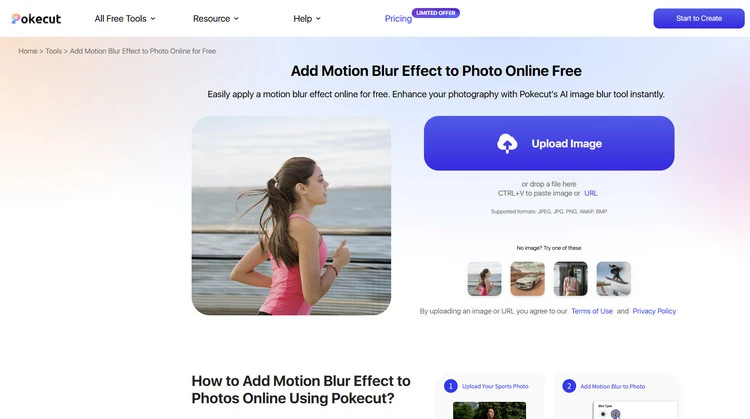
Add Motion Blur to Photo - Pokecut
With AI, you can easily add motion blur to photo backgrounds. This process transforms your motion blur image effortlessly. You don't need to be an expert to achieve professional results. The image shake effect is easy to apply with our editor. It provides a creative way to make your photos stand out. Experiment with different settings to achieve the desired effect. Pokecut's AI tool is designed for easy and quick online editing.
#3 How to Add Motion Blur to Photo Online in Fotor
You can add motion blur effects to your photos online with Fotor’s moving photo effect, and create a dreamy and soothing effect for your image. With just a few quick clicks, a masterpiece is at your fingertips. If your photos need more motion, a subtle motion blur effect can give the impression of movement. Whether it's a static animal or a human portrait, you can easily add a motion blur filter to your photo without any motion blur photography skill, even a beginner can quickly create an image of motion here!
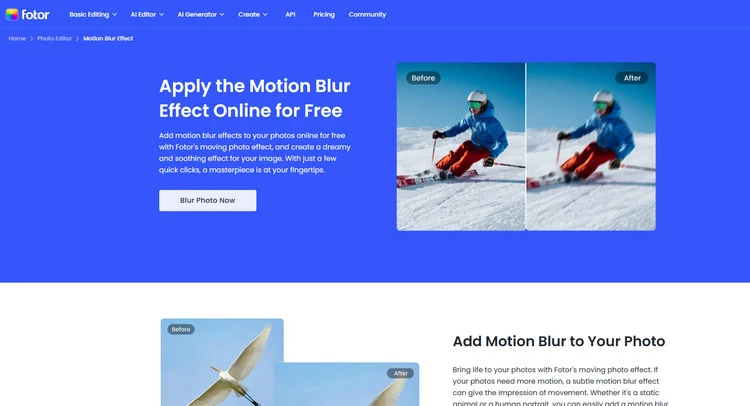
Add Motion Blur to Photo - Fotor
Use Fotor's automatic background blur tool to create a motion blur background for your photo and make it look like it is "in motion". Fotor’s motion blur effect app for iPhone and Android also allows you to blur photos anytime, anywhere.
Some Final Words
Now that you know the 3 excellent AI photo editors to add motion blur to photo effortlessly, try it to create your unique photo!




FlexClip AI Video Maker
Reach professional-quality videos faster with easy editing tools, templates, and smart AI.
Start Now for Free
Hot & Trending
-

Best Ways to Find Music in YouTube Videos
-

Instagram Story Video Quality Bad After Upload? Fix It!
-

How to Repost Video on TikTok & How to Remove TikTok Repost
-

Improve Video Quality Online: 3 AI Video Quality Enhancers You Can't Miss
-

4K Convert to HD 1080p without Watermark: Best 4k Video Converters
-

Best 8 Free Video Editors - No Download Required
-

Top 13 Birthday Video Makers with Music and Effects Free
-

How to Search Filters on TikTok & Use a Filter You See - TikTok Filter Guide




