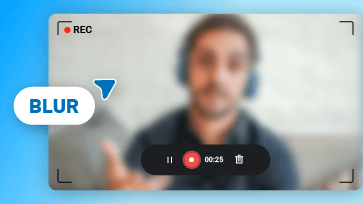
Caution! Your personal information could be accidentally exposed in social media videos. Personal details can easily be exposed in videos shared on social media—whether it's your delivery address in an unboxing video, your email password in a screen recording, or other sensitive information you don’t want to share publicly. Being prepared is essential, but what if you realize this after the video is already recorded? That's when you’ll need to know how to blur sensitive content. In this article, we’ll introduce three video blurring tools to help protect your privacy. Let’s take a look at your options!
Part 1. How to Blur Sensitive Information in Video Online
Online solutions are often the first choice because they’re easy to use and don’t require software installation to take up valuable storage space. The need to blur sensitive information in videos is no different. FlexClip, an online video blurring tool, offers an effective solution for this purpose.
Blurring sensitive information in FlexClip is incredibly easy. Whether it’s static elements or moving objects, FlexClip offers several methods to fully cover personal details in seconds. You can hide information with a fun emoji, pixelate the footage with a mosaic effect, or blur it completely to make it unrecognizable. With just a few clicks, you can protect your privacy while preserving the quality of your video.
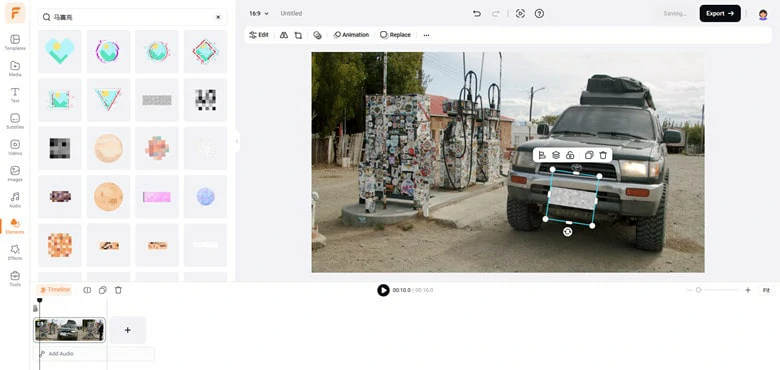
Blur Sensitive Information in Video with FlexClip
Besides the easy blurring feature, FlexClip can satisfy you with reasons below:
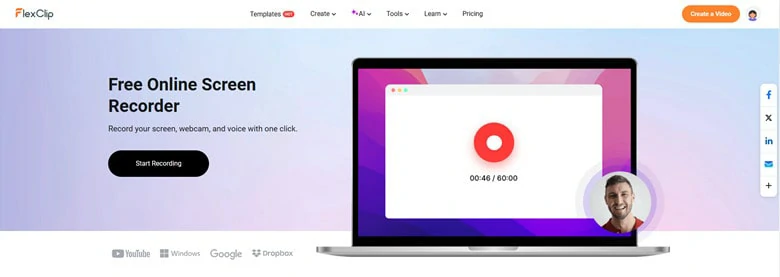
The Built-in Screen Recorder Feature in FlexClip
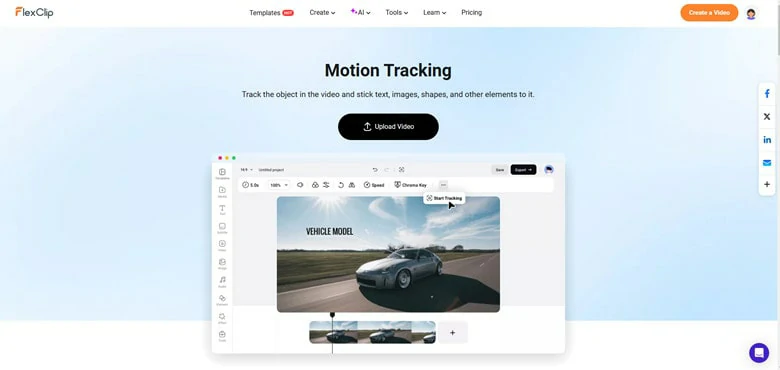
The Motion Tracking Feature in FlexClip
Extensive Features in FlexClip to Unleash Your Creativity




How to Blur Sensitive Information in Video Using FlexClip
FlexClip offers two main methods for blurring personal information in videos: the Blurred Mask feature (ideal for small, moving objects) and the Motion Tracking function (suitable for all scenarios). Below, we’ll guide you through both techniques step by step.
1) Blur Personal Information Using the Masking Feature

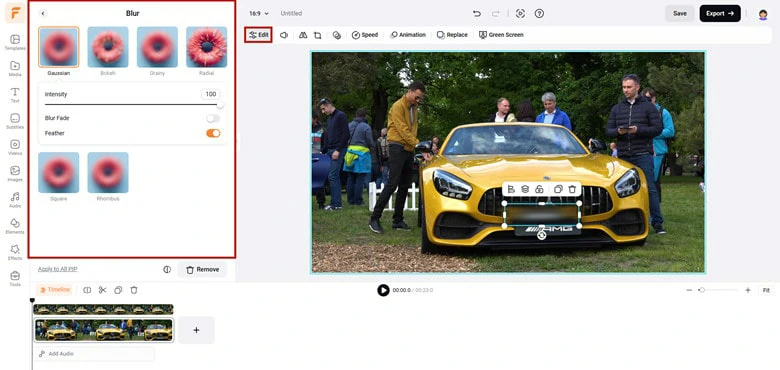
Add the Video Again as a Layer and Apply the Blur Effect to the Target Area
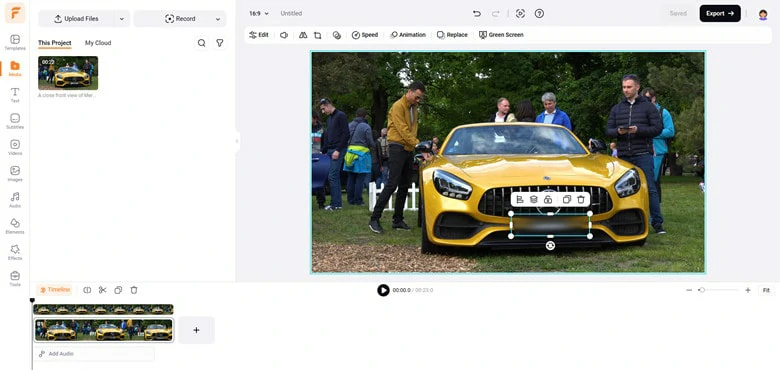
Resize the Blurred Footage to Cover the Original Video
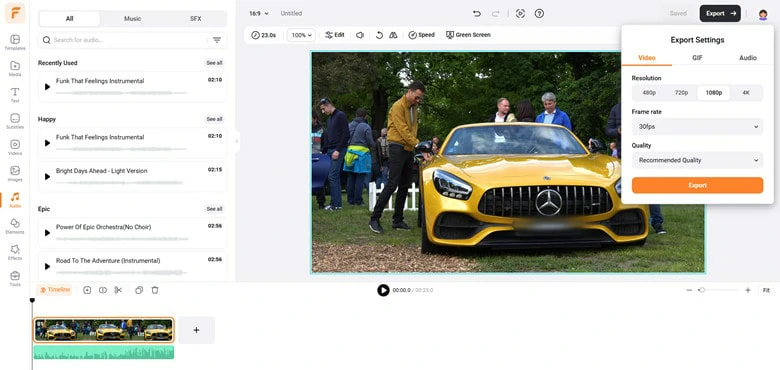
Export the Blurred Video to Local
2) Pixelate Sensitive Information with the Motion Tracking Feature
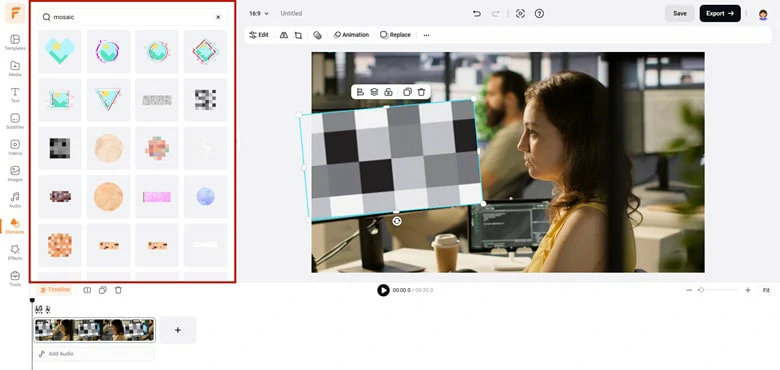
Add an Element to the Sensitive Information Area
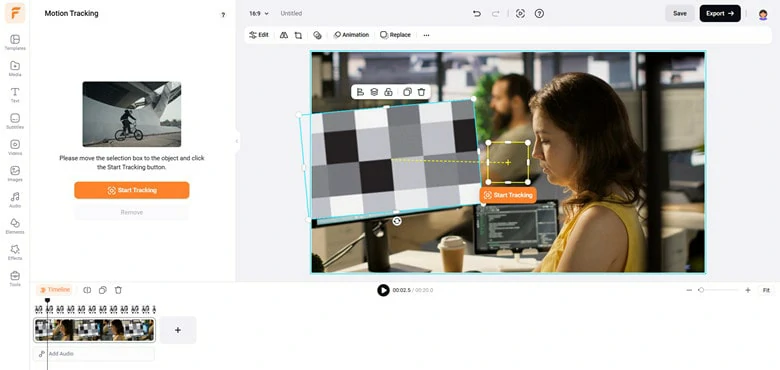
Select the Target Area to Track
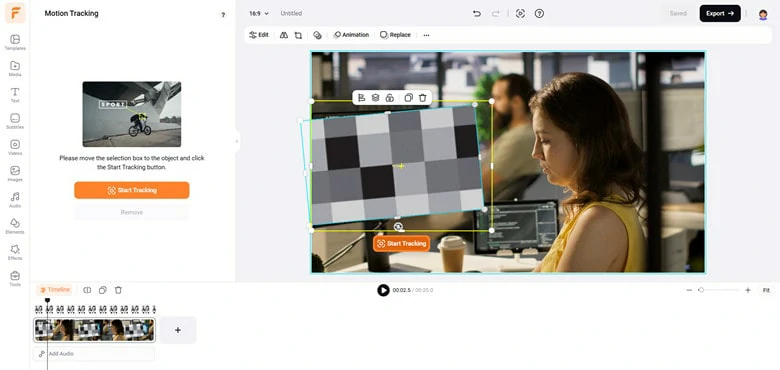
Enable the Motion Tracking Feature in FlexClip
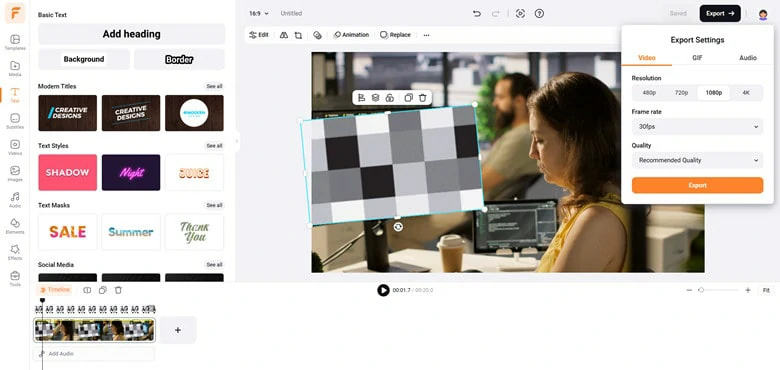
Preview and Export the Pixelated Footage to Local
Part 2. How to Blur Sensitive Information in Video Camtasia
Camtasia is a versatile desktop software that combines a screen recorder with a powerful video editor, making it ideal for a wide range of video editing tasks. Among its many features, the Blur Tool stands out for its ability to obscure sensitive information or pixelate objects you want to keep private in your videos. With customizable settings like intensity, opacity, shape, feathering, and ease effects, Camtasia ensures you can achieve precise and professional blurring results. Ready to blur your videos? Follow this step-by-step guide:
How to Blur Personal Information in Video Using Camtasia
Note: If you’re using Camtasia version 2022.0.4 or older, the Blur Region feature is located in the Annotations panel.
How to Blur Sensitive Information in Video Using Camtasia
Part 3. How to Blur Personal Information in a Video CapCut
If you’re looking to blur sensitive information on your mobile device, CapCut, the all-in-one video editor for Android and iOS, is an excellent choice. With its combination of blur and mask features, you can easily obscure any part of your video, be it email address, license plate or credit card number. For moving objects, the keyframe feature allows you to manually add anchor points, which enables precise motion tracking. While the process might sound a bit complex, CapCut simplifies it into just a few steps, and its user-friendly interface ensures a smooth editing experience. Here’s how to blur personal information in a video using CapCut:
How to Blur Sensitive Information in Video Using CapCut
The Bottom Line
OK, that’s all for how to blur sensitive information in video on desktop, mobile and online. To sum up, if you prefer an automate solution without extra software download, try FlexClip to help you safeguard private privacy in no time.




FlexClip AI Video Maker
Reach professional-quality videos faster with easy editing tools, templates, and smart AI.
Start Now for Free
Hot & Trending
-

Best Ways to Find Music in YouTube Videos
-

Instagram Story Video Quality Bad After Upload? Fix It!
-

How to Repost Video on TikTok & How to Remove TikTok Repost
-

Improve Video Quality Online: 3 AI Video Quality Enhancers You Can't Miss
-

4K Convert to HD 1080p without Watermark: Best 4k Video Converters
-

Top 13 Birthday Video Makers with Music and Effects Free
-

How to Search Filters on TikTok & Use a Filter You See - TikTok Filter Guide
-

Large Collection of Creative and Funny Birthday Video Ideas for Ones You Care