


Looking to make your videos more creative? Try adding a glitch effect! This popular technique adds distortion and digital disruption, making your videos more dynamic and attention-grabbing. If you're a Mac user wondering how to create a glitch effect in iMovie, you're in the right place. In this guide, we'll walk you through everything you need to know about applying the glitch effect in iMovie for stunning results. Let’s dive in!
Free and Customizable Glitch Effect Video Templates for You:
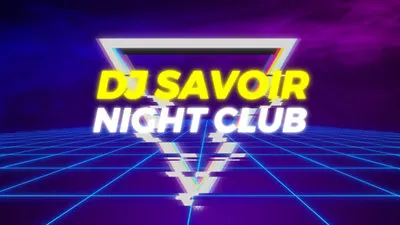
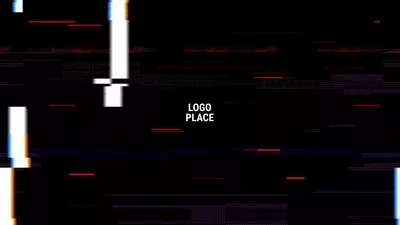


Quickly Explore More Appealing Glitch Effect Videos Templates>>
Directly Create a Glitch Effect Video Using An Online Glitch Effect Video Maker>>
Part 1. How to Create a Glitch Effect in iMovie?
Although iMovie is a powerful video editor for Mac users, it doesn't come with a built-in glitch effect. However, that doesn't mean you can't create one! With a little help from internet and iMovie's overlay feature, you can easily achieve an impressive glitch effect in just a few steps. Here's how to do it.
The process of creating a glitch effect in iMovie is simple, but you might be wondering if there's an even easier way to achieve glitchy videos. In the next section, we'll introduce an all-in-one glitch video maker that allows you to apply glitch effects to your videos effortlessly online. Let’s dive in!
Part 2. iMovie Alternative to Create Glitch Effect Video Online Within Seconds
Creating a glitch effect in FlexClip is incredibly simple! As an online glitch video maker, it lets you quickly apply glitch overlay effects from its built-in library, create glitch text effects, and add glitchy sound effects in seconds. Plus, if you need inspiration, there are hundreds of stylish templates with glitch effects that you can easily customize. Ready to give it a try? With its user-friendly interface, you can dive right in, no matter your editing experience.


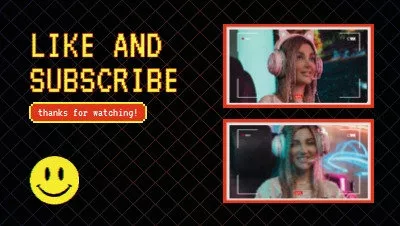
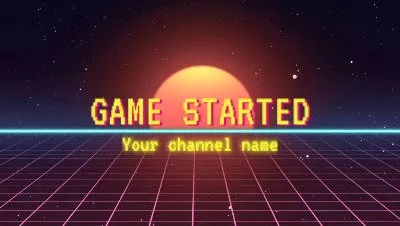
1)Create a Glitch Effect via FlexClip’s Glitch Overlay
The most common way to create a glitch effect is applying a glitch overlay. In FlexClip, you can select from 19 glitch effect overlays including VHS glitch, screen tearing, frame skipping, RGB split, digital distortion, signal interface and more. Here is how to make it.
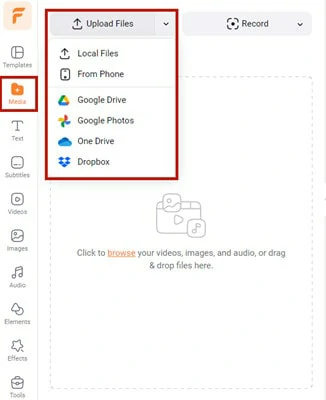
Visit FlexClip Editor Page and Import Your Video File
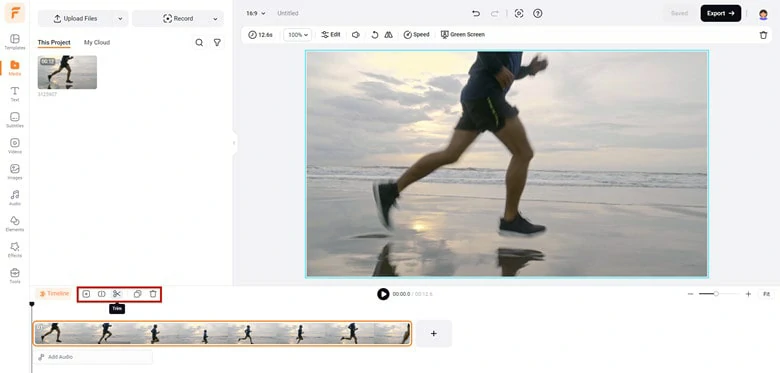
Make Basic Edits to Your Footage
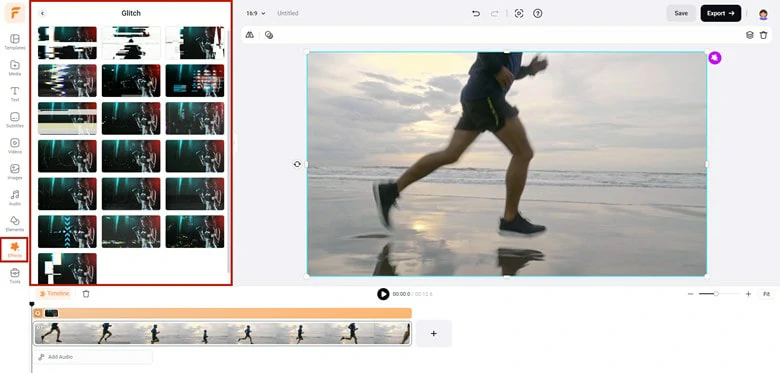
Apply a Glitch Overlay to Your Video
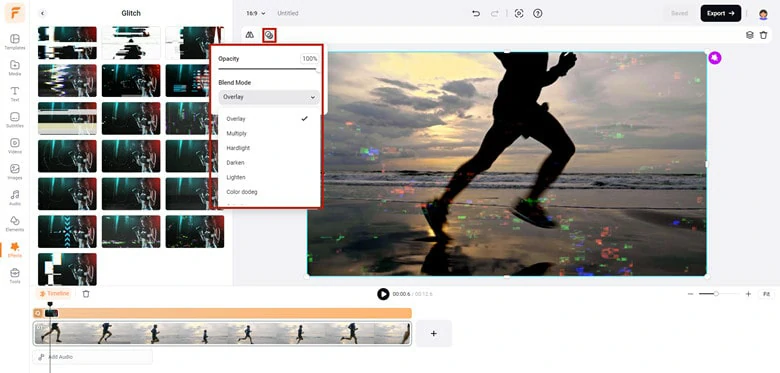
Customize the Glitch Effect as You Like
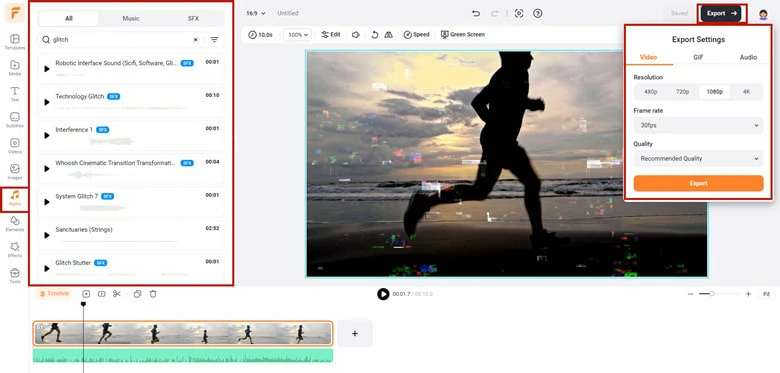
Save Your Glitchy Video to Local File
2)Create a Glitch Effect via FlexClip’s Glitch Text Effect
In addition to glitch overlays, FlexClip also allows you to create glitch text effects easily, which are perfect for typography videos. Follow these steps to get started:
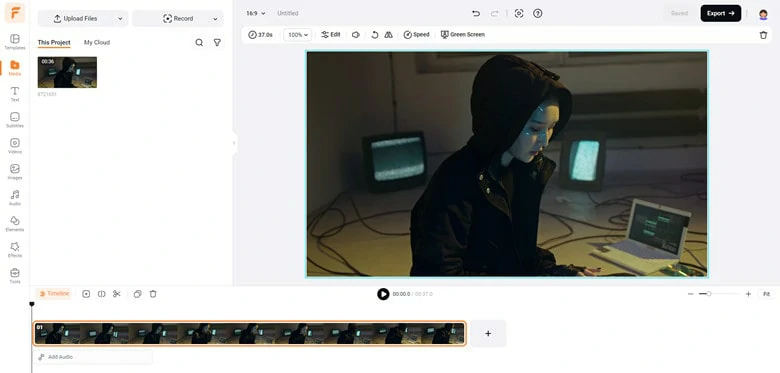
Upload the Video File You Want to Add a Glitch Text Effect to FlexClip
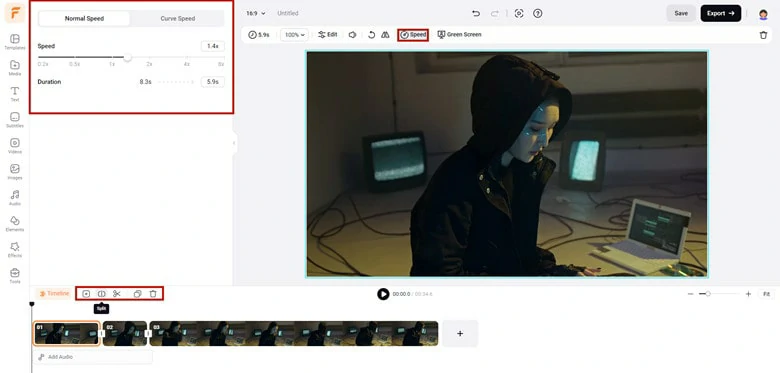
Upload the Video File You Want to Add a Glitch Text Effect to FlexClip
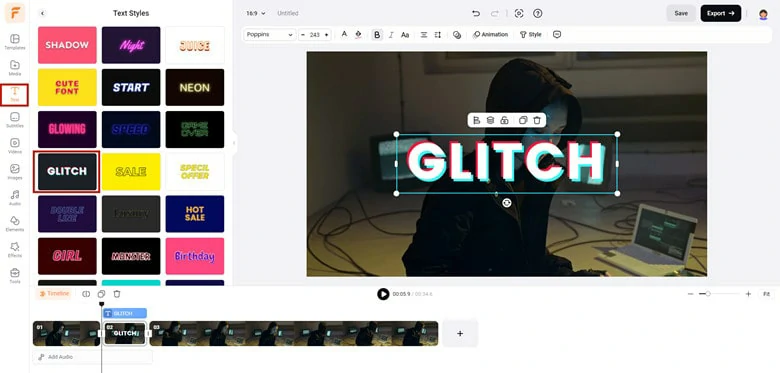
Add a Glitch Style Text to Your Video
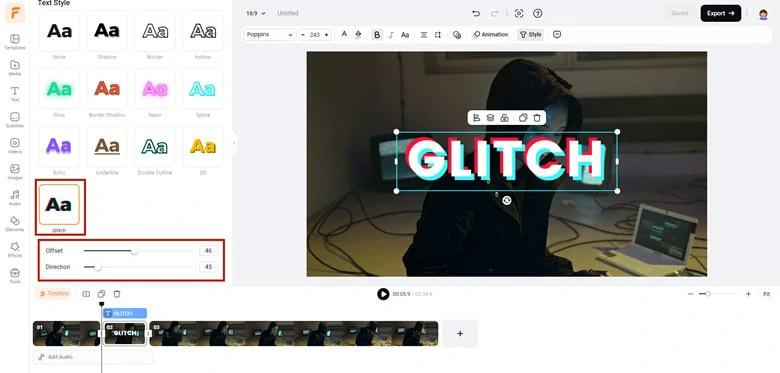
Customize the Glitch Text as You Like
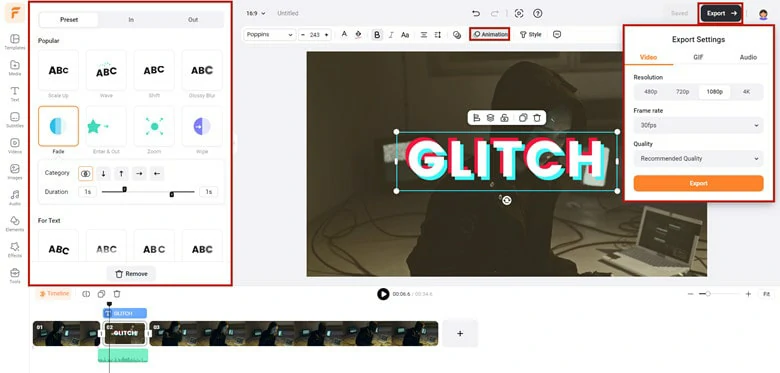
Export the Edited Glitchy Text Video
3)Create a Glitch Effect via FlexClip’s Transition Effect
Although FlexClip doesn’t offer a specific glitch transition effect, it provides a wide variety of similar transition styles to choose from. You can create wave scrollers, window blinds, pixelated, hexagonal, and other transitions that give your clips a glitchy feel. Ready to try it? Follow these steps:
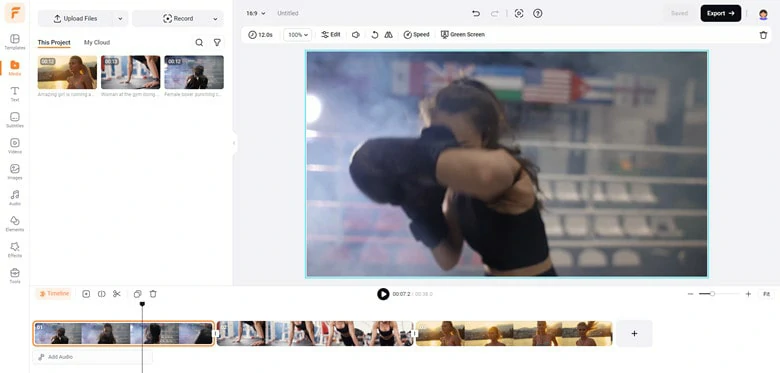
Add Clips to Timeline and Arrange in the Desired Sequence
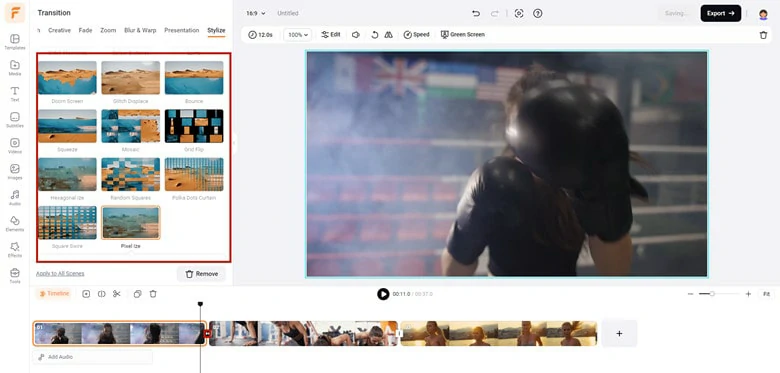
Add a Glitch Style Transition to Your Video
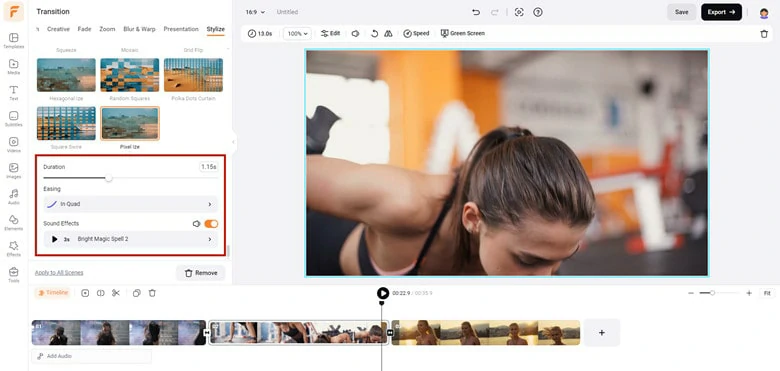
Customize the Transition Effect as You Like
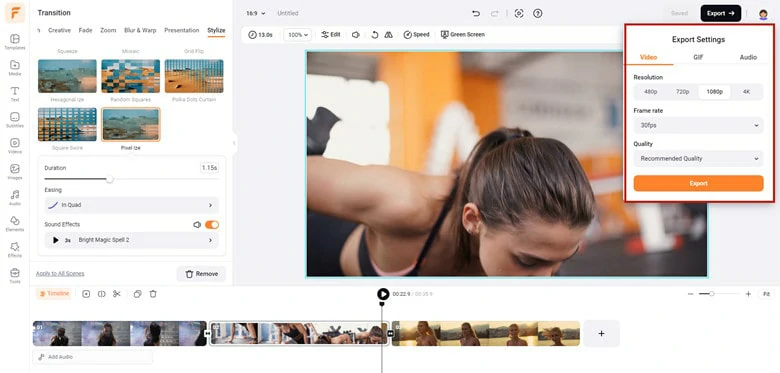
Export the Video with Glitch Style Transition
The Bottom Line
That’s it for creating a glitch effect in iMovie! If you’re looking for an easier, more efficient solution, we recommend using a dedicated glitch effect video editor called FlexClip that lets you create glitchy projects in just minutes. Which option will you choose? Decide and start creating now!




FlexClip AI Video Maker
Reach professional-quality videos faster with easy editing tools, templates, and smart AI.
Start Now for Free
Hot & Trending
-

Best Ways to Find Music in YouTube Videos
-

Instagram Story Video Quality Bad After Upload? Fix It!
-

How to Repost Video on TikTok & How to Remove TikTok Repost
-

Improve Video Quality Online: 3 AI Video Quality Enhancers You Can't Miss
-

4K Convert to HD 1080p without Watermark: Best 4k Video Converters
-

Best 8 Free Video Editors - No Download Required
-

Top 13 Birthday Video Makers with Music and Effects Free
-

How to Search Filters on TikTok & Use a Filter You See - TikTok Filter Guide




