


Feel like dropping yourself into a cool vacation shot, or duplicating an interesting element for a quirky edit? Good choice because they instantly make your edits creative, engaging and share-worthy.
The best part? You don’t even need professional photo editing software. With a powerful AI tool, anyone can take one object from one photo and paste it to another. Let’s take a look!
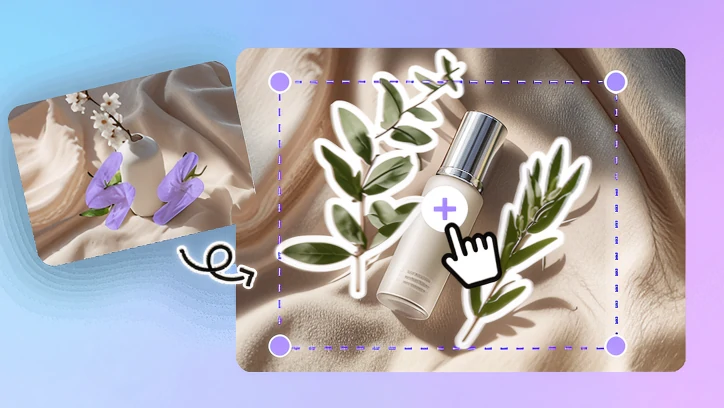
Copy Object from One Image to Another - Display Image
Can't Miss: Change Portrait to Cartoon PFP >
Also Read: Turn an Image to Popular Ghibli Style >
How to Copy an Object from One Image to Another
The only tool you will need is FlexClip. It analyzes pictures, understands your prompt with high accuracy, and then mixes two images into a brand new one.
For instance, we want to place the perfume bottle on the sale’s tray. Let’s see how FlexClip helps.
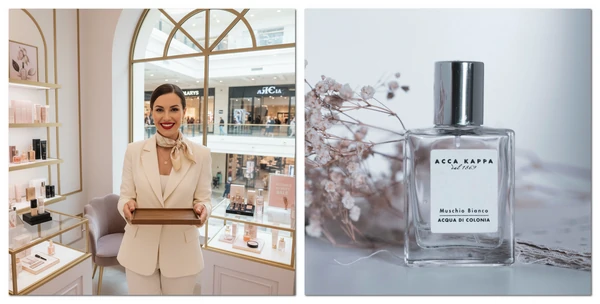
Copy Object from One Image to Another - Example Image
Step 1. Upload Your Photo
Click the Copy & Paste Element button below. You are now at FlexClip’s AI Photo Editor tool. Select the Google Nano Banana model, and then upload two pictures. The one that contains the elements you need, and the main image.

Step 2. Enter Prompt
Tell FlexClip how you want to merge the image. This is the prompt we’ve entered: place the perfume bottle on her tray, adjust the bottle size so that they are not too big on the tray. Hit Generate, you will be about to get results within several seconds.
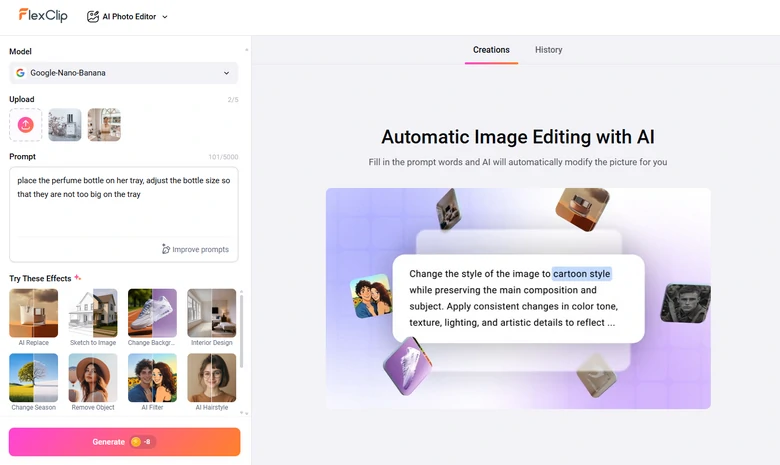
Transfer Object from One Image to Another Using FlexClip
Step 3. Preview & Export
Whenever you are happy with the output, save the image to a local folder, or post to social media directly.
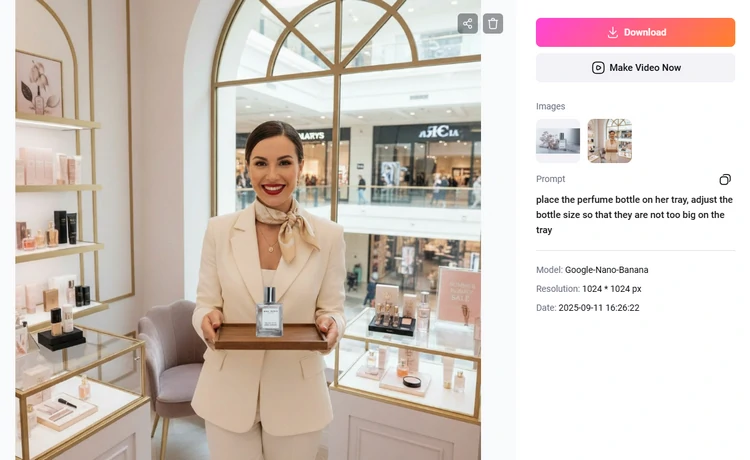
Preview the Image
Never limit yourself to copying and pasting elements in photo. FlexClip’s AI Photo Editor allows you to tweak images in a more creative way.
For instance, while adding the perfume to the image, you can also change the person’s facial expressions, poses, or even clothes.
It is also possible to move an object in a photo. We ask FlexClip to place the girl in the middle of the frame, and it works!

Move Any Element in Image
What Makes FlexClip a Great Tool to Transfer Objects to Another Photo
FlexClip is not the only tool that’s able to transfer objects from one photo to another. Compared with professional manual editing tools and other AI tools, here are some persuasive advantages you can’t resist trying.
Traditionally, you have to rely on PhotoShop to add one object to another photo, which takes lots of practice and manual work. With FlexClip, however, the task is done all by AI. No steep learning curve, no previous design skills needed.
High-resolution output alone doesn’t make FlexClip a great AI photo editor. We are talking about harmonious lighting, perfect position. FlexClip’s AI will automatically adjust the element’s lighting so that it perfectly mixes the new image.
Besides processing photos, FlexClip also allows you to create eye-catching videos. Access FlexClip’s video editing panel to get started!
Not a fan of editing? FlexClip’s 7000+ templates offer you a great short cut to stunning slideshows, commercials, powerpoints. Replace existing resources with your own photos and you are done!




FAQs About Copying & Pasting Elements to Another Image
1. How do I make the pasted object look natural in the new photo?
To make the pasted object look natural in the new photo, you must pay attention to the object size, shadows and lighting. FlexClip’s AI Photo Editor will automatically adjust these details to blend objects seamlessly.
2. Will the image quality drop after copying and pasting?
No, FlexClip uses advanced AI so that the image quality stays sharp and professional. However, you have to keep in mind that the output image aspect ratio is decided by the last image you uploaded. If you upload the main image first, it might be cropped or stretched.
3. Can I copy multiple objects at once?
Yes, FlexClip allows you to copy and paste multiple objects to the image at once, saving time for complex edits.
4. How much does it cost to add object from one image to another?
FlexClip adopts a fair credit-based pricing policy. It takes only 5 credits for each generation, which is about $0.13. 800 credits costs $19.9. The credit you purchased can also be used to turn image to video, remove image background, etc.




FlexClip AI Video Maker
Reach professional-quality videos faster with easy editing tools, templates, and smart AI.
Start Now for Free
Hot & Trending
-

Best Ways to Find Music in YouTube Videos
-

Instagram Story Video Quality Bad After Upload? Fix It!
-

How to Repost Video on TikTok & How to Remove TikTok Repost
-

Improve Video Quality Online: 3 AI Video Quality Enhancers You Can't Miss
-

4K Convert to HD 1080p without Watermark: Best 4k Video Converters
-

Best 8 Free Video Editors - No Download Required
-

Top 13 Birthday Video Makers with Music and Effects Free
-

How to Search Filters on TikTok & Use a Filter You See - TikTok Filter Guide


