


Snapchat is a beloved social media hub, offering endless fun through its array of innovative lenses and filters. Among these, the face swap filter stands as a true evergreen: though first introduced nearly a decade ago, it remains wildly entertaining and still draws millions of daily users to this day.
Ever wanted to swap faces with your best friend, a favorite celebrity, or even a hilarious meme on Snapchat? You’re in the right place! This blog is your ultimate guide to nailing the face swap feature since we’re breaking down everything you need to know to do it like a pro. Let’s dive in!
How to Use Snapchat Face Swap?
Snapchat lets you swap faces of a person in real-time or using an existing photo. It utilizes facial recognition technology, and switches their positions, often creating funny or even eerie results.
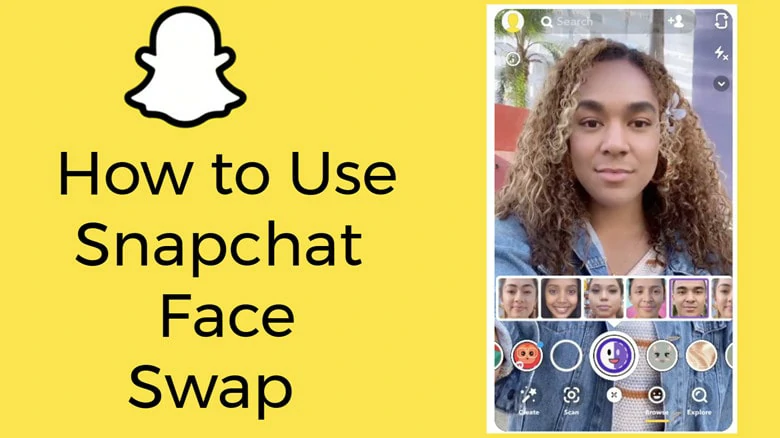
How to Use Snapchat Face Swap Lense
Can’t wait to prank your friends with a silly face-swap? Here is step-by-step guide for you.
1)Face Change on Snapchat with a Real Person
Want to play a quick face swap game with the person right next to you? Try Snapchat’s Face Swap Lenses in just 4 simple steps!
Step 1: Prepare the latest Snapchat app
First, download and install the newest version of Snapchat on your device. If you already have it, double-check that it’s updated to the latest version (old versions might not have the lens!).
Step 2: Set up your camera
Open Snapchat and switch to the front-facing camera by tapping the camera icon in the top-right corner. For the best, most seamless swap, make sure there’s plenty of light and both faces are clearly visible in the frame.
Step 3: Find the Face Swap Lens
Press and hold your face (or your friend’s face) on the screen—this will bring up a grid of lenses. Swipe through them until you find the yellow “Face Swap” icon: it looks like two smiling faces with an arrow between them.
Step 4: Swap and capture
Line up both your face and your friend’s face in the camera frame. Once Snapchat detects both faces, it’ll automatically swap them! Tap the circular shutter button to snap a silly photo, or hold it down to record a fun face-swap video.
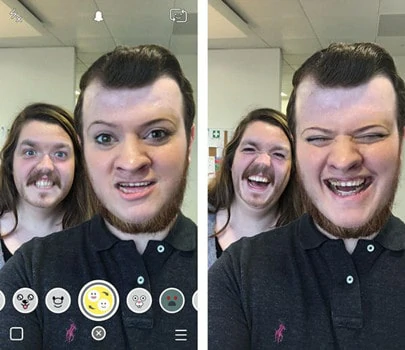
Face Change on Snapchat with a Real Person
2)Face Swap from Camera Roll
If you want to swap faces with a celebrity, iconic figure, or even someone in an old photo, using a picture from your camera roll is the way to go! Here’s exactly how Snapchat makes it happen:
Step 1: Prepare Snapchat and your photo
Make sure your Snapchat app is updated to the latest version to activate face swap feature smoothly. Also, save the photo you want to use (whether it’s a celeb shot, vintage pic, or anything else) to your device’s camera roll.
Step 2: Set up your camera and pick the lens
Open Snapchat and point the camera directly at your face. Then, scroll through the lens options until you find the purple “Face Swap” lens, which has a little camera icon next to a smiling face.
Step 3: Choose your photo from the gallery
Once you select the face swap filter, a prompt will pop up asking to access your camera roll. Tap to allow it, then pick the photo you want to swap faces with.
Step 4: Capture and share the fun
Snapchat will automatically swap your face with the one in the photo. When you’re happy with the result, tap the circular button to take a picture, or hold it down to record a video—then share it with friends!
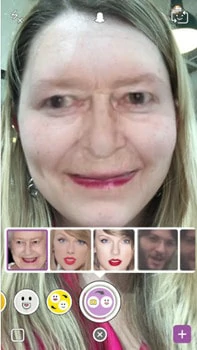
Face Change on Snapchat from Camera Roll
Snapchat face swapping is wonderful but it misses out when it comes to natural-looking results. Moreover, its real-time shooting requirements limit you to enjoy the fun of changing face at anywhere, anytime.
So, if you’re going to look for alternatives to enjoy a more pleasant face-swapping experience, keep scrolling to explore creative face swapper we offered to you.
Two More Tools for Creative Face Swap Online
FlexClip: Swap Faces in Photos with Ease
Unlike Snapchat that requires real-time shooting conditions, FlexClip offers a remark face-swapping flexibility to work with existing photos in your collection. The operation process is straightforward. All you need to do is upload the source image and the target face image, and with a few clicks, you can achieve the desired face swap at anywhere, anytime.
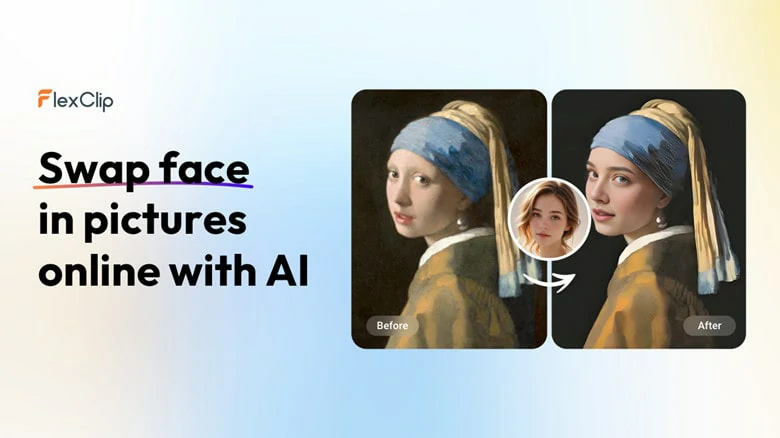
Swap Faces in Photos with Ease Using FlexClip
Sounds simple, right? But FlexClip offers far more than just basic face swapping.

How to Make Photo Swap Using FlexClip
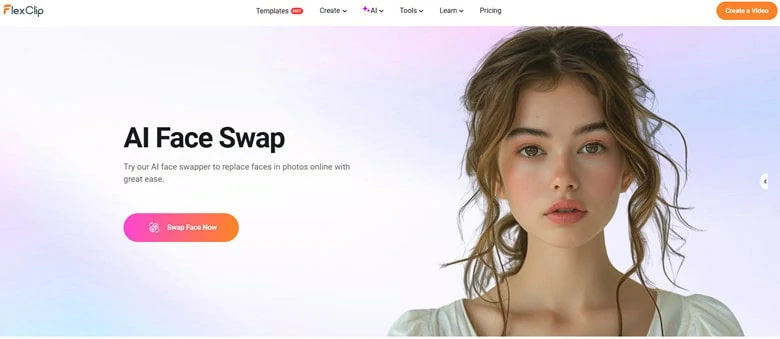
Upload Images You Want to Swap to FlexClip
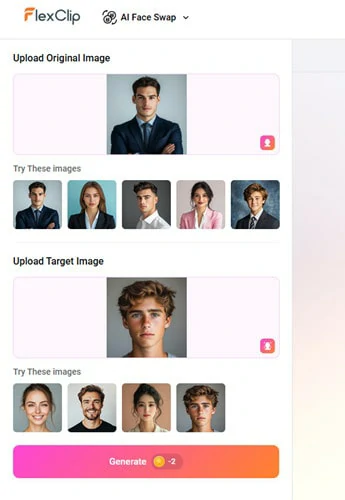
Hit on Generate Button to Begin
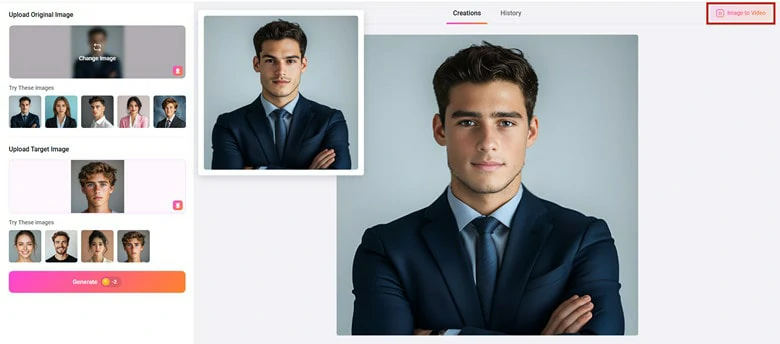
Download Face Swapped Image or Continue Edits in FlexClip
Bonus Tips: Join another social media trend by creating a face morphing video in FlexClip. Check this tutorial for help>>
Mio Create: Multi-faces Swap in Photo
With Mio Create’s AI multi-face swap feature, transforming multiple faces in a group photo for a fun, creative twist is easier than you think. It leverages AI technology to recognize all the faces in an image, and let you reface multiple faces simultaneously, thanks to its “One Face, One Reference” setup. No manual edits are required! With just a few clicks, you’ll have a fun, jaw-dropping face-swapped group image ready to go.
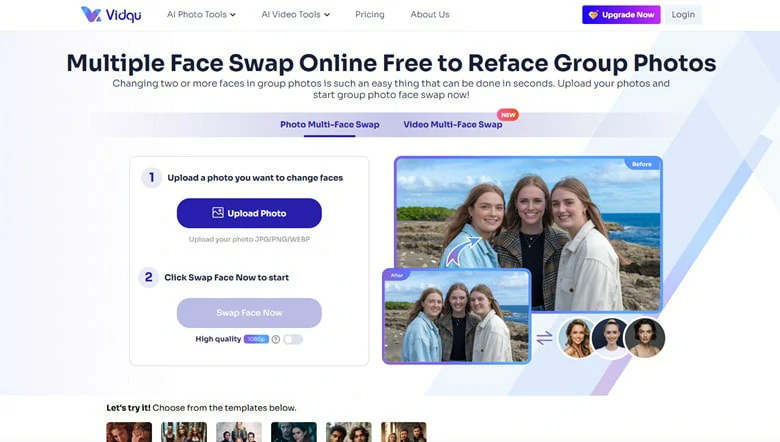
Multi-faces Swap in Photo - Mio Create
How to Change Multiple Faces in Photo Using Mio Create
FAQs About Snapchat Face Swap
1.What is face swap on Snapchat?
Face swap is a Snapchat lens that lets you swap face with a friend in real-time or with an existing photo from your camera roll.
2.Can I face swap a photo instead of a live person?
Yes. Snapchat offers two versions: one swaps the face next to you lively and another works with a face detected in your camera roll.
3.Why my face swap look wired?
Poor lighting, face angles and movement will affect the face detection. Ensure both faces are visible, front-facing and well-lit. For a formal face swap used for professional purposes, try Snapchat alternative - FlexClip to change faces properly.
4.Is it safe to use Snapchat face swap filter?
Yes. Snapchat will not keep your images, unless you’d like to save them. But remember images can be shared on Snapchat. So avoid to use private and sensitive photos.




FlexClip AI Video Maker
Reach professional-quality videos faster with easy editing tools, templates, and smart AI.
Start Now for Free
Hot & Trending
-

Best Ways to Find Music in YouTube Videos
-

Instagram Story Video Quality Bad After Upload? Fix It!
-

How to Repost Video on TikTok & How to Remove TikTok Repost
-

Improve Video Quality Online: 3 AI Video Quality Enhancers You Can't Miss
-

4K Convert to HD 1080p without Watermark: Best 4k Video Converters
-

Best 8 Free Video Editors - No Download Required
-

Top 13 Birthday Video Makers with Music and Effects Free
-

How to Search Filters on TikTok & Use a Filter You See - TikTok Filter Guide



