AI Roblox Generator
Use FlexClip to create avatars, landscapes, and game-inspired accessories, bring your Roblox ideas to life with great ease.
Why Use FlexClip’s AI Roblox Generator

High-Quality Output
FlexClip strongly adheres to your prompts and turns them into up to 4K Roblox images. Perfect for banners, thumbnails, social media content.

Multiple-Platform
Creators can use FlexClip to generate Roblox images anytime, anywhere they like, because it works across desktop, mobile, and tablet devices.

Safe & Secure
FlexClip prioritizes user security, keeping your Roblox creations, uploads, and personal data protected at all times. Feel safe using FlexClip.
please input title
AI-Powered Roblox Image Generation
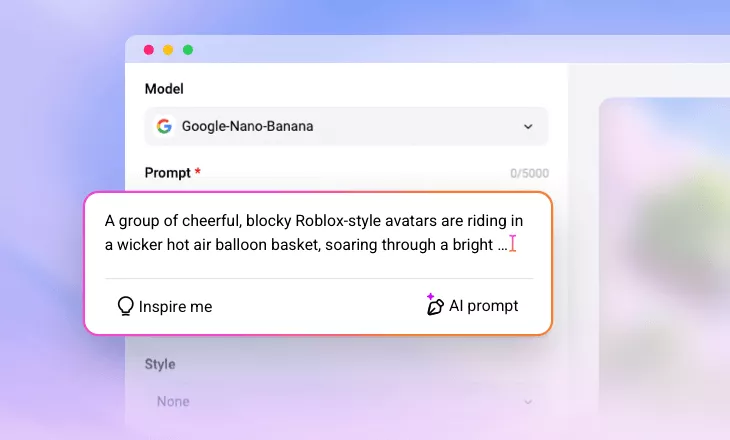
Beginners and professional creators alike can bring their Roblox ideas to life with ease. Thanks to tons of advanced image generation models like Google Nano Banana, OpenAI, Seedance, FlexClip interprets your text prompts and produces accurate, stylized Roblox graphics. Generate unique, engaging Roblox content right now!
Create Roblox Image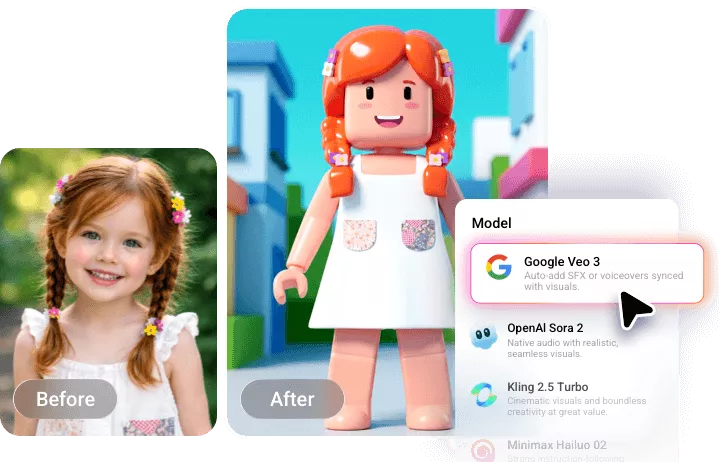
Reference Images to Roblox
Have a character, environment, or concept you love? Upload reference images and watch them transform into Roblox-style visuals. AI analyzes key elements of the reference images, recreates them on one image. This feature ensures your image remains true to your vision while saving hours of manual design work.
Reference Image to Roblox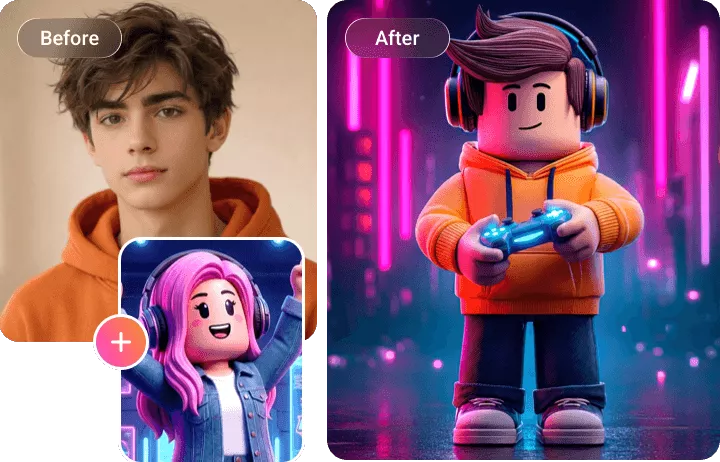
Roblox Image Customization
Fine-tune every element to match your personal style and brand identity. You can edit text, adjust color schemes, accessories, backgrounds, and character poses with a simple prompt. Tailor each generated Roblox image output to match your creative vision with ease.
Edit Roblox Image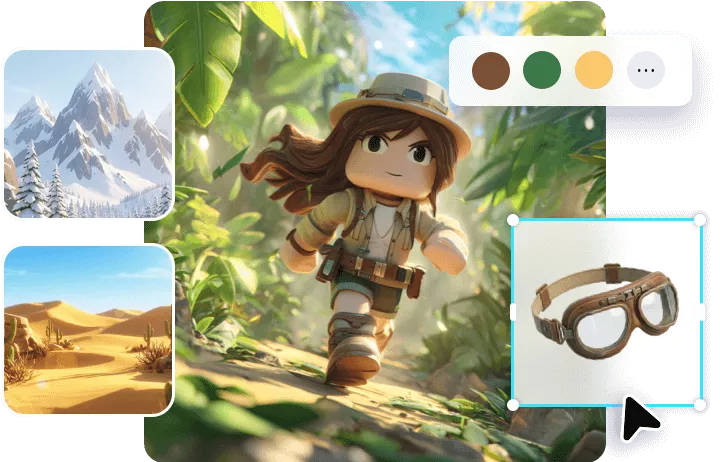
Roblox Images to Videos
Easily animate avatars, showcase multiple scenes, or create a slideshow-style Roblox video for YouTube and social media. Describe the transitions, effects, music, and voiceover you like, and let the most advanced AI models like Veo 3, Sora 2 do the editing for you. Make the content more engaging and shareable now!
Animate Roblox Images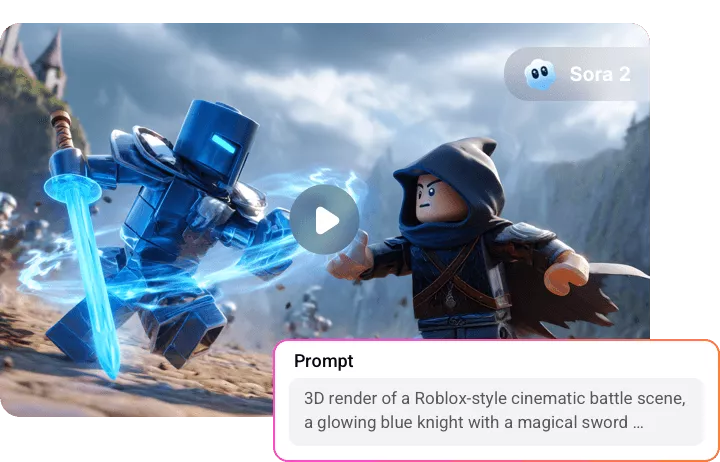
How to Use FlexClip’s AI Roblox Generator
- 1
Enter a Prompt
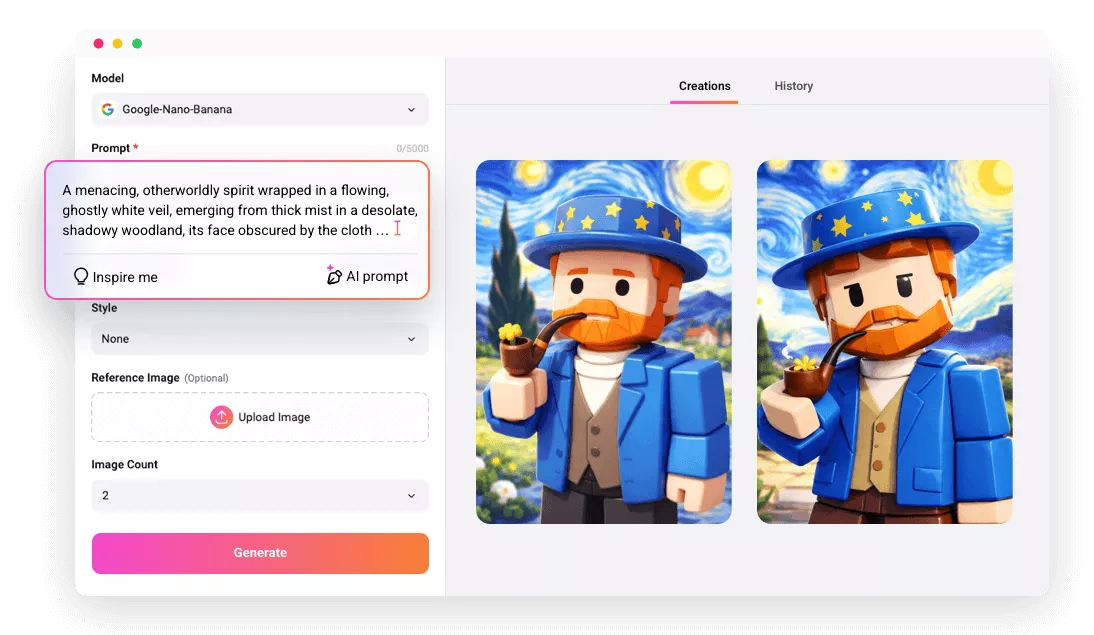
Access FlexClip’s AI Text to Image tool, select an image generation model to start, then enter a detailed prompt to describe the Roblox image you want.
- 2
Make Basic Setups
Make some basic setups like image generation count, image style, resolution, then hit Generate. The Roblox images should be generated within several seconds.
- 3
Preview & Export
Preview the output. If you are happy with it, save it to a local folder, post to social media, or share via a link.