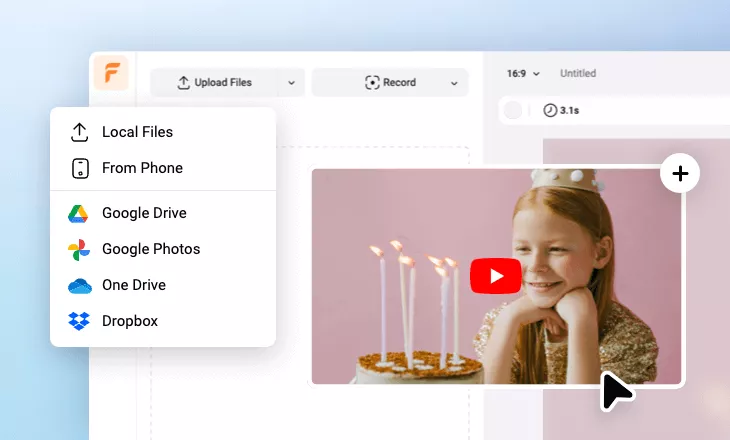
Add Text to YouTube Video
Enhance your YouTube videos with engaging text, captions, call-to-actions, lower-thirds, and more using FlexClip’s powerful video text editor.
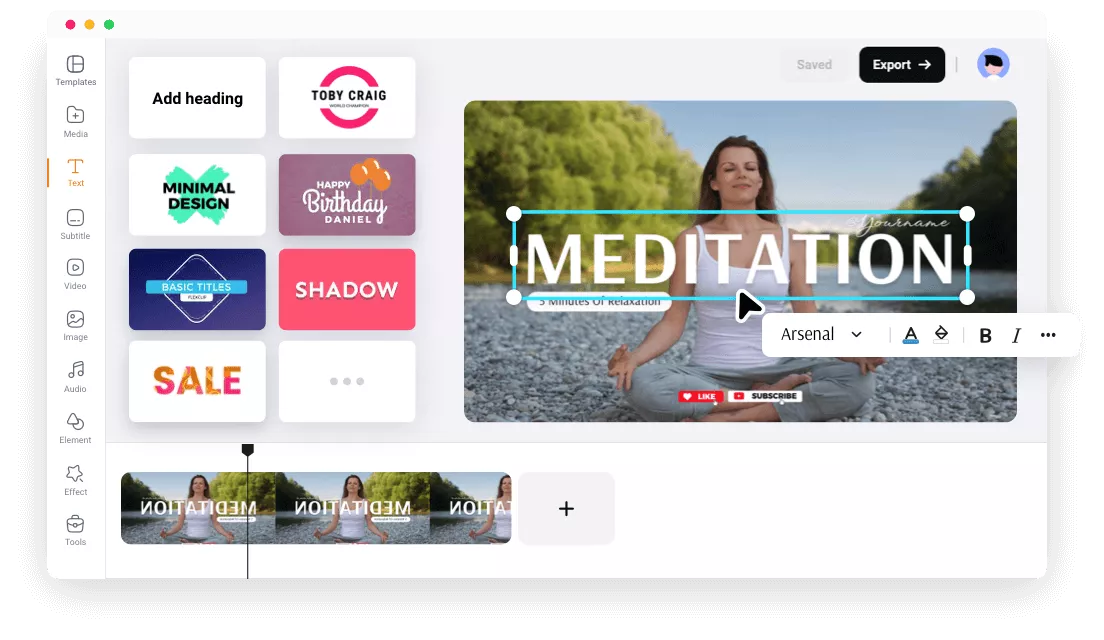
Why Use FlexClip to Add Text to YouTube Videos?

Edit YouTube Videos Online
Simply open your browser and add text to your YouTube videos online from any device—no downloads or installations required.

Various Text Style
Unleash your creativity with a wide range of text styles, including lower thirds, logo overlays, brush text, titles, captions, and auto-generated subtitles. Pick the perfect style to match your video's look and message.

Edit & Publish in One Place
Easily add text to your YouTube video and directly publish your work without any additional downloads or uploads.
please input title
Easily Add Text to YouTube Videos for Different Purposes
Whether you're adding titles, annotations, or call-to-action text to your YouTube videos, our YouTube video editor allows you to add text in just seconds. Choose from over 300 text presets covering themes like weddings, lower thirds, birthdays, promos, and more, and easily customize them with your own message.
Add Text to YT Video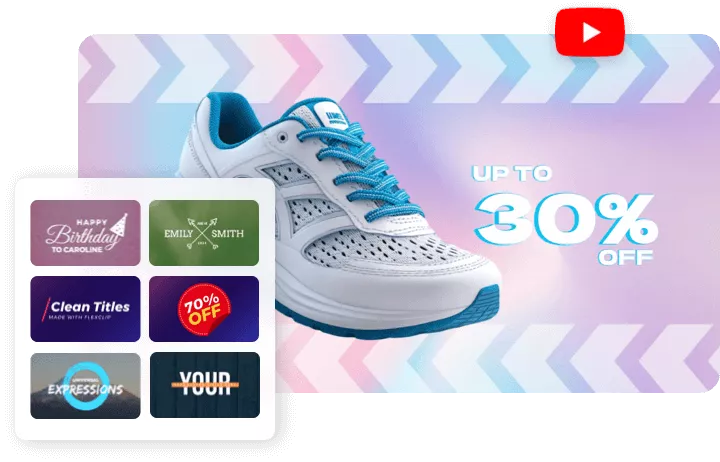
Fully Customize Your Text Styles
Design your text exactly as you envision. Customize the style, size, and color to match your video’s theme, add text animations for extra flair, or upload your own font to make it unique. With just a few clicks, FlexClip can turn your ideas into reality.
Customize Text in YouTube Video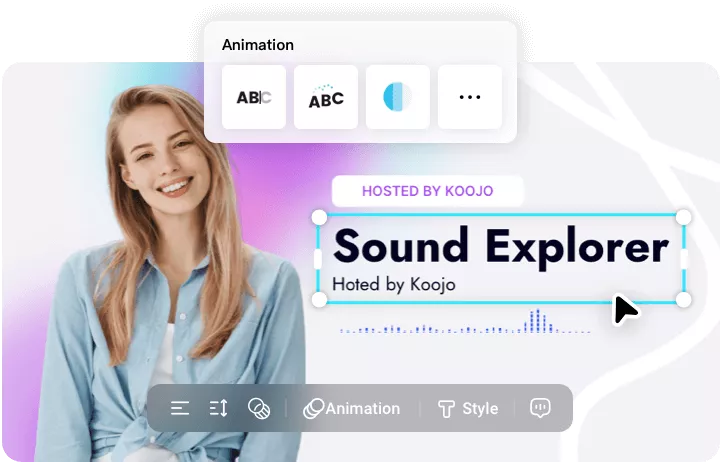
Creative Ways to Use Text for Stunning YouTube Videos
Text in videos goes beyond traditional uses. With FlexClip, you can automatically generate highlighted subtitles from your video, convert onscreen text into realistic AI voices, create text masks for dynamic visuals, or use text to trigger motion tracking. FlexClip offers countless creative text applications to elevate your YouTube videos.
Add Text to YouTube Video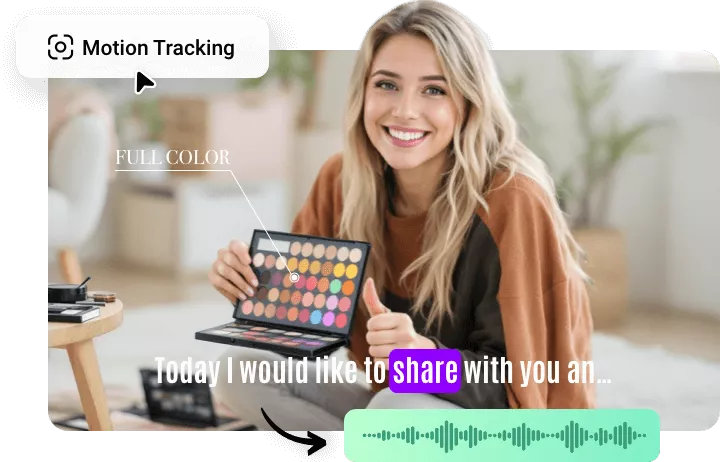
Seamless Sharing and Downloading
Once you’ve added text to your YouTube video, you can directly upload it to your YouTube channel to showcase your work. Alternatively, download the edited video in high-quality resolution, up to 4K, for local use.
Add Text to YT Video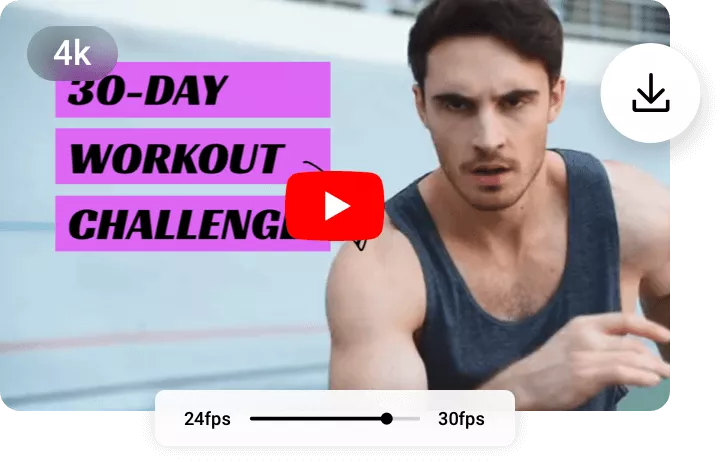
How to Add Text to YouTube Videos with FlexClip?
- 1
Upload Your Video
Import video from computer, Google Drive, Dropbox and more into FlexClip. Once it's loaded, add it to the timeline.
- 2
Add Text to Your Video
Click on the "Text" option in the left sidebar and choose a preset to add text to your video. Customize the text by adjusting the font, applying animation effects, changing the layout, and more to suit your style.
- 3
Export and Share
Once you're done, click the "Export" button to download your text-enhanced YouTube video or directly publish it to your YouTube channel.