


AI PPT to Video Converter
Upload a PowerPoint, turn it into an engaging video with customizable scripts and accurate voiceover.
Click to upload or drag and drop
Please upload files in PPT, PPTX, or PDF formats (≤ 80 Pages)
TRUSTED BY
Best Use Cases of FlexClip's PPT to Video Converter
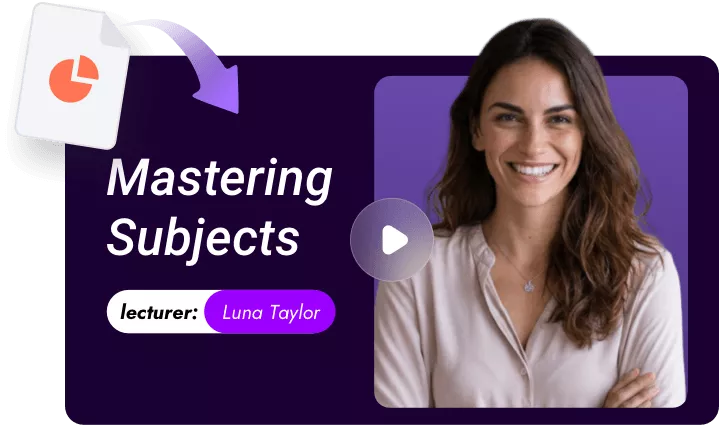
Turn static educational slides into engaging videos that are perfect for pre-learning, online courses, workshop recaps, or student revision materials. Save educators the trouble of recording while helping students retain more.
Got a product deck but have no time to edit videos? Deliver the most friendly, eye-catching sales videos for client follow-ups, LinkedIn posts, webinars, demo previews, or social snippets. Stand out in the most effective way.
From onboarding day, policy updates, to team building notices, transforming internal Powerpoints to videos boosts internal communications like new hire training, remote team updates, leadership messages, or compliance reminders.
Your ideas should never be trapped in slides. Convert them into scroll-stopping videos for YouTube, TikTok, or your own websites. Publish faster, stay consistent, and grow your audience without making heavy edits.
Convert PowerPoint to Video in Seconds
Say goodbye to the arduous video editing process. FlexClip's AI PowerPoint to Video Converter turns each slide into a high-definition image and adds stunning transitions between them. Grab a cup of coffee and let AI handle the troublesome and repetitive tasks! You will get the PowerPoint video in just few seconds.
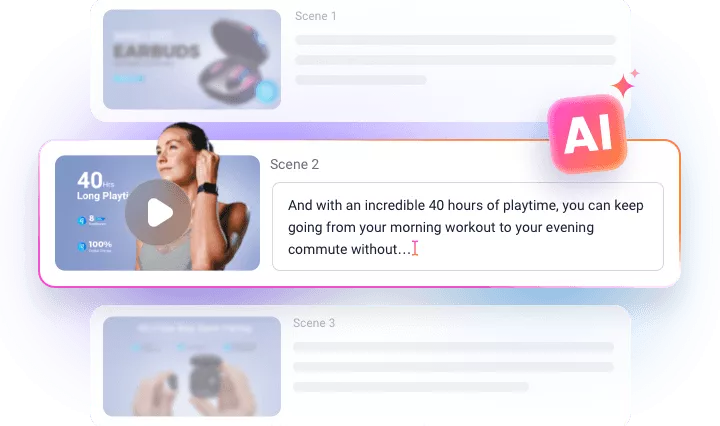
Auto Presentation Script
Struggling with writing PowerPoint script from scratch? FlexClip helps you instantly generate professional narration. It analyzes all slide text, identifies core messages, and expands them into clear, engaging explanations suitable for video delivery. You can render among different script lengths, or make changes as you like.
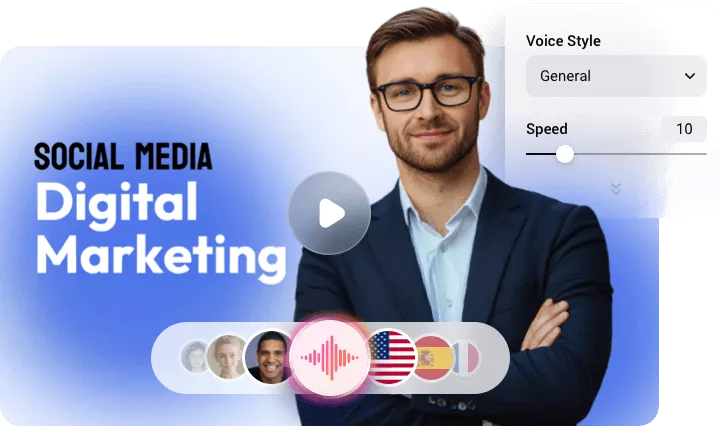
Ear-Pleasing Voiceover
A great script doesn't speak for itself. Powered by advanced text-to-speech technology, FlexClip offers a variety of realistic voices, languages, and tones to match different presentation styles. You can also adjust speed, pitch to create the perfect delivery. No need for recording equipment or voice talent.
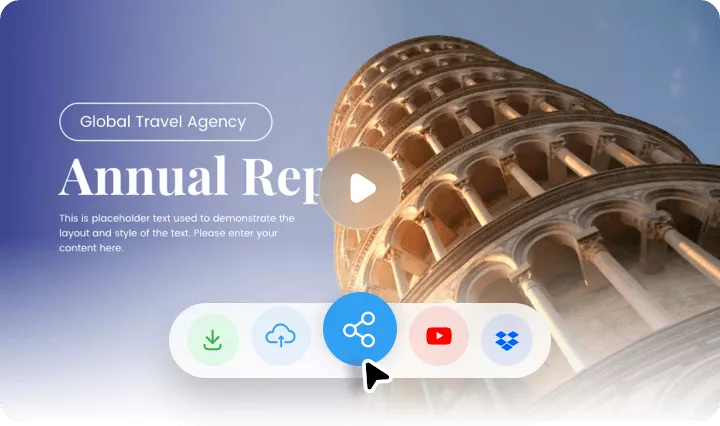
Share PowerPoint Videos in Many Ways
Now you have a PowerPoint video ready to help your idea get across. You can either download the PowerPoint video to a local folder, save to cloud services, post to social media, or share via a short link. This is extremely useful when you want to share your PowerPoint with as many people as possible.
PowerPoint Video Maker's Features at a Glance

Automatic PPT Video Generation
FlexClip's PPT to Video generation tool gets tasks done with AI, saves you from the trouble of manually entering scripts and making necessary edits.

High Efficiency
We value efficiency, so as long as you have a great internet connection, you can get a PowerPoint video less than 20 seconds. No more endless waiting!

Top Security
Our cloud-powered servers maintain the highest standards of security. You can safely use and store your PPT files and MP4 video projects.
How to Create Videos from Text with AI?
Upload Your PowerPoint
Access FlexClip's PowerPoint to Video converter and then upload your PowerPoint.
Create Script & Voiceover
Setup the language, video length, tone, FlexClip will soon start generating a script. Modify the script, pick up a voice you love, then hit Generate.
Export & Save
Preview the PowerPoint video. If you are happy with the output, download it to a local folder, post to social media, or save to cloud service.
Frequently Asked Questions
Which formats can I export my PowerPoint as a video?
Common PowerPoint video formats include MP4, AVI, WMV, and MOV. However, FlexClip only supports exporting PowerPoint videos in MP4.
Can I add narration or background music to my PowerPoint video?
Certainly. FlexClip automatically adds narration to the PowerPoint video after conversion. Additionally, you may add background music in the editing panel after conversion.
Can I convert PPT to video without losing quality?
AI PowerPoint to Video converter doesn't reduce PowerPoint quality. Take FlexClip as an example, it asks you to download the PowerPoint video in 480P, 720P, 1080P, 4K after the conversion. You can choose high-resolution settings to ensure better video quality.